Your own guide events
Some channels are in no guide at all: a local station, a church stream, a channel you made yourself. When you know their schedule, you write the guide yourself. An event can air once, every day, or on the weekdays you choose, and M3UTool keeps the coming days filled in. Follow these steps to add your own guide events to a channel.
Steps
- Open the TV guide tab: Open Live TV and click the TV guide tab.
- Open the channel: Click the channel in the list. Its panel opens on the right.
- Start a new event: Under Your own events, click Add event.

- Describe the event: Type a title, for example "Sunday Mass", and a description if you like.
- Set the time: Pick the date and the start time, and type the length in minutes.
- Choose how often: Click Once, Every day or Weekly. For Weekly, click the days it airs.
- Set an end (optional): For a repeating event, pick a date in Until. Leave it empty to repeat without end.
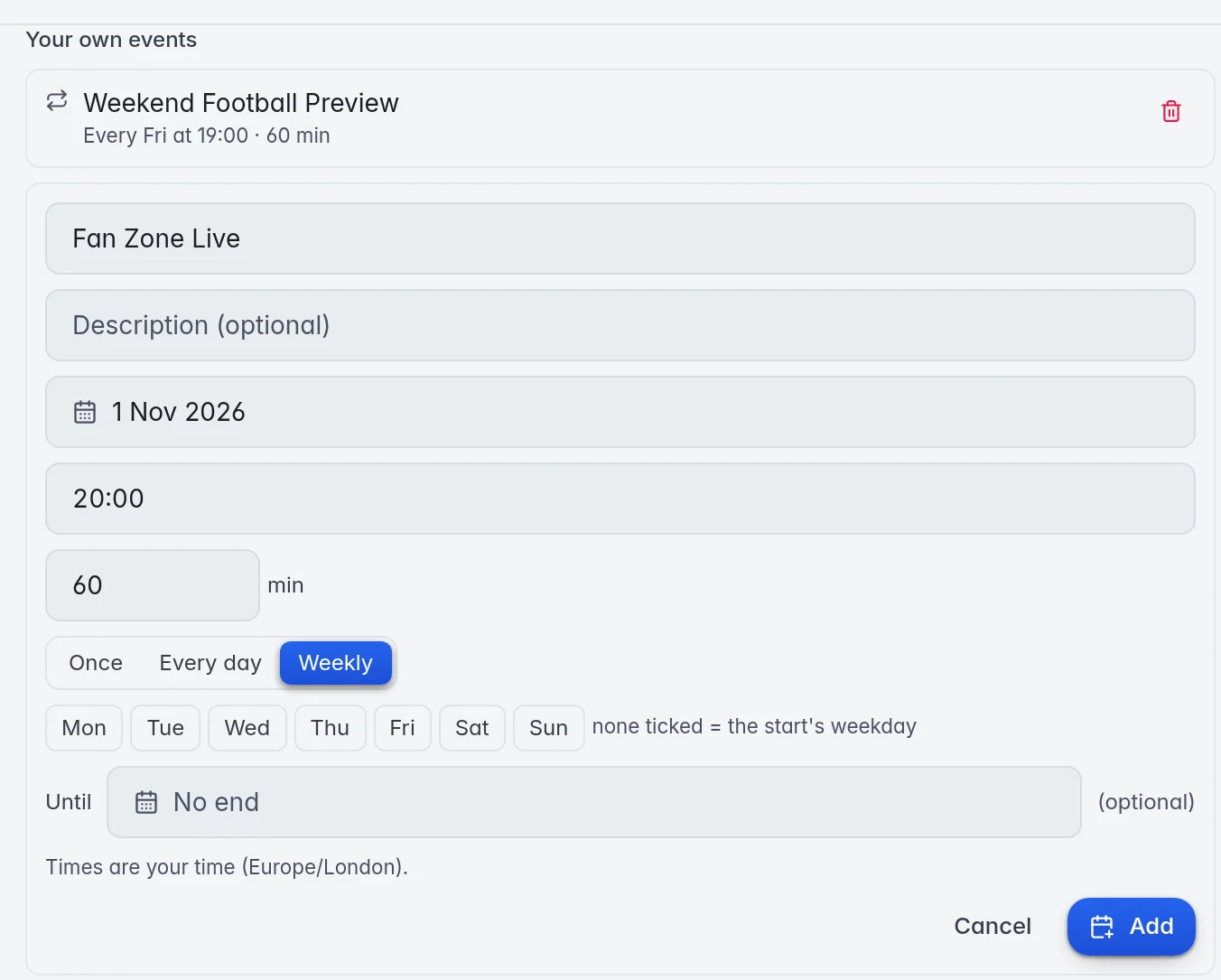
- Add: Click Add.
If the channel already shows a guide from somewhere else, you are asked first. Click Use my events to go on.
The options
- Once: The event is in the guide one time, on the date and time you picked.
- Every day: The event repeats every day at the same time. Example: a news show every day at 18:00.
- Weekly: The event repeats on the days you click. With no day clicked, it repeats on the weekday of the start date. Example: Sat and Sun for a weekend show.
- Until: The last day of a repeating event. Example: a summer series until 31 Aug 2026. The date box shows dates that way, with the month as a word.
The list shows each event with its rhythm, for example "Every Fri at 19:00 · 60 min".
Delete an event
Click the bin at the right of the event, then Delete. The event leaves the guide, including its coming repeats.
Good to know
- Important: A channel with your own events shows only your events. This is so that your schedule and another guide never overlap. Delete its last event and the channel gets its old guide back.
- Times are your own time, as the form says, for example "Times are your time (Europe/London)." They stay put when the clocks change: "Sunday 10:00" airs at 10:00 in winter and in summer.
- M3UTool always writes the next eight days ahead, so your customers see the coming programmes.
- Your events go into the same guide as every other programme: the M3UTool apps, the Xtream login and the TV guide link all show them.
- For a channel with no schedule at all, a placeholder is quicker. More in Channels without guide data.