Branding and custom domain
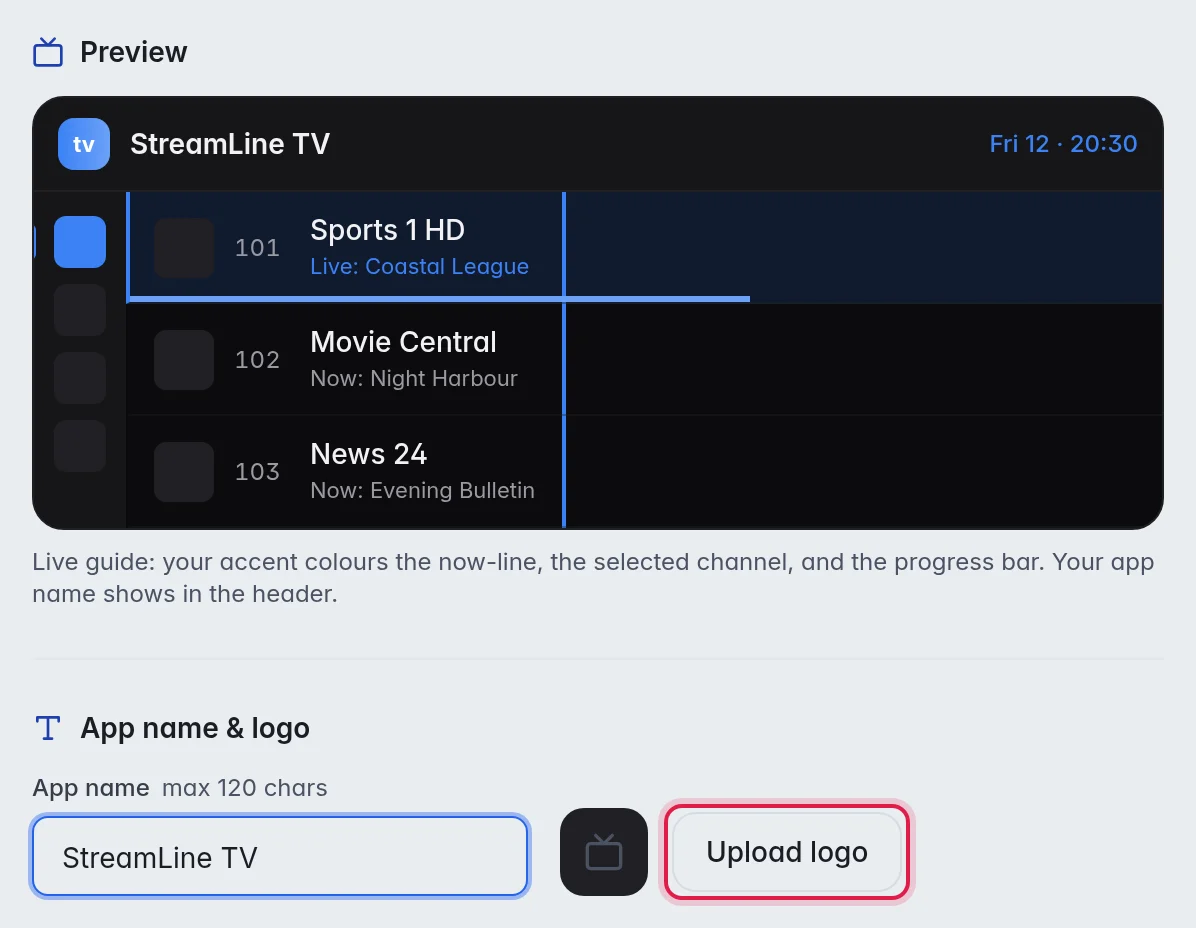
Branding puts your name, logo and colour on everything your customers see in the M3UTool apps, so they meet your brand and not M3UTool. You can go further with a branded app of your own and with your own domain in every customer link. This page shows all three.
Your name, logo and colour
- Open Branding: Click Branding in the bar on the left of the editor.
- Choose where it applies: With several playlists, leave All playlists on for every playlist without its own branding. Or switch it off and pick one playlist to give it its own look.
- Type your name: Enter your App name, for example "StreamLine TV". The Preview at the top shows it at once.
- Add your logo: Click Upload logo and pick a PNG, JPG or WebP file of up to 512 KB. The logo is saved at once.
- Pick a colour (optional): Under Accent colour, tick Use a custom accent colour, then pick a colour or type its Hex value, for example #0EA5E9. The round arrow sets it back to the default.
Your name and colour save by themselves. The note at the bottom says saved.
The apps show the new look on their next start, and at once when a customer uses an activation code.
One look for every playlist
All playlists is the look for every playlist without its own branding. A playlist with its own name, colour or logo keeps it.
- Turn on All playlists: The button Use for every playlist shows at the bottom. You need two or more playlists for it.
- Use it everywhere: Click Use for every playlist. A window asks first, because playlists with their own name, colour or logo lose it and show this branding instead. Click Use for every playlist again to go ahead.
Your own app
A branded app carries your name and your logo as the app's icon on the TV's home screen, and it only ever updates to your own build.
- Upload a logo first: The app needs it for its icon. A clean, square logo works best.
- Pick the playlist: Switch All playlists off and pick the playlist. Each playlist gets its own app.
- Build it: Under Branded app, click Build branded app. After a few minutes, the card says Your app is live.
- Share the number: Your app gets a short number, for example
dontv.shop/48213. Send it to your customers. On the TV they type it into an app such as Downloader. If the card shows a Downloader code, they can also type that code and then your number. Your phone app has its own number and a QR code to scan. More in Set up the app for a customer.
The numbers stay the same when you rebuild. The long Install link under them still works too.
The build makes your TV app and your phone app. After you change the name, logo or colour, click Rebuild app so new installs get the new look.
- New app versions come by themselves: When we release a new version of the app, your branded app is rebuilt with it automatically. You see the build in your console. Your customers' apps offer the update the next time they open, or when they come back to the app a few hours later.
Your own domain
With your own domain, your customers' M3U link, Xtream login and TV guide link use your address, for example tv.yoursite.com, instead of the shared one.
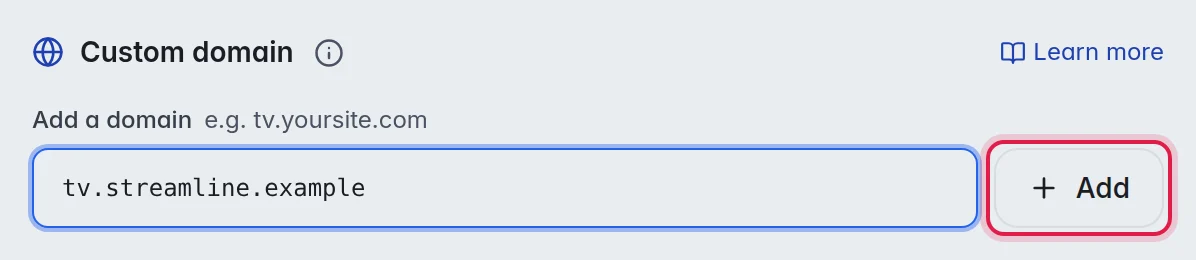
- Add the domain: Under Custom domain, type it in Add a domain and click Add. The domain shows as Pending, with 3 steps under it.
- Open your DNS settings: Go to the DNS settings where you bought the domain, for example Cloudflare, Namecheap or GoDaddy.
- Add a record: Type CNAME. Name: the part before your main domain, for example
tvfortv.yoursite.com, or@for the main domain itself. Target: the host the page shows, for exampleeditor.dontv.shop. - Verify it: Wait a few minutes, at most an hour. Then, back in Branding, click Verify next to the domain. It changes from Pending to Verified once the record works.
- Make it your feed domain: Click Make primary. The domain is now marked Feed domain, and every customer link uses it.
With several playlists, a verified domain can serve all of them or one. Pick it in the menu next to the domain.
Good to know
- Tip: With Cloudflare, turn the proxy on and set SSL/TLS to Full. That gives you HTTPS with no certificate work, and your customers' links stay encrypted all the way to M3UTool. Avoid Flexible: it sends the last part of the trip unencrypted, and your customers' links carry their username and password.
- Note: Once you have more than a set number of customers, a verified custom domain is required to keep serving your customers' feeds. The Custom domain section warns you well before you reach the number. This is so that one shared domain is never a single point of failure.
- With your domain in place, the download links work on it too:
tv.yoursite.com/apkfor TVs,/phonefor phones and/windowsfor Windows. - Changing a domain does not change how the video plays. Video always goes straight from your provider to the customer's device.