Remove duplicates
Some providers list the same channel twice, often with the very same stream address. Remove duplicates keeps the first copy of each channel and moves the others to the Bin. It works on live channels only. Follow these steps to remove duplicate channels.
Steps
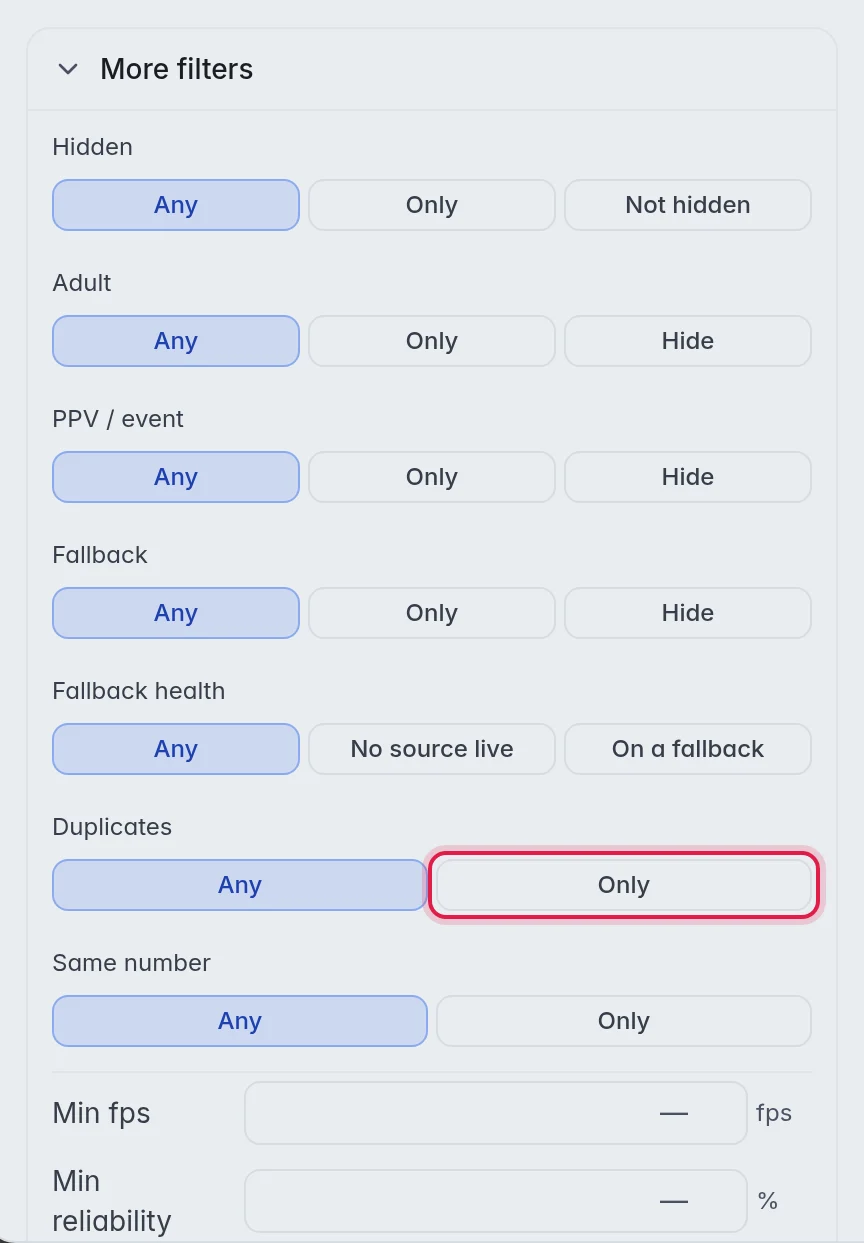
- Look at the duplicates first (optional): Click Filters in the top bar, open More filters and click Only next to Duplicates. The grid now shows only channels whose name appears more than once.
- Open the tool: Click Tools in the top bar, then click Remove duplicates under Rename & provider. The window Remove duplicates opens.
- Choose the channels: Under 1 On what?, pick Ticked (N), Ticked groups (N), This group, Pick groups… or All Live TV. The window has already picked what you ticked, or the group you have open.
- Choose how to compare: Under 2 Options, "Two channels are the same when they have" The same address or The same name.
- Check the preview: 3 Preview says how many copies were found, for example "12 copies found".
- Move them to the bin: Click the red button Move 12 to bin, with your number. A window asks first; click Move to bin.
The options:
- The same address: Two channels are duplicates when their stream address is exactly the same. This is the safe choice: they really play the same stream.
- The same name: Two channels are duplicates when their name is the same. Use it only when you know the names are unique per channel. Example: "Matchday News" from two different providers counts as one channel, even though the streams differ.
Good to know
- The copy that stays is the one that came into the playlist first. The others go to the Bin, where you can bring them back.
- Important: When the copies come from different sources, think about Fallbacks instead. Fold copies into one channel under Tools keeps the copies as fallbacks, so a dead stream is replaced by a working one. This is so that you do not throw away the fallback you may need tonight.
- Fallbacks count as channels here. With The same name, a fallback with the same name as its main channel is removed too.
- Movies and series are not deduplicated. Two series with the same name are kept apart by the editor itself: the second gets " #2" after its name, with a small label "same name · 2". Player apps mix up two shows with one name, so the number stays.
- Undo in the top bar brings the removed channels back. More in Undo.