Your account
The Account page holds your own details: your plan and how much of it you use, your email and password, your API keys and your Discord alerts. Your customers never see this page and never sign in here. This page shows how to check your usage and change your sign-in details.
See your plan and usage
- Open Account: Click Account at the bottom of the bar on the left of the editor.
- Look at Plan & usage: The name of your plan is at the top. During the free trial, the line beside it says when the trial ends. Under it, a bar for each limit shows how much you use, for example Customers 12 / 250.
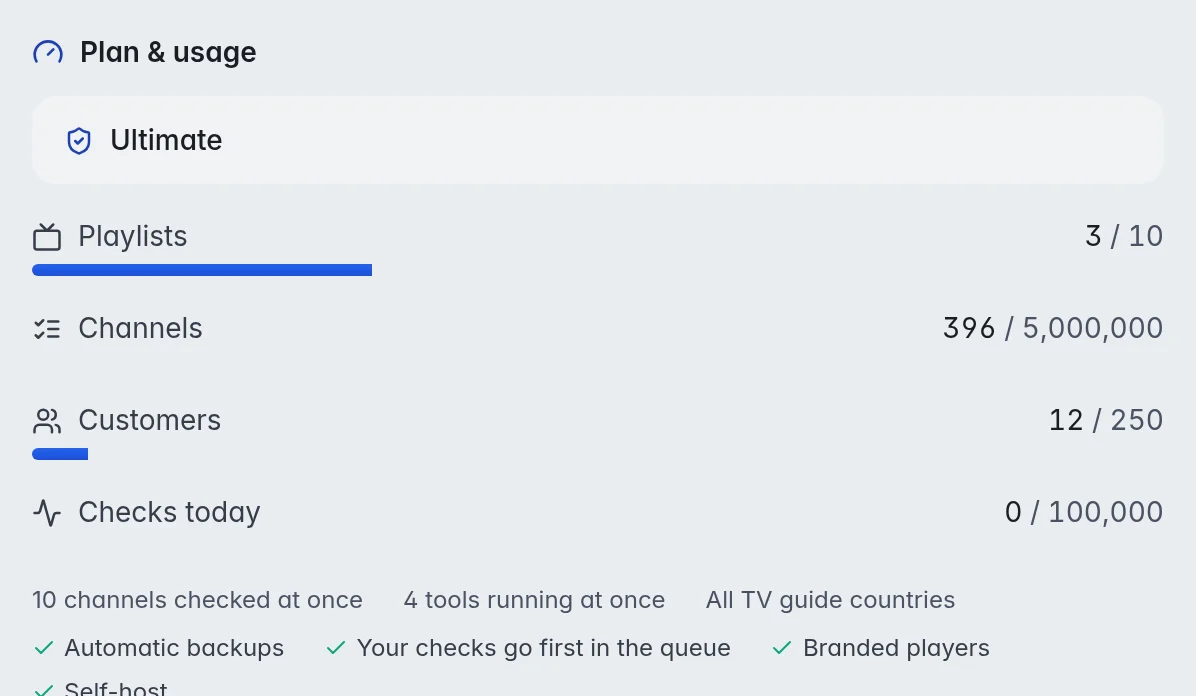
What the meters mean:
- Playlists: How many playlists you have, of how many your plan allows.
- Channels: All channels, movies and series in all your playlists together.
- Customers: All your customers, on every playlist.
- Checks today: How many channel checks ran today. The count starts again every day.
Under the meters you see how many channels are checked at once and how many tools run at once, for example "5 channels checked at once", how many TV guide countries you can use ("All TV guide countries" when there is no limit), and which extras your plan has: Automatic backups, Your checks go first in the queue, Branded players and Self-host. On the special custom plan, a line beside the plan name says "limits set by M3UTool for you". More in Plan and billing.
Change your email
- Open Account: Click Account at the bottom of the bar on the left.
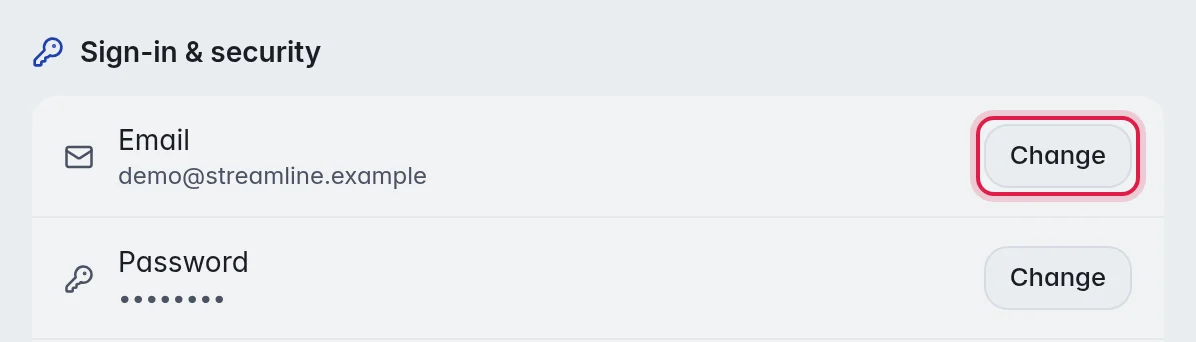
- Open the form: Under Sign-in & security, click Change next to Email.
- Type the new address: Enter it in New email.
- Confirm it is you: Type your Current password.
- Save: Click Update email.
Important: Password resets and messages about your plan go to this address. Use an address you read. This is so that you can always get back into your account.
Change your password
- Open the form: Under Sign-in & security, click Change next to Password.
- Type your current password: Enter it in Current password.
- Type the new one twice: Enter it in New password and again in Confirm new. It needs at least 8 characters.
- Save: Click Change password.
You stay signed in on this device.
2-step sign-in
With 2-step sign-in on, signing in also asks for a second step. You can use the code from an authenticator app on your phone, or the PIN or fingerprint of your computer (Windows Hello, Touch ID). One of them is enough; you can have both.
- Open it: Under Sign-in & security, click Turn on next to 2-step sign-in.
- Pick how: Click App code or Windows Hello / this device (PIN or fingerprint).
- App code: Type your password, scan the QR code with your authenticator app and type the 6-digit code it shows.
- This device: Type your password and a name for this computer, click Add this device and enter your PIN, or use your fingerprint, when Windows asks.
- Save your recovery codes: M3UTool shows ten recovery codes once. Copy or download them and keep them somewhere safe. Each one signs you in once if you lose your phone or computer.
When you sign in next time, click Use Windows Hello / this device, or type the code from your app.
- Note: A device works on the address where you added it, for example editor.dontv.shop, in that browser. Add each computer you use, or keep the app code as well.
- Methods lists what you use. Add the other one there, or remove one. Removing the last one turns 2-step sign-in off.
- Not offered on this computer? It needs a PIN or fingerprint set up in Windows (or Touch ID on a Mac), and a secure (https) address.
Connect Discord
Connect your Discord account and M3UTool sends you a direct message on Discord: when support answers your ticket, when a customer sends you a request, and when channels stop working if you switch on Tell me when channels die under Auto refresh.
- Open Account: Click Account at the bottom of the bar on the left.
- Connect: Under Notifications, click Connect next to Discord.
- Approve: Allow the link in the Discord window that opens.
The line then says connected. Click Disconnect to stop the messages. Connecting Discord does not change how you sign in.
Pick where messages go
Under Notifications, the table Where each message goes has a tick for Discord and one for Email for each message: tick one, both or none. It saves by itself.
- Check finished: Channels stopped working or work again. Only for playlists with Tell me when channels die on. On at first: Discord.
- Line or plan ending: A provider line or your M3UTool plan ends soon, or has ended. On at first: Discord and email.
Click Send a test to check that both arrive. Sign-in, password and payment emails always come.
Good to know
- The sun and moon buttons at the top right of Account switch the editor between a light and a dark look.
- API keys on the same page are for scripts and AI assistants. More in The API.