Backups and restore
A backup is a snapshot of a whole playlist: its channels, movies, series, groups and customers. M3UTool takes them by itself, and you can take one before a big clean-up. When something goes wrong, you restore the parts you need. Follow these steps to take a backup and restore one.
Where backups are
Click Backups in the icon bar on the left. The list shows the backups of the playlist you have open, grouped by day. Click a day to open it. Each backup shows its time, its kind and how many streams it holds.
- auto: Taken by M3UTool about every six hours and kept for five days.
- weekly: The first automatic backup of each week, kept for 45 days.
- manual: Taken by you with Back up now, and also kept for five days.
Take a backup
- Open Backups: Click Backups in the icon bar on the left.
- Back up: Click Back up now. A message tells you when the backup is ready.
Note: You can take one manual backup every 10 minutes. Until then the button counts down, for example Wait 9:41.
Restore a backup
- Find the backup: Open the day you want to go back to.
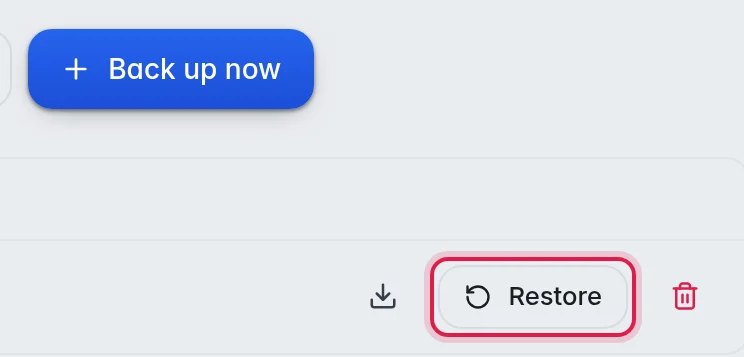
- Start the restore: Click Restore on the backup.
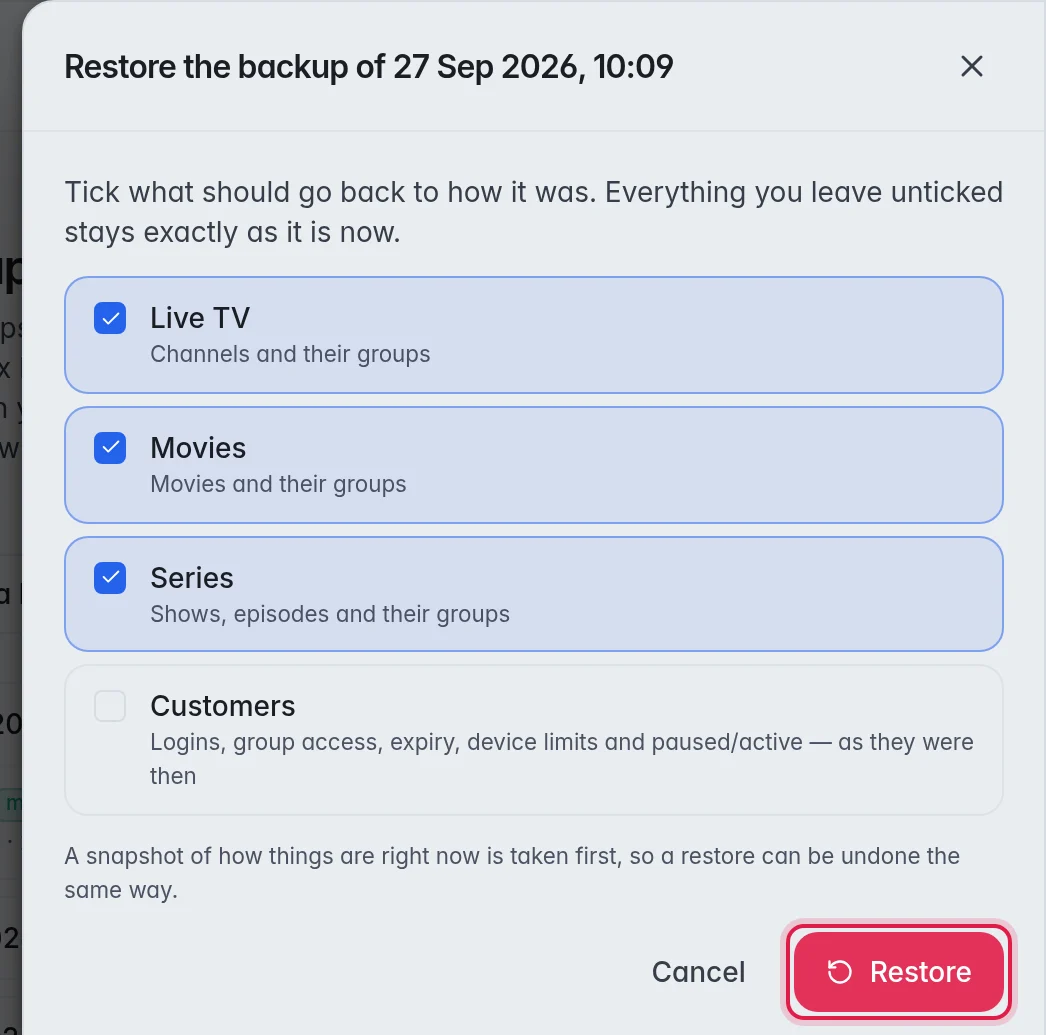
- Tick what comes back: Choose Live TV, Movies, Series and Customers. The first three are ticked to start with. Everything you leave unticked stays exactly as it is now.
- Restore: Click Restore. The playlist fills back in within a short while, and a message tells you when it is done.
The options
- Live TV: Channels and their groups.
- Movies: Films and their groups.
- Series: Shows, episodes and their groups.
- Customers: Logins, group access, expiry, device limits and whether each customer is paused. Customers you deleted since come back, customers you added since stay, and nobody loses their activation codes or devices.
Good to know
- Important: Before a restore, M3UTool takes a snapshot of how things are right now. This is so that you can undo a restore the same way: restore that snapshot.
- The download arrow next to a backup saves it to your computer as a file, so you keep your own copy.
- The red bin icon deletes a backup for good.
- Note: Backups are part of some plans only. Without them, the page shows Automatic backups are a paid feature with a See plans button. More in Plans and limits.
- Deleting a playlist deletes its backups too.
- Tip: For a small mistake, Undo in the editor is quicker than a restore. More in Undo.