Customer devices
Devices shows every M3UTool app your customers use: TVs, boxes, phones and Windows PCs, one card per device. On each card you see which of your playlists are on it, and you can add one, remove one, arrange one, or make the app load everything again. You do it from your desk, nobody has to touch the remote.
Open Devices
- Open Customers: Click Customers in the menu on the left.
- Open Devices: Click Devices at the top of the customer list, next to Add.
Each card shows the device's name, the kind of app (Android TV, phone, Windows) and the app version. A PC is shown with its computer name. Open now means the app is open at this moment. Otherwise you see when it was last open.
A dot in front of a playlist says if it is switched on in the app. first marks the playlist that leads the app's home screen.
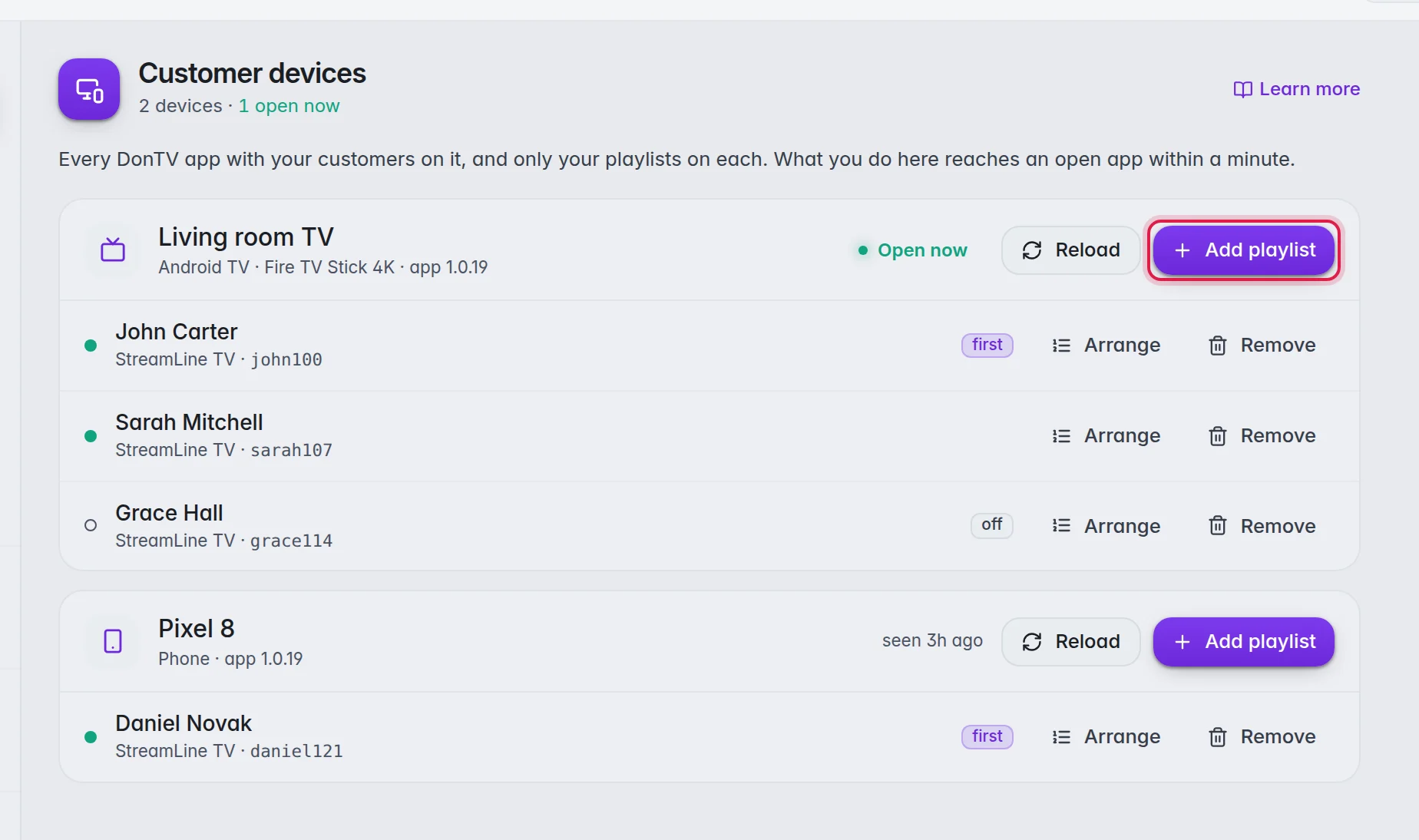
Add a playlist to a device
- Pick the device: On its card, click Add playlist.
- Pick the customer: Click one of your customers. Type in the search field to find one fast.
The app adds it next to the playlists it already has and switches it on. An open app does it within a minute. A closed app does it when it is opened next. Until then the card says "Adding … waiting for the device", and Cancel takes it back.
Remove a playlist from a device
- Click Remove: Click Remove next to the playlist.
- Confirm: Click Remove in the window.
The app takes it off within a minute. The customer's login keeps working, it is just no longer on that device. If it was the last playlist on the device, the app goes back to its sign-in screen. The device stays on your list for a week, so you can still add a playlist to it.
Arrange a playlist
Click Arrange next to the playlist. You can move and hide groups and channels for this one customer, exactly as with Arrange list on the customer's page. Your customer can do the same in their own page under My lists. The app shows the new order the next time it loads the list, or right away when you click Reload.
Reload a device
Click Reload on the card. The app loads channels, films, series and the guide again, fresh from M3UTool. Use it when a customer says something is missing.
Good to know
- Only your own playlists show on a card. If a device also has a playlist from someone else, you do not see it and cannot change it.
- A device shows up once your customer opens the M3UTool app: on Android version 1.0.19 or newer, on Windows 1.0.45 or newer. Other players, like Smarters, cannot be shown here.
- A device drops off the list after 30 days without the app being opened.
- To set up a new device that shows its TV code, use Send to TV. More in Activation codes.