Stop or message a viewer
From Who's watching you act on one viewer directly: send a message to their screen, or kick them to stop the stream. A message is the soft way, for example a friendly note that the login is used in two places. A kick stops the stream at once. Follow these steps to message or stop a viewer.
Step 1: Find the viewer
- Open Who's watching: Click Who's watching in the bar on the left.
- Find the row: Look for the customer in the list, or type their username in Search by username…. The buttons you need are in the Actions column at the right of the row.

Step 2: Send a message
- Open the message window: Click the speech bubble in the Actions column. A window opens.
- Write it: Type your text in Message, for example "This login is in use in two places. Please contact us." Up to 255 characters are sent.
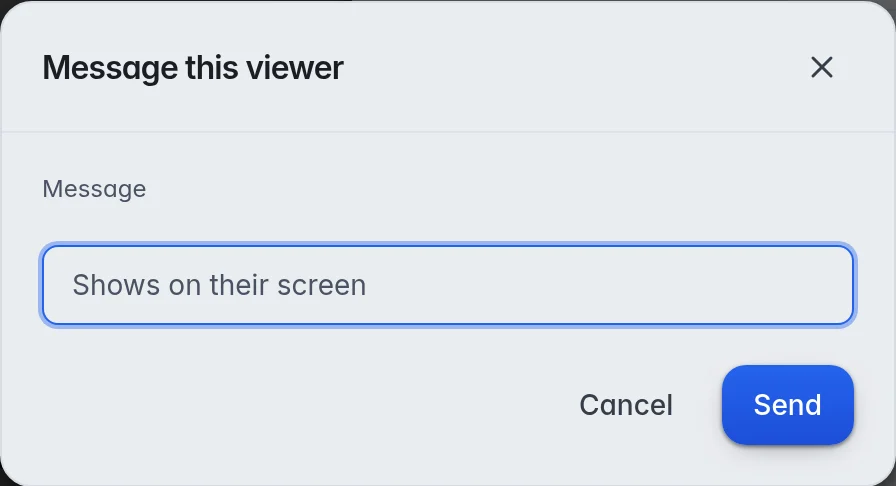
- Send it: Click Send. A line at the top of the panel says "Message sent."
The message shows on the viewer's screen in the M3UTool apps and the web player. Other players have no place for it. When the app does not pick the message up within 15 minutes, it is dropped.
Step 3: Kick a viewer
- Kick: Click the red arrow at the right of the row. There is no second question.
- Check: The row leaves the list straight away.
The M3UTool app or web player stops at once.
Important: A kick stops a stream, it does not lock anyone out. For about a minute the same internet address cannot start a channel. After that the customer can watch again. This is so that a customer you kicked by mistake is not locked out. To stop a customer for good, pause them or lower their devices. More in Edit, pause, move or delete a customer and Devices and connections.
Message all your customers
Message all at the top of the list sends one message to every customer of your account. More in Messages to customers.