Quick check
Quick check checks one channel right now and shows the answer within seconds. Use it when a customer reports a channel as down, after you changed a stream address, or for a PPV channel during its event. It is not held back by the 12 hour rule of a normal check. Follow these steps to test one channel.
Steps
- Open the Checker: Open your playlist and click Checker in the row of tabs under the top bar.
- Find the channel: Click its group on the left, or type its name in the search box in the top bar.
- Test from the row: Hold the mouse over the channel. A small play button appears at the right end of the row. Click it.

- Read the answer: The channel's details open on the right and a message shows the result, for example "UK: Northlight Two HD: online · 720p".
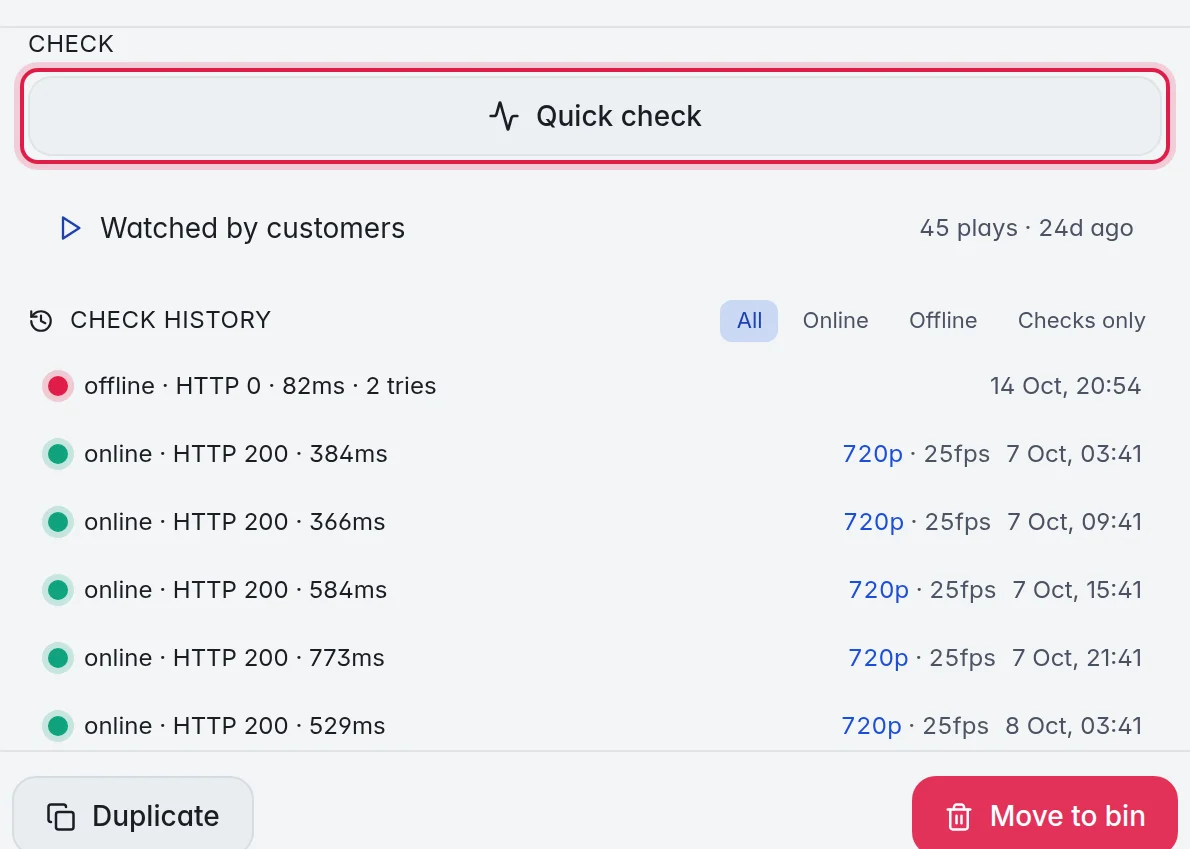
- Check again from the panel (optional): Open the channel. In the panel on the right, open Health and click Quick check. On the Checker tab that section is open already. The line under the button shows the full answer.
What the answer tells you
A full answer reads like this: ● Online · HTTP 200 · 384 ms · 1 attempt(s) · 720p · 25fps · via Account 2.
- Online or Offline: Whether the stream played.
- HTTP: The answer code of the provider. 200 means it answered normally.
- ms: How long the stream took to answer.
- attempt(s): How many tries it took. A failed stream is tried once more.
- 720p and 25fps: The quality the test saw.
- via: The provider login the test used.
When a stream fails, the answer also says why when it can, for example that the provider refused because the login is busy. When M3UTool gets no answer within 35 seconds, you see "No answer from M3UTool within 35s, try again".
The check history
Under Check history in the Health section of the panel you see every earlier test of this channel, newest first, with the result, the quality and the time. Click Online or Offline to see only those, and Checks only to hide the entries that come from your customers' players. Watched by customers above the history shows how often the channel was played and when it was last watched.
Other ways to test
- Every source of a channel with fallbacks: Open the channel, open Fallbacks in the panel and click Check all. More in Fallbacks.
- A channel in the Bin: Open it on the Bin tab and click Check. A channel on Not working that is back online goes straight back to its group. More in Not working channels.
- A fallback: Unfold its channel, click the three dots (⋯) at the right of the fallback and click Quick check.
Good to know
- Quick check uses the same logins and the same extra try as a full check, so both give the same answer.
- The result updates the channel's status, quality and reliability, like any check.
- The play button is on every tab, and so is the panel with Quick check.