Find & replace
Find & replace finds a word or phrase in your names and takes it out, replaces it with other text, or moves every channel that carries it to the bin. Use it for clutter that Clean up does not know, like a provider tag "VIP" or a word such as "Backup". It works for group names too. Follow these steps to find and replace in your names.
Steps
- Open Bulk rename: Click Tools in the top bar of the editor, then click Bulk rename… under Rename & provider. The window Bulk rename opens.
- Choose the tool: Next to How, click Find & replace. Next to Rename, leave Channel names on, or click Group names to work on the groups.
- Choose the channels: Under 1 On what?, pick Ticked (N), Ticked groups (N), This group, Pick groups… or All Live TV. The window has already picked what you ticked, or the group you have open.
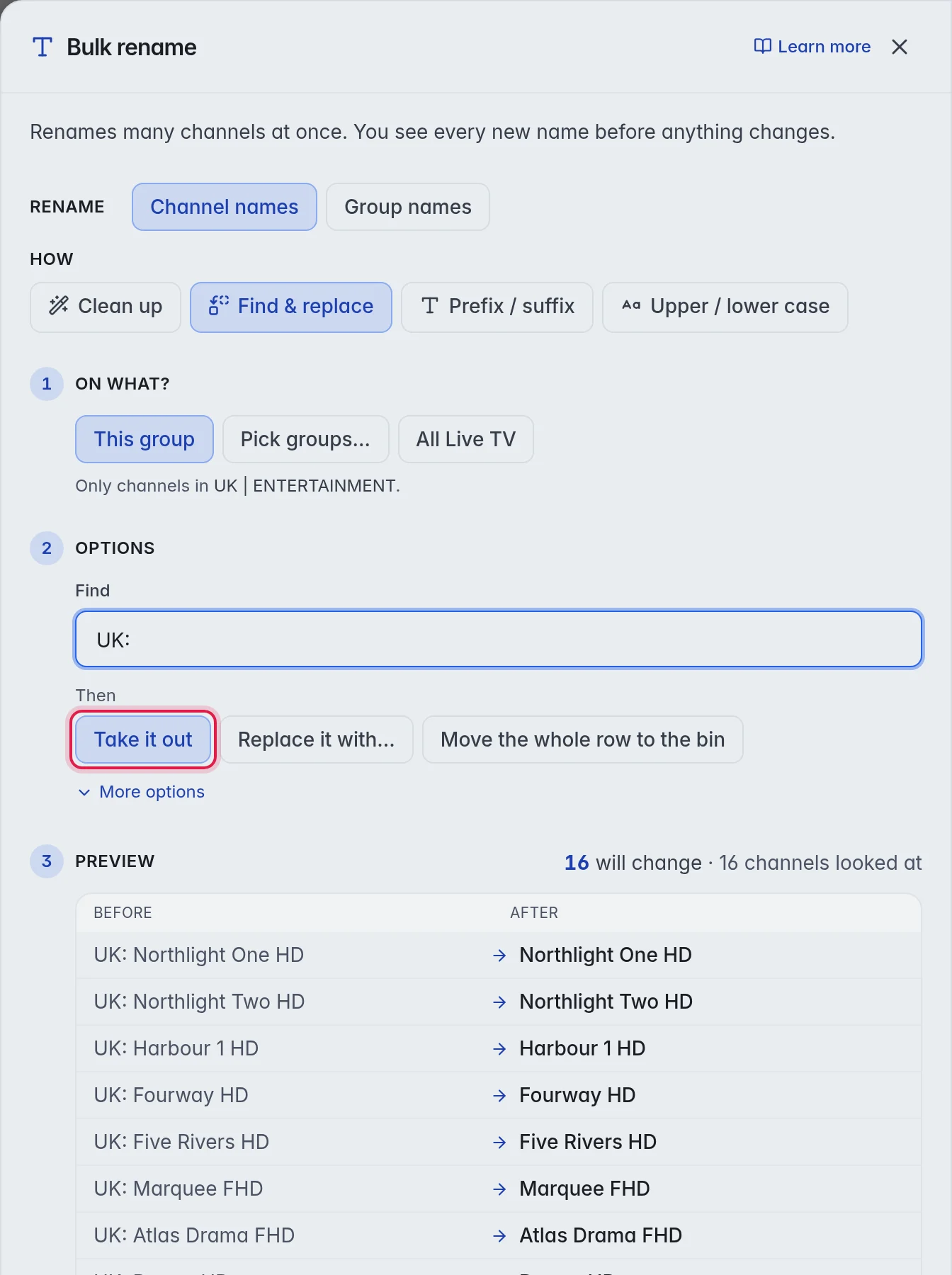
- Type the word: Under 2 Options, type the word or phrase in Find. Example: "UK: ".
- Choose what happens: Next to Then, pick Take it out, Replace it with… or Move the whole row to the bin. With Replace it with…, type the new text in Replace with.
- Narrow it down (optional): Click More options for Match, Look in and two switches. See below.
- Check the preview: 3 Preview lists the names Before → After, or says how many channels will move to the bin. It updates while you type.
- Rename: Click Rename N with your number. For the bin action the button is red and reads Move N to bin. A window asks first; click Move to bin.
The options
- Take it out: Takes the word out and closes up the space. Example: "UK: Northlight Two HD" becomes "Northlight Two HD".
- Replace it with…: Puts your text in its place. Example: find "Matchday Main Event", replace with "Matchday Main".
- Move the whole row to the bin: Moves every channel whose name contains the word to the Bin. Not offered for group names.
Under More options:
- Match: Anywhere matches the word wherever it is, also inside another word, so "HD" also matches "UHD". Whole word matches only when the word stands on its own. Next to a space or symbol matches when spaces or symbols surround it, so "HD" matches "Northlight One-HD" but not "UHD".
- Look in: The whole name searches the full name. The first letters and The last letters search only the start or the end. Set the number in How many. Example: The first letters with 4 finds "UK: " at the start and leaves "Atlas UK" alone.
- Ignore upper and lower case: When this is on, "hd" also finds "HD". It is on by default.
- Regular expression: For experts. Treats Find as a pattern. In Replace with, $1 puts back the first bracketed part. Example: find (\d{4}) and replace with ($1) to turn "Movie 2020" into "Movie (2020)".
Good to know
- Important: Read the preview before you press Move N to bin. A short word catches more names than you expect. This is so that you do not bin channels you still sell.
- On the Series tab the tool renames whole series. If two series end up with the same name, the second one gets " #2" after it. The preview shows that name before you press the button.
- With Group names, a new name that another group already has gets " #2" too, also when that group is in the bin. Linked groups are skipped. More in Groups.
- Undo in the top bar takes the run back. More in Undo.