Add a playlist
Adding a playlist is the first step in M3UTool. You point M3UTool at your provider, it reads everything the provider offers, and you choose what comes in. Follow these steps to import a playlist from an Xtream login, an M3U link or a file.
Step 1: Connect your provider
- Open the import window: On the Overview page, click Add playlist at the top right. The window Add my channels opens. On a new account it opens by itself. Its three steps are Your source, Pick groups and Adding.
- Name the playlist: Name of this list starts as "My TV". Keep it or type your own. Only you see it, and you can change it any time. Example: "StreamLine TV". Left empty, the list is called "My TV".
- Choose how you get your channels: Under How do you get your channels?, pick Xtream, M3U URL or M3U file.
- Enter the details: Fill in the fields for your choice. See the options below.
- Read the list: Click Find my channels.
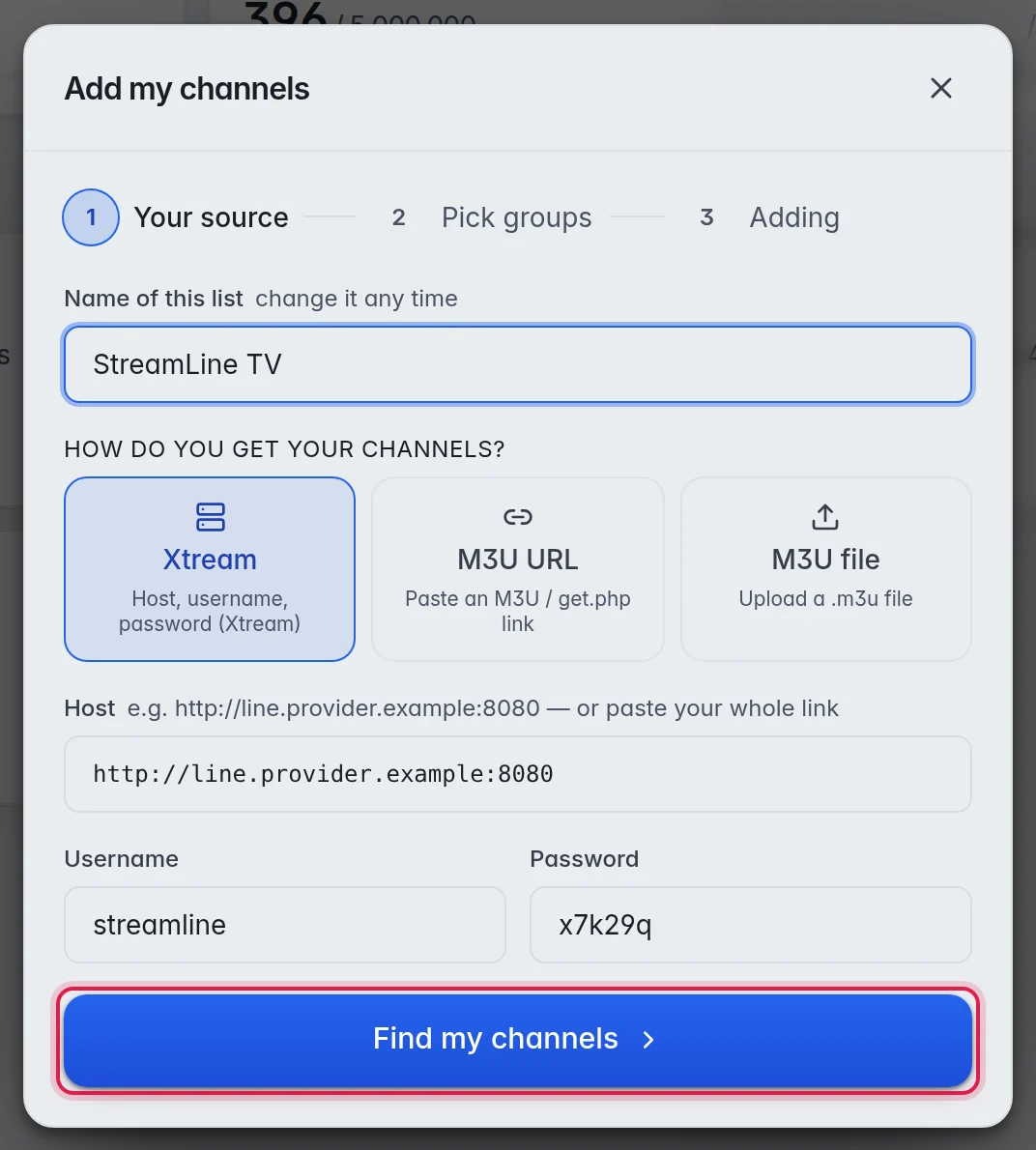
M3UTool connects to your provider and reads the list. A line shows what it is doing, for example "Downloading the list…", and how many channels it found so far. A big list can take a minute. Click Stop to cancel.
Step 2: Pick groups
- Look through the groups: The window shows three columns: Channels, Movies and Series. Every group shows how many channels it holds. Everything is ticked to start with.
- Untick what you do not want: Click a group to tick or untick it. Add all and Remove all work on a whole column. More in Choose groups.
- Check the total: The line at the top shows how many groups you picked and what you picked per type, for example "412 live channels · 9,300 films · 25,000 episodes", next to what your plan allows.
- Import: Click the button at the bottom. It shows how many groups you picked, for example Add these 12 groups.
Step 3: Let it finish
- Watch the progress: The window shows Adding them… with a counter. You can close the window: the import keeps running, and the playlist card on the Overview page shows importing… until it is done.
- Done: When you see Channels added, with the same numbers per type, for example "412 live channels, 9,300 films, 25,000 episodes are in.", click Done. The card shows ready.
The options
- Xtream: Enter the Host your provider gave you, with the port, and the Username and Password. Example host: http://line.provider.example:8080. You can also paste your whole provider link into Host, for example a get.php or player_api.php link, or a channel link like
…/live/user/pass/123.ts. It says "We split your link into host, username and password." and fills in all three. - M3U URL: Paste the whole link under Your link. It usually has get.php and your username in it.
- M3U file: Choose a .m3u, .m3u8 or .txt file from your computer. The window tells you the size limit if the file is too big.
Good to know
- Tip: Your provider sent only a link with get.php in it? Choose M3U URL and paste the whole link.
- Note: A playlist made from an uploaded file has no link to fetch changes from. To keep it up to date, click Add your provider under Auto refresh and enter your provider's login. More in Refresh a playlist.
- Note: Add playlist stops with a message when you already have as many playlists as your plan allows. More in Plans and limits.
- If Find my channels shows an error, see Import troubleshooting.
Next steps
- Check which channels work. More in Run a check.
- Set up Auto refresh, so your provider's changes come in by themselves. More in Refresh a playlist.