Select several channels
Selecting several channels lets you do one thing to all of them at once: move them, check them, flag them or delete them. You can pick single rows, a range, or everything that matches a search. Follow these steps to select several channels.
Steps
- Open the group: Click a group on the left, or search for what you need. More in Search and filter.
- Pick single rows: Hold Ctrl (on a Mac Cmd) and click each row you want. Click a picked row again to drop it.
- Pick a range: Click the first row with Ctrl, hold Shift and click the last one. Every row in between is picked too.
- Check the count: The panel on the right changes to show how many rows are selected, with every action you can use on them.
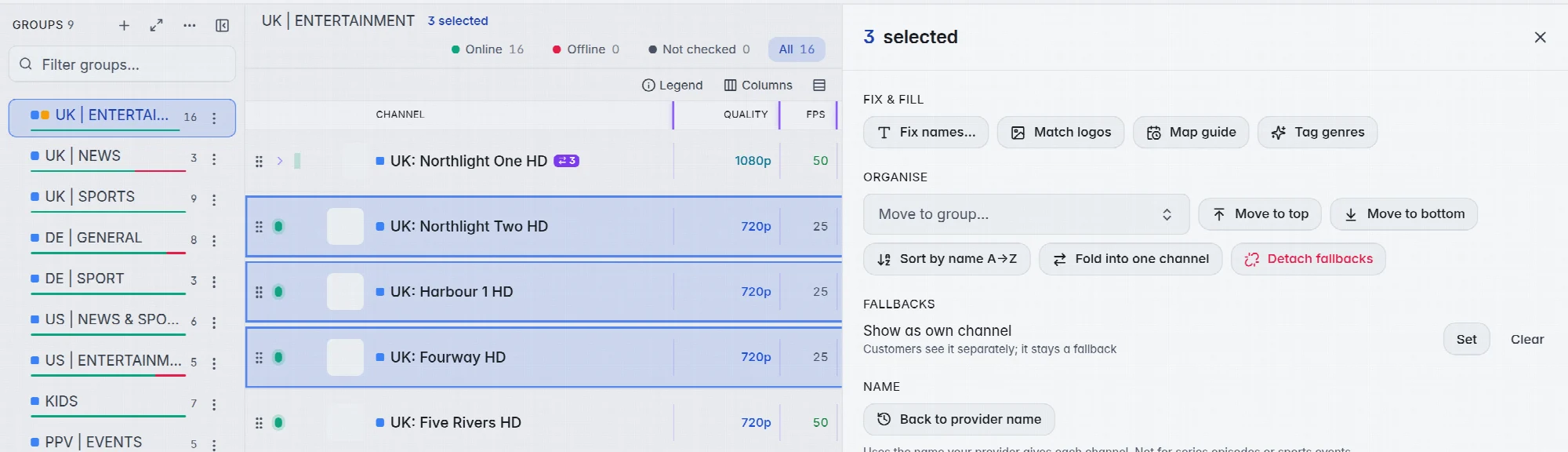
- Choose an action: Click it in the panel. It works on every selected row.
- Clear the selection: Click Clear selection at the bottom of the panel, or the cross at its top.
Select everything that matches
The grid loads rows as you scroll. When more rows match than are loaded, the panel offers Select all … in this view. Click it, and the actions work on every channel that matches the open group, search and filters, also the ones you have not scrolled to.
With the keyboard
Click into the grid first, then:
- ↑ and ↓ move between rows, and with Shift they extend the selection.
- Space picks or drops the row you are on.
- Ctrl and A picks every loaded row.
- Esc clears the selection.
What you can do with a selection
- Enrich & fix: Fix names…, Match logos, Map guide and Tag genres. More in Fix names.
- Organise: Move to group…, Move to top, Move to bottom, Sort by name and Fold into one channel. More in Move and copy channels.
- Flags: Switch Sync name, Sync logo, Adult and PPV / event on or off with Set and Clear.
- Check: Check the selected channels, or switch them in or out of testing. More in Run a check.
- Advanced logo & guide: Give all of them one logo or one TV guide id.
- Remove: Move to bin. More in Hide or delete.
Pick several groups
The groups on the left are picked the same way as channels, on every tab. A click opens a group. Ctrl and click ticks one, Shift and click ticks a range, and on a phone you hold a row. Click into the groups column first, and ↑, ↓, Space, Enter, Ctrl and A and Esc work as in the grid. Ticked groups stay ticked when you switch tabs of the same part. The panel on the right then works on all ticked groups at once. More in Groups.
Good to know
- A plain click on a row opens its details instead of selecting it. Double-click the name to rename it.
- On a touch screen, press and hold a row to select it.
- Tip: Filter first, then select. It is quicker than picking rows by hand, and you see exactly what the action will touch.
- Ticking groups clears ticked channels, and the other way round. The panel on the right shows one or the other.