Playlist automation
Playlist automation decides what a playlist does by itself: when its channels are checked, and what happens to the new channels after every refresh. The buttons you press always work, whatever is switched on here. Follow these steps to set it up.
Steps
- Open Playlist settings: Click Playlist settings in the bar on the left of the editor.
- Go to Checks & updates: It is the first part in the menu on the left. Each box on the page says what it does and whether it is on.
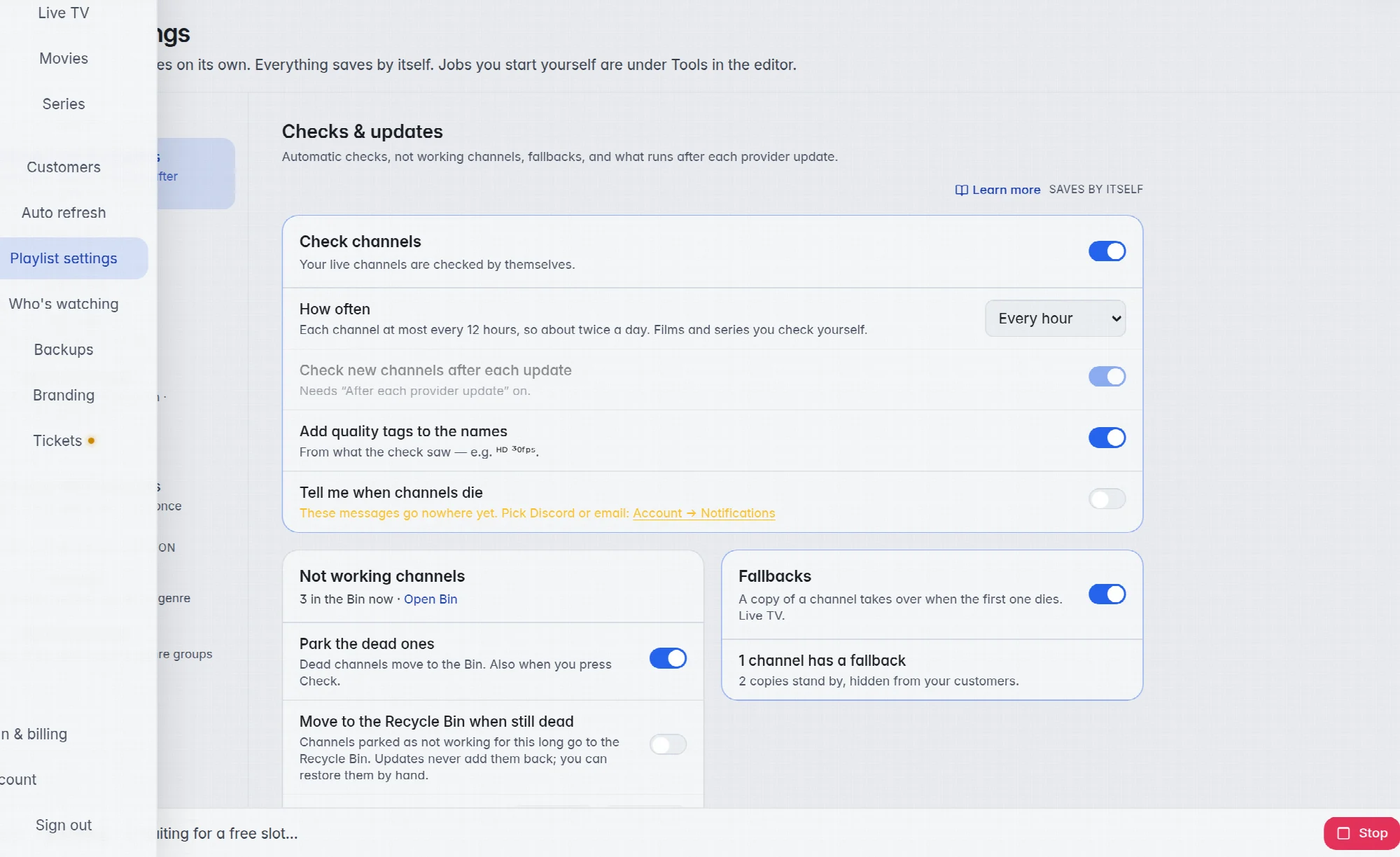
- Checks: In the Check channels card, choose whether M3UTool checks your channels by itself, how often, and what a check does.
- Not working channels and fallbacks: The two cards below decide what happens to dead channels and whether fallbacks take over.
- After every refresh: In the After each provider update card, turn the switch on and pick the steps you want.
Every change saves on its own. The page says saves by itself at the top. The Automation part of Auto refresh only points here, with Open Playlist settings.
Check channels
- Check channels: On, M3UTool checks your live channels by itself. Off, nothing is checked by itself: no regular check, no re-check of failed or not working channels, no check after a refresh. A check you start with Check still works.
- How often: Every hour, Every 6 hours, Every 12 hours or Once a day. Only live channels are checked this way. Movies and series you check yourself.
- Check new channels after each update: Tests the channels a refresh has brought in, movies and series too. It needs After each provider update on.
These two count for every check, also the ones you start yourself:
- Add quality tags to the names: The name gets small tags for what the check saw, for example ᴴᴰ ³⁰ᶠᵖˢ.
- Tell me when channels die: A message when channels go offline, and again when they come back — on Discord, by email or both, as you pick in Your account (a self-hosted box: Settings → Messages). See which channels in the message opens the list of names, without signing in, for 1 day (a self-hosted box: as long as Keep activity details in its Settings). For Discord, connect it under Account first.
Not working channels
The card says how many channels are in the Bin now. Open Bin takes you there.
- Park the dead ones: Channels that do not work move to "Not working" in the Bin, also after a check you start yourself. They come back on their own when they work again. More in Not working channels.
- Re-check them now and then: A slow check in the background. A channel that works again goes back to its group by itself.
Fallbacks
One switch for the whole playlist. On, the copies of a channel stand by and take over when the first source dies; your customers do not see them. Off, they show up as ordinary channels. A window asks first. The card says how many channels have a fallback. More in Fallbacks.
After each provider update
These steps run straight after a refresh, only on the channels it added. The rest of your playlist is not touched.
- Fix channel names: clean names from the M3UTool channel database. With Keep the channel's prefix (e.g. DE |) on, a code like "DE |" stays in front. More in Fix names.
- Posters & info: posters, plots and titles for movies and series. Also rename episodes to real titles names episodes after their real titles. Sort into genre groups moves each title into a group named after its genre. These two count only after updates; when you run Posters & info yourself, its own settings count. More in Posters & info.
- Match logos: live channels get the logo Looks like shows for them. Movies and series keep their posters. More in Match logos automatically.
- Map guide: new channels get their guide id. More in Map the guide.
- Live sports refresh: builds your live sports guide again, so event names stay current. It needs Live sports set up once. More in Live sports.
Event and new channels
- Hide event channels between events: PPV and event channels are hidden while nothing is on, and shown again as soon as an event is coming up or on air.
- New channels go to: Bottom or Top: where new channels land in their group. You can set it differently per group in its panel under New channels land.
Run it now
You do not have to wait for a refresh. Click Tools in the top bar of the editor, then Run all automation steps under Fix & fill. The window Run all automation steps opens.
- Choose what it runs on: Under 1 On what?, the window has already picked what you ticked, else the ticked groups, else the group you have open. Click another choice when you need one: Ticked (N), Ticked groups (N), This group, Pick groups… or All Live TV.
- Read the steps: 2 Options lists the steps that will run, numbered. A step that is switched off says so. Change in Playlist settings takes you back to the settings.
- Tools: Click Run now.
It uses the steps of After each provider update, also while that switch is off, and it checks the channels when Check new channels after each update is on, also while Check channels is off.
Good to know
- Checking and Posters & info take the longest. The editor stays usable while they run.
- A refresh that adds nothing runs nothing.
- Pair it with Auto refresh: the refresh brings the changes in, the automation finishes them.