Fallbacks
Providers often carry the same channel more than once. With two providers you have two copies of most channels anyway. M3UTool can fold those copies into one channel. One source is the main. The other copies wait as fallbacks. When the main stream is down, your customers are sent to a fallback that works. They see one channel and do not notice the switch. Other tools call this failover or backup sources. Fallbacks are for live channels. You set them up in the channel grid of the Channel editor. Follow these steps.
Step 1: Group the copies
You can group every copy in the playlist at once, or pick the copies of one channel by hand.
- Open Tools: Click Tools in the top bar of the editor.
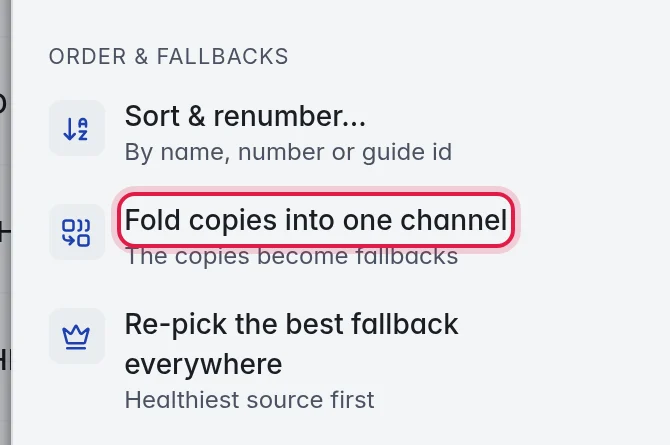
- Fold the whole playlist: Under Order & fallbacks, click Fold copies into one channel. A window shows which copy goes under which channel, with both groups, before anything changes. M3UTool folds together the live channels that share a guide id and have matching names. Click Fold to do it. The copies become fallbacks, and Undo takes it back.
- Group one channel by hand: Tick the copies of the channel in the grid. In the panel on the right, click Fold into one channel under Organise.
In both cases the healthiest copy becomes the main: one that is online, with the best reliability. PPV and event channels are never grouped.
Step 2: Check the sources
- Unfold the fallbacks: A channel with fallbacks shows a violet badge with the number of sources, for example 3. It also has a small arrow at its left. Click the arrow. The fallbacks appear under it as ordinary rows marked FALLBACK. Each row shows its own quality, reliability and last check.

- Open the channel: Click the channel name. In its details on the right, scroll down and open Fallbacks. Under Sources, every source is listed with its status, quality, frame rate and reliability.
- Read the marks: LIVE marks the source your customers are sent to right now. MAIN marks the channel itself, with its name, logo and number.
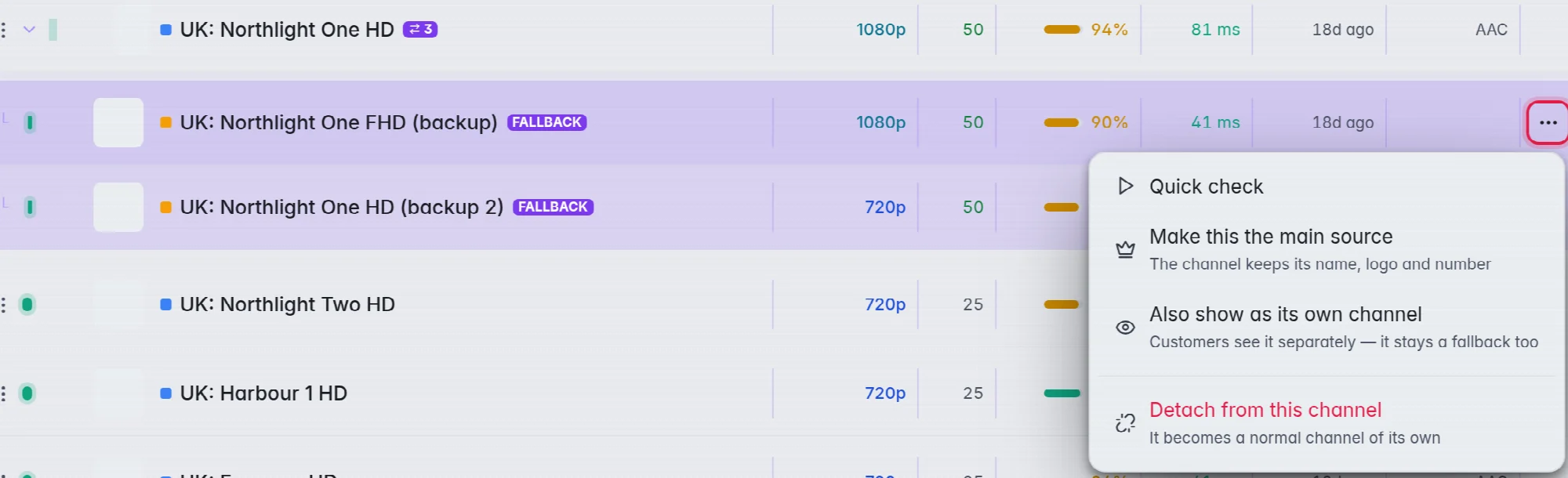
- Manage a fallback: Click the three dots (⋯) at the right end of a fallback's row in the grid, or next to it under Sources. Then choose what to do with it.
- Set the order: Use the small up and down arrows next to a fallback to try it earlier or later.
The choices for a fallback:
- Make this the main source: The channel keeps its name, logo and number. Only the stream behind it changes.
- Also show as its own channel: The fallback stays a fallback. It also appears in your customers' list on its own. Rows like this carry OWN. Only use as a fallback takes it out of the list again.
- Detach from this channel: It stops being a fallback and becomes a normal channel of its own.
The buttons under the list:
- Add 2 selected: Shows when you have ticked other channels in the grid, with their number. It adds them as fallbacks of this channel.
- Add fallback…: Adds a fallback by its Channel link, or picks one from this playlist.
- Check all: Runs a Quick check on every source of the channel.
- Re-pick best: Makes the healthiest source the main.
- Split up: Turns every fallback back into a normal channel.
- Auto switch-over: The switch next to Sources. When it is off, this one channel stops switching to its fallbacks. The fallbacks stay linked.
Step 3: Keep an eye on it
- Find the channels that need you: Click Filters in the top bar and open More filters. Under Fallback health, click No source live to see channels where every source is down. Click On a fallback to see channels where the main is down and a fallback is carrying it.
- Tidy up every channel with fallbacks: Click Tools in the top bar. Under Order & fallbacks, click Re-pick the best fallback everywhere. It puts the healthiest source first everywhere at once.
- Switch it off for the playlist: Click Playlist settings in the bar on the left. Under Checks & updates, in the Fallbacks card, turn the switch off. A window asks first; click Switch off. The fallbacks then stop covering their channels. They appear in your customers' lists as ordinary channels. Turn the switch on again and click Switch on to hide them, apart from the ones you chose to show as their own channel.
What your customers see
- M3UTool apps and the Xtream login: One channel that switches to a working source by itself.
- M3U link: Each channel is followed by its fallbacks as "Channel (Backup 1)", "Channel (Backup 2)" and so on. Customers with another player can pick one themselves. These names still say Backup, so your customers' favourites keep working.
Good to know
- M3UTool knows that a source is down from the checks. The more often a channel is checked, the sooner a dead main is noticed. More in How checking works.
- It only helps when there is a second copy. A channel with one source shows "Only one source" under Sources.
- Grouping, detaching and splitting can be taken back with Undo in the top bar, as long as it is the last change on the playlist.
- To remove real duplicates instead of keeping them as fallbacks, see Remove duplicates.