Sort and reorder
The order in the editor is the order your customers see in their app or player. You can drag single channels into place, send a selection to the top or bottom, or sort a whole part, a group or several groups in one go. Follow these steps to put channels and groups in order.
Step 1: Drag channels into place
- Open the group: Click it in the list on the left. Make sure no search, filter or status button like Offline is on.
- Grab the handle: Point at the six dots at the left of a row.
- Drop it: Drag the row onto the channel it should come before, and let go. A message confirms The new order is saved. and the numbers follow the new order.
Tip: To drag several channels at once, select them first and drag one of them. More in Select several channels.
Step 2: Send channels to the top or bottom
- Select the channels: Hold Ctrl and click each one.
- Move them: In the panel on the right, under Organise, click Move to top or Move to bottom.
With two or more selected, Sort by name A→Z sorts only those channels among themselves. Click it again for Z→A.
Step 3: Sort a part, a group or several groups
- Open Tools: Click Tools in the top bar.
- Choose Sort & renumber…: Under Order & fallbacks, click Sort & renumber…. The window Sort & renumber opens.
- Choose what to sort: Under 1 On what?, the window has already picked for you: the channels you ticked, else the groups you ticked on the left, else the group you have open, else all. Click another choice when you need one: Ticked (N), Ticked groups (N), This group, Pick groups… or All Live TV. A line under the choices says what the choice means.
- Choose how to sort: Under 2 Options, pick Sort by: Name, Guide id, URL (by channel link) or Creation date. On Movies and Series you can also pick Rating or Year. Then pick the Direction: Ascending or Descending.
- Sort: Click Sort channels. On the Movies tab the button reads Sort movies, on the Series tab Sort episodes.
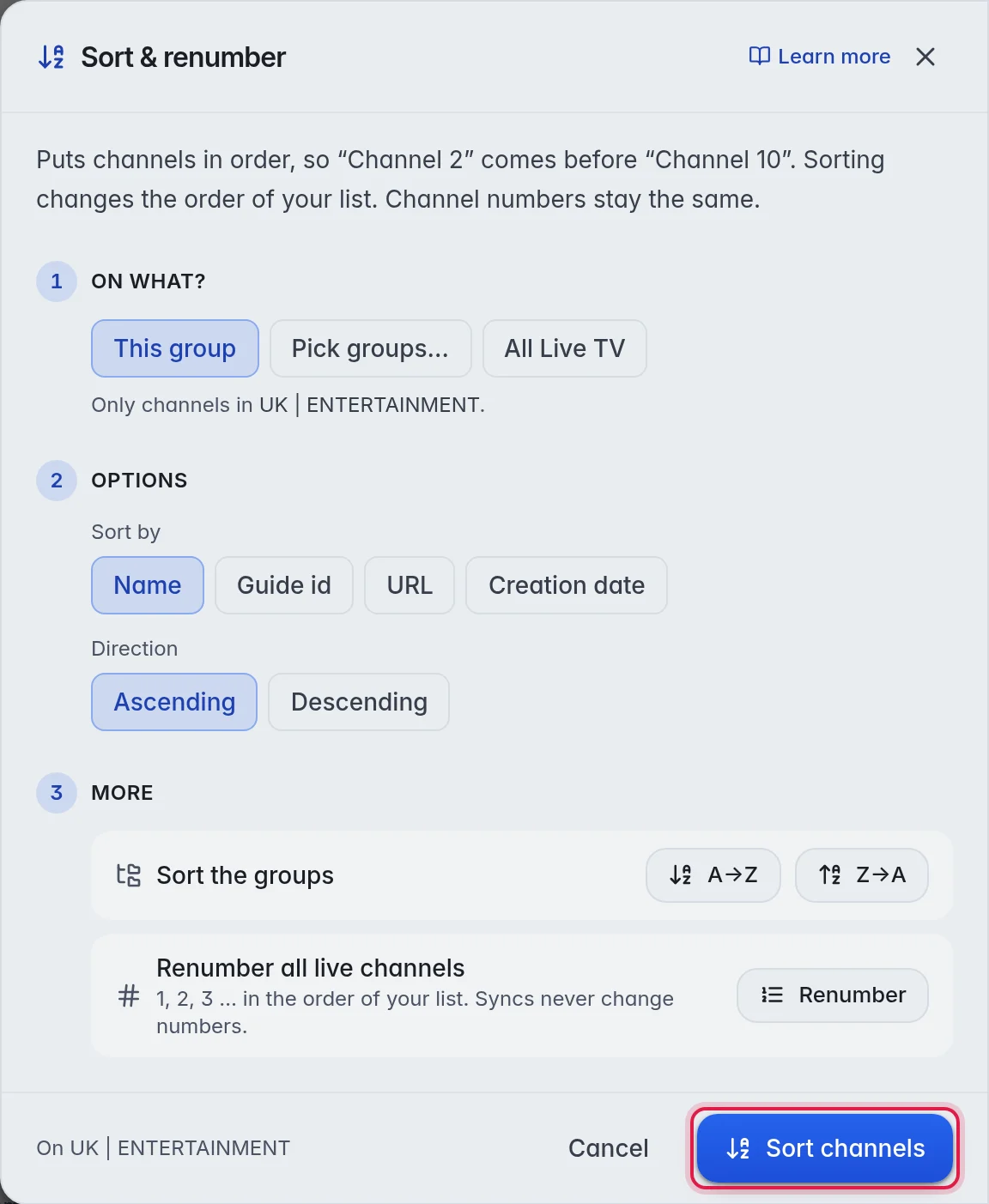
The options:
- Ticked groups (N): Each ticked group is sorted on its own, so its channels stay inside it. It is one Undo step for all of them.
- Rating and Year: Movies and Series only. They use what Posters & info found. The direction then reads Lowest first / Highest first for Rating and Oldest first / Newest first for Year. Titles without a rating or year go to the end.
Sort or reorder groups
- By name: In the same window, under 3 More, click A→Z or Z→A next to Sort the groups. This sorts every group of this part right away.
- By hand: Drag a group by the handle at its left, in the groups column or on the Groups tab. The three-dot menu at the top of the groups column also has Sort A → Z and Sort Z → A. More in Groups.
Renumber all live channels
On Live TV, the same window has one more row under 3 More: Renumber all live channels. Click Renumber. Every live channel gets a new number, 1, 2, 3 and so on, in the order of your list. A window asks first, because viewers who type a number on the remote will find channels on new numbers.
Good to know
- The sort is natural and ignores upper and lower case, so "Channel 2" comes before "Channel 10".
- Important: On Live TV, sorting changes the order of your list and the channel numbers stay as they are. This is so that a number your customers know keeps pointing at the same channel. Use Renumber when you want the numbers to follow the new order.
- On Movies and Series, sorting gives new numbers in the new order. A movie's or an episode's number is its place in the list.
- A single channel's number is in the Number field of its detail panel. More in Edit a channel.
- Note: Dragging and Move to top or Move to bottom work for channels and movies. For series, use Sort & renumber… under Tools.
- Where new channels from a refresh land, at the top or the bottom of their group, is set per group in its panel under New channels land, or in the New channels column of the Groups tab.
- A sort went wrong? Click Undo in the top bar. More in Undo.