Group access
You do not have to give every customer the whole playlist. Group access lets you choose, per customer, which channel, movie and series groups they can see. This lets you sell different packages from one playlist, for example a sports package or everything without the German channels. Follow these steps to choose a customer's groups.
Steps
- Open the customer: In Customers, click the customer in the list.
- Open the tab: Click the What they can watch tab.
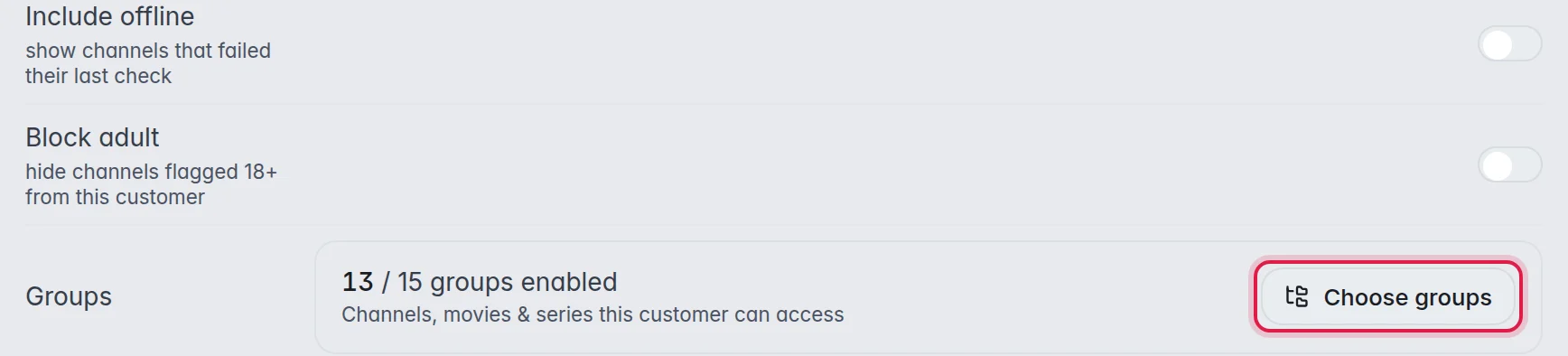
- Open the groups: Next to Groups, click Choose groups. The line next to it shows how many groups this customer has, for example "15 / 15 groups enabled".
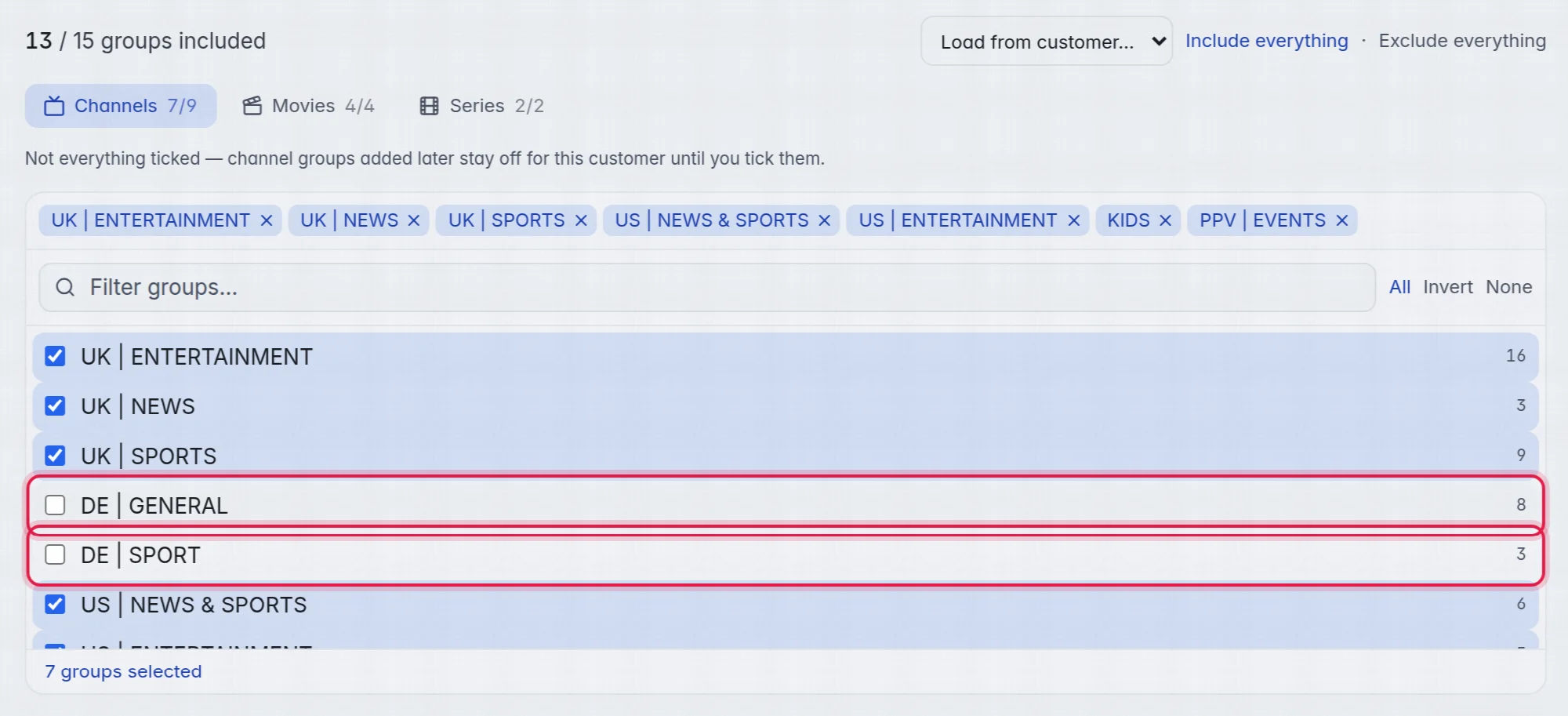
- Pick a type: In the Group access window, click Channels, Movies or Series at the top. Each shows how many of its groups are ticked, for example "Channels 7/9".
- Tick or untick: Click a group to tick or untick it. Ticked groups are visible to the customer. Unticked groups are hidden from them. Your ticks save as you tick.
- Do the other types: Repeat for Movies and Series if needed.
- Close the window: Click Done.
The options in the window
- Filter groups: Type part of a name to show only matching groups.
- All, Invert and None: Tick all groups the filter shows, flip them, or untick them all.
- Include everything and Exclude everything: Tick or untick every group of all three types at once.
- Load from customer: Copy the choice of another customer of this playlist. Example: pick "Grace Hall" to give a new customer the same package.
- The chips at the top: The ticked groups of the type you are looking at. Click the × on a chip to untick it.
The other switches on the tab
- Include offline: When this is on, channels that failed their last check stay in this customer's list. When it is off, they are left out until they work again.
- Block adult: When this is on, every channel flagged as Adult 18+ is hidden from this customer, also inside groups they may see. You flag a channel in its details in the editor. More in Edit a channel.
Groups you add later
When a new group arrives, for example after a refresh or because you made one, who sees it depends on the customer's choice for that type:
- Everything of that type ticked: The new group is switched on for this customer by itself.
- Only some ticked: The new group stays off for this customer until you tick it. This is so that a customer who bought a sports package does not suddenly get a film group.
The window tells you which of the two applies, under the type buttons.
Good to know
- Hidden groups are hidden everywhere: in the M3U link, the Xtream login, the TV guide, the web player and the M3UTool apps.
- Changes reach the customer's apps and players on their next refresh. Nothing needs to be installed again.
- Group access belongs to the playlist. When you move a customer to another playlist, their choice starts again with everything ticked.
- On their own page, under My channels & movies, customers can hide, reorder and rename what you gave them. They can never see a group you unticked.
- To change many customers at once, see Group access for many customers.