Match logos automatically
Setting logos one by one takes hours on a big playlist. Match logos gives every live channel the logo Looks like shows for it, shows you what it found, and only writes the logos when you say so. Follow these steps to give your channels their logos in one go.
Steps
- Open the Logos tab: Open your playlist, stay on Live TV and click Logos in the row of tabs under the top bar.
- Open Match logos: Click Match logos in the top bar. The Match logos window opens. You can also open it with Tools in the top bar, under Fix & fill.
- Choose the channels: Under 1 On what?, the window has already picked what you ticked, else the ticked groups, else the group you have open. Click another choice when you need one: Ticked (N), Ticked groups (N), This group, Pick groups… or All Live TV.
- Keep or replace existing logos: Under 2 Options, switch on Only channels without a logo to fill the gaps and leave every existing logo alone.
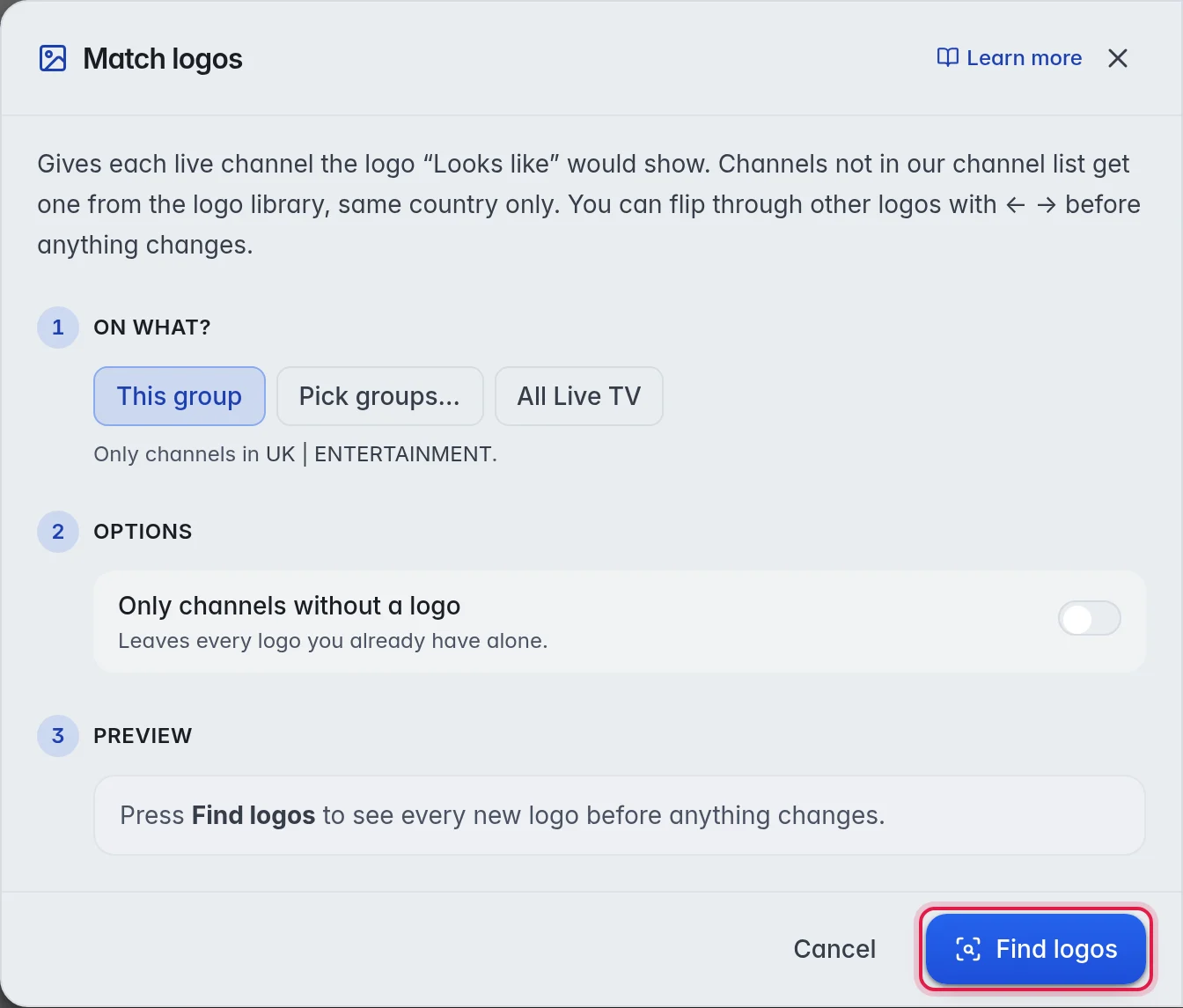
- Find the logos: Click Find logos. The search runs in the background. When it is done, 3 Preview says how many channels get a new logo, for example "48 get a new logo · 62 looked at".
- Check the matches: Each row shows the current logo, an arrow and the new logo, with the channel name and the channel it matched, for example "Northlight One · UK". Use Back and Next under the list to page through all matches.
- Pick another logo where needed: When a row has more than one logo to offer, it shows ← → and a count, for example 1/3. Click → to see the next logo. The one you leave on screen is the one that is used.
- Use them: Click Use 48 logos, with your number. A message tells you when the logos are written. Not happy with them? Click Undo in the top bar. More in Undo.
The options
- Only channels without a logo: When this is on, only channels with no logo at all are matched. When it is off, channels that already have a logo can get a better one too.
- ← → on a row: Show the other logos the library has for that channel.
Other ways to match logos
- For a few channels: Tick them in the grid. In the panel on the right, click Match logos under Enrich & fix. The best match is used straight away, without a list to check.
- For one group or several: Click the group in the list on the left, or tick several. In the panel on the right, click Match logos under Tools. The best match is used straight away.
- After every update: Switch on the Match logos step in Playlist automation. New channels then get their logo by themselves. More in Playlist automation.
Troubleshooting
- Few channels matched: The names are probably cluttered. Run Fix names first and search again.
- A logo of the wrong country: Set the country of the group in its panel or on the Groups tab, then search again. More in Groups.
- The list is gone: The list belongs to one search. When you change the choice under 1 On what? or the switch, it is cleared and you click Find logos again.
Good to know
- Channels you hid on purpose are left out of the search. Fallbacks are included.
- A single wrong match is quickest to fix by hand. More in Pick a logo.