Add another provider
One playlist can take its channels from more than one provider. Add a second provider when it carries channels your first one lacks, or as a backup for the channels that matter most. Follow these steps to merge another provider into the playlist you have open.
Step 1: Enter the new provider
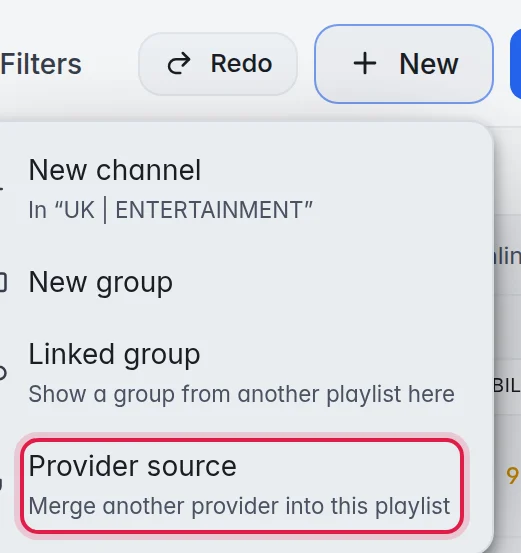
- Open New: In the editor, click New in the top bar.
- Choose Provider source: Click Provider source. The window Add your provider to this playlist opens. You can also click Add another provider under Auto refresh.
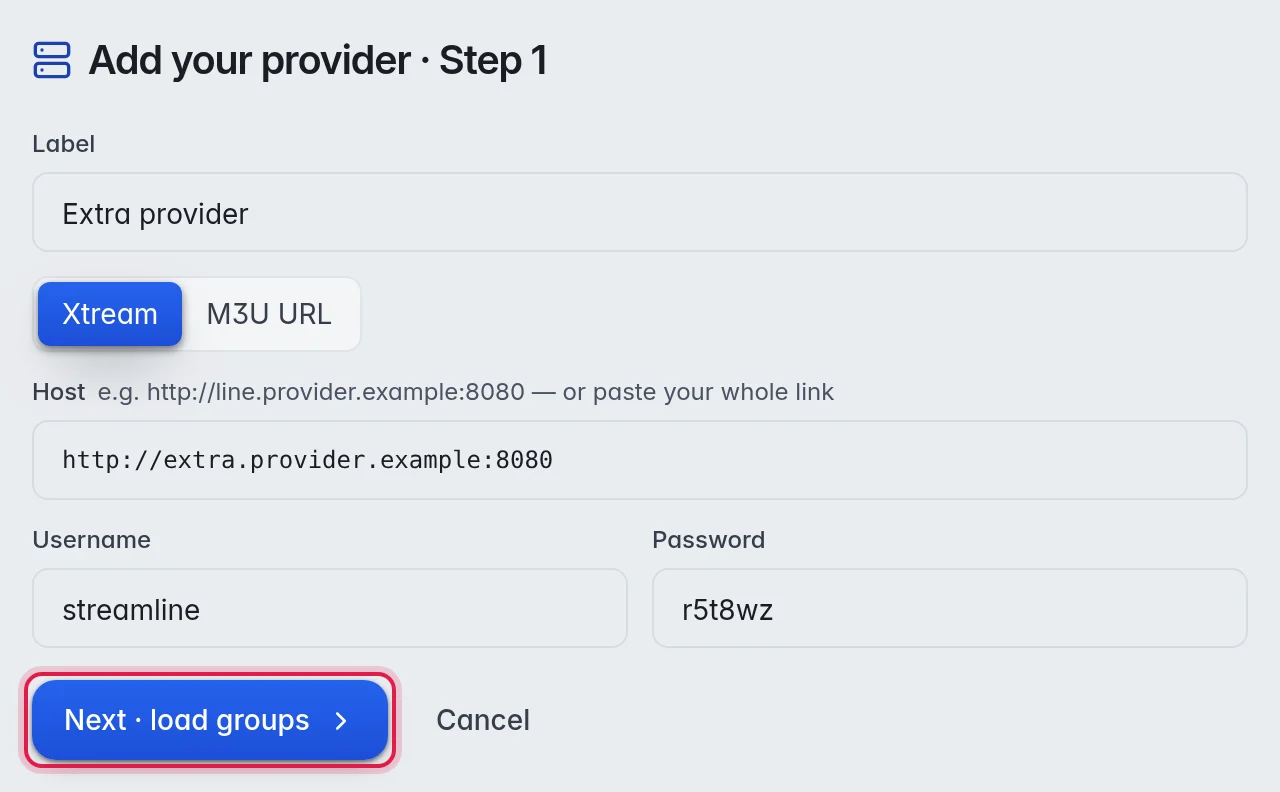
- Name the source: Type a Label you will recognise. Example: "Extra provider".
- Choose the type: Click Xtream or M3U URL.
- Enter the login: Fill in Host, Username and Password, or the M3U / get.php URL. The fields start with your current provider's details, so replace them with the new provider's. Tip: Paste the new provider's whole link into Host. M3UTool splits it into host, username and password by itself.
- Read the groups: Click Next · load groups.
Step 2: Pick groups and settings
- Tick the groups: The three columns Live TV, Movies and Series show the new provider's groups. Tick the ones you want. More in Choose groups.
- Check the switches: They decide what each refresh from this provider does. See the options below.
- Create: Click Create source. The new source shows as a button at the top of Auto refresh.
- Bring the channels in: Pick the source at the top of Auto refresh and click Update now, or wait for the next scheduled refresh. More in Refresh a playlist.
The options
- Automatic updates (run on a schedule): When this is on, M3UTool refreshes from this provider by itself. When it is off, it only refreshes when you click Update now.
- Add new channels & groups: Brings in what is new at the provider.
- Remove channels gone from source: Moves channels the provider dropped to the bin.
- Mass-deletion safeguard: Skips the removals when a refresh would delete an unusually large share, for example when the provider sends a broken list.
- Remove empty groups: Deletes groups left without channels after a refresh.
- Import provider guide id (new only): Copies the provider's TV guide id onto new channels.
- Sync channel names (live only): Takes over the provider's channel names, only on channels that have Sync name switched on.
- Sync channel logos (live only): Takes over the provider's current logo, only on channels that have Sync logo switched on.
More about these rules in Auto refresh.
Good to know
- The same channel from two providers can be folded into one, so your customers see one entry and the second copy steps in when the first one fails. More in Fallbacks.
- Note: After you add a second provider, each customer keeps the provider login they had for the first one. Enter their login for the new provider on the customer. More in Provider logins.
- Extra logins for checking, one set per provider, go in Playlist settings under Provider accounts. More in How checking works.
- To remove a provider, open its source under Auto refresh and click the red bin icon. The channels it already brought in stay in your playlist.