Choose groups
A provider usually carries far more than your customers need: dozens of countries, test channels and huge movie archives. Choosing groups keeps your playlist small, so everything after it, from checks to logos, goes faster. You choose once when you add the playlist, and you can change your choice later. Follow these steps to pick the right groups.
Step 1: Choose when you add a playlist
After Find my channels, the window Add my channels shows the provider's groups in three columns: Channels, Movies and Series.
- Search: Type in Search groups… to show only the groups whose name contains your text, in all three columns. Example: "UK" shows every UK group.
- Tick or untick: Click a group to tick or untick it. Click one, hold Shift and click another to change everything between them.
- Use the column buttons: Add all ticks every group in the column, Remove all unticks them, and Invert flips every group the search is showing.
- Watch the total: The top line shows how many groups you picked, for example 12 / 40 groups, and what you picked per type, for example "412 live channels · 9,300 films · 25,000 episodes", next to what your plan allows.
- Import: Click the button at the bottom, for example Add these 12 groups. More in Add a playlist.
Step 2: Change your choice later
Once the playlist has a source under Auto refresh, the source remembers which groups it brings in.
- Open Auto refresh: Click Auto refresh in the icon bar on the left.
- Open Groups: Under Groups, click Choose groups. With two providers, first pick the provider at the top of the page. The settings open on the right on the Groups tab, and M3UTool reads the provider's current groups. This takes a moment, longer for an M3U link.
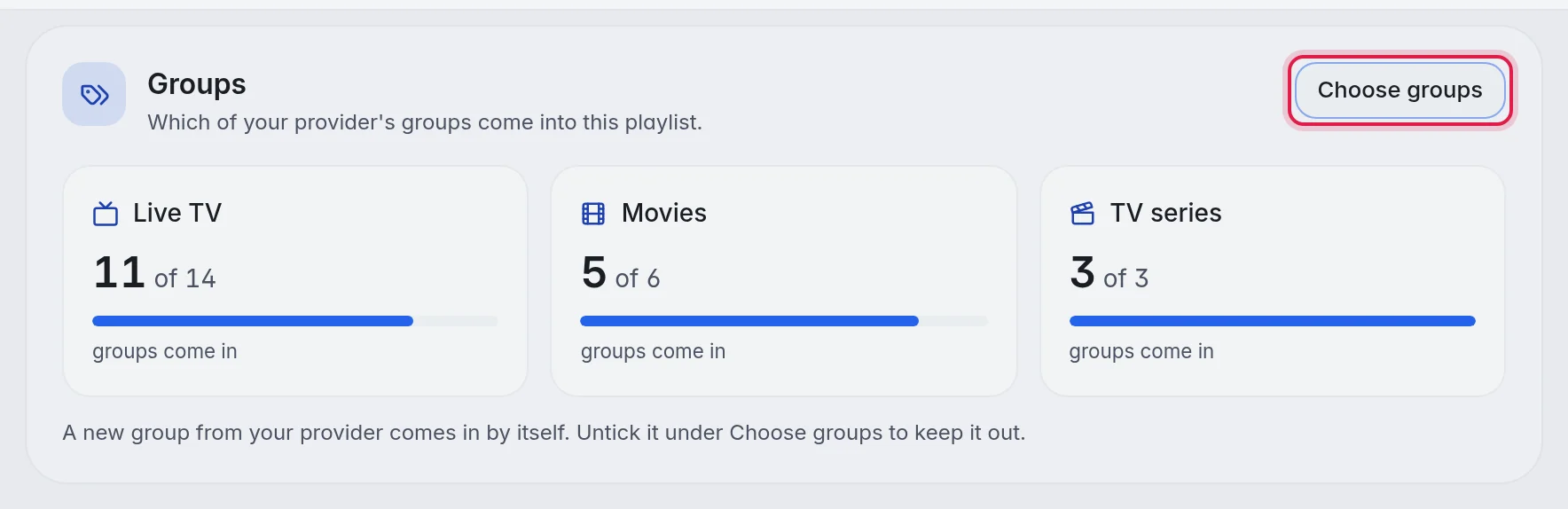
- Tick what should come in: Each column has Filter groups…, and the buttons All, Invert and None.
- Done: Your ticks save by themselves. The next refresh uses your new choice.
Good to know
- Unticked groups are skipped on every refresh. A new group at your provider comes in only if you tick it here.
- Note: Unticking a group stops new channels from it, but the channels you already have from it can stay in your playlist. To be sure they are gone, delete the group in the editor. It goes to the bin, and a refresh does not bring it back. More in Hide or delete.
- Want to throw away all channels, movies or series and pick again from scratch? Use Reset channels, Reset movies or Reset series on the playlist card. More in Rename, start over or delete.
- Want a provider group to land in a group of your own? Use Group mapping in the source's settings. More in Auto refresh.
- Tip: Start small. It is quicker to add a group later than to clean up a hundred you never needed.
- Note: If the playlist goes over your plan's stream limit, the Add button stays grey and the window says how many channels you are over. Untick a few groups. More in Plans and limits.