Groups
Groups are the folders your channels, movies and series sit in, and the way your customers find their way around. The editor calls them groups: in the Groups column on the left of every tab and on the Groups tab. This page uses the word group from here on. Follow these steps to create, pick, change and tidy up your groups.
Create a group
- Open New: Click New in the top bar.
- Choose New group: Click New group. The window Create group opens.
- Name it: Type the Group name and click Create.
The new group appears at the bottom of the list, in the part you are in. Fill it by moving channels into it. More in Move and copy channels. The plus (+) at the top of the groups column does the same as New group.
Pick groups
Groups are picked like channels, on every tab:
- Click a group to open it. Its channels show in the grid, and on a wide screen its panel opens on the right.
- Ctrl and click (on a Mac Cmd) ticks a group. Click it again to drop it.
- Shift and click ticks every group from the last one you clicked to this one.
- On a phone, hold a row to tick it.
- With the keyboard, click into the groups column first. ↑ and ↓ move, and with Shift they tick as you go. Space ticks or unticks the group you are on, Enter opens it, Ctrl and A ticks every group, and Esc clears the ticks.
Ticked groups are the purple rows. A line under the filter box says how many are ticked, with Clear next to it. The ticks stay when you switch tabs of the same part, for example from Channel editor to Logos. Ticking groups clears ticked channels, and the other way round, so the panel on the right always shows one or the other.
Use the group menu
- Point at the group: In the list on the left, move the mouse over the group. Three dots appear at its right.
- Open the menu: Click the three dots.
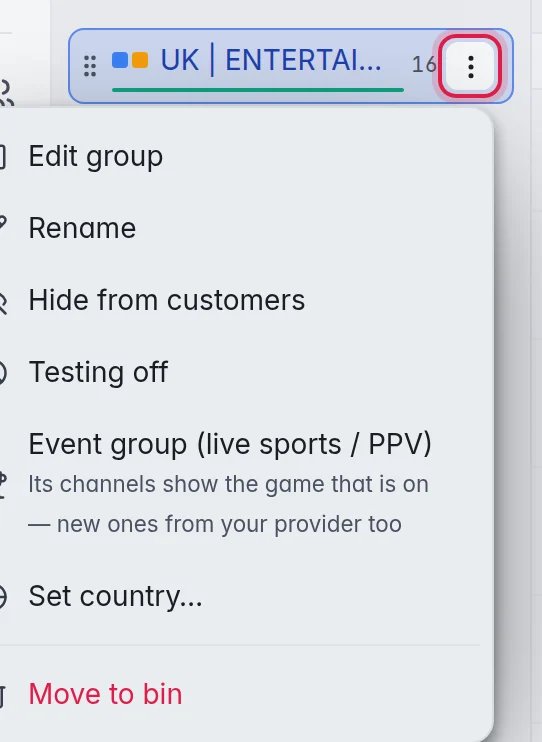
- Pick an action: See the options below.
- Edit group: Opens the group's panel on the right. Use it on a narrow screen, where a click only opens the group.
- Rename: Type the new name and press Enter. Double-clicking the name does the same.
- Hide from customers: Your customers no longer see the group. It stays in the editor with a crossed-out eye. Show to customers brings it back.
- Testing off: Checks skip the channels of this group. Testing on includes them again.
- Set country…: The country of a live group. A window opens. Your pick saves at once, and Done closes the window. Detect from the name reads it from the group name, and Not set clears it. Once a country is set, the same entry shows it and lets you change it.
- Event group (live sports / PPV): For live groups. Every channel in the group becomes a PPV / event channel, also the ones your provider adds later. Not an event group undoes it. More in Live sports.
- Set language…: For movies and series: the language their posters and descriptions are looked up in. Your pick saves at once, and Done closes the window. More in Language of posters and info.
- Move to bin: Moves the group and its channels to the bin. A window asks first. More in Hide or delete.
Set the country of a group
M3UTool uses the country when it fixes names, matches logos and maps the TV guide, so a channel is matched with the right one and not with a channel of the same name from another country.
- Open the group: Click the group in the list on the left. On a wide screen its panel opens on the right. Otherwise click the three dots at its right and Edit group.
- Pick the country: Under Settings, choose it in Country. Detect from the name reads it from the group name, for example "UK | NEWS". It saves at once, and the country code shows next to the group name.
A live group with no country set shows the country found in its name, for example "Slovenia · from the name". The tools already use it. "SL|" means Slovenia and "BH|" means Bosnia. In the picker, the empty choice then reads "From the name (Slovenia)", or "None" when the name holds no country.
Tip: Detect countries from the names in the three-dot menu at the top of the groups column sets a country on every live group that has none yet. For movies and series the entry reads Detect languages from the names. Check the codes afterwards and fix any that are wrong.
Work on a group in its panel
- Open the group: Click it in the list on the left. On a wide screen its panel opens beside the list. Otherwise click the three dots at its right and Edit group.
- Change what you need: Click the name at the top to rename it. See the options below.
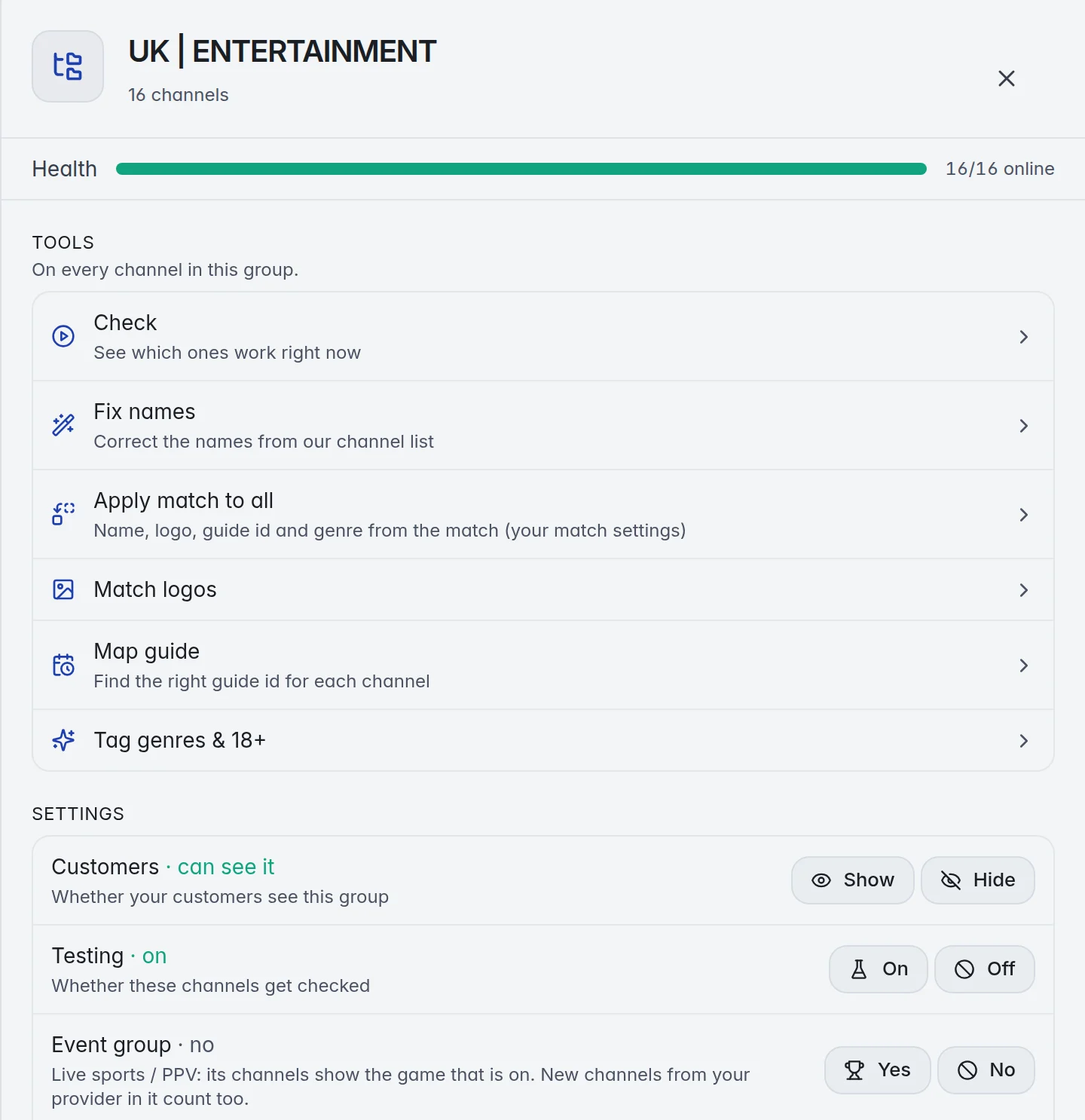
- Tools: Check, Fix names, Apply match to all, Match logos, Map guide and Tag genres & 18+, each run on every channel of the group. Fix names and Apply match to all show every change first, and nothing changes until you confirm. For movies and series it offers Check and Posters & info. More in Fix names.
- Customers: Show or Hide the group for your customers.
- Testing: On or Off for checks.
- Event group: Yes or No, for live groups. Yes marks every channel in it as PPV / event, also new ones from your provider. No unmarks them. More in Live sports.
- Country: The country of a live group, see above. For movies and series the row reads Language.
- New channels land: Where a refresh puts new channels of this group: Like the playlist, At the top or At the bottom.
- Merge into another group: Pick a group. Everything moves there and this group is removed. A window asks first; click Merge.
- Move to bin: Moves the group and its channels to the bin. A window asks first; click Move to bin.
The Health bar under the name shows how many channels of the group are online. The cross at the top right closes the panel. The editor remembers that: a click on a group then only opens the group, until you use Edit group again.
Several groups at once
Tick two or more groups. The panel on the right lists them and offers the same Tools and Settings rows for all of them, plus Merge into another group and Move to bin. A row whose groups disagree, for example some hidden and some not, says mixed until you pick one value for all. Clear at the top right drops the ticks. Delete moves the ticked groups to the bin, with Undo on the message.
Every window under Tools in the top bar also knows your ticked groups: it opens on Ticked groups (N). More in How the tools work.
Note: Linked groups, shown from another playlist, are left out of Tools and Testing and cannot be merged. They are run and tested in the playlist they come from.
Rename many groups at once
- Tick the groups: Hold Ctrl and click each group in the column on the left.
- Open the window: In the panel on the right, under Settings, click Rename these groups…. The Bulk rename window opens on Group names, with Ticked groups (N) chosen under 1 On what?.
- Pick the tool: Next to How, click Clean up, Find & replace, Prefix / suffix or Upper / lower case, and set it up under 2 Options. Example: Prefix / suffix, Take off the start, text "UK | ".
- Rename: Read the Before → After list under 3 Preview, then click Rename N with your number.
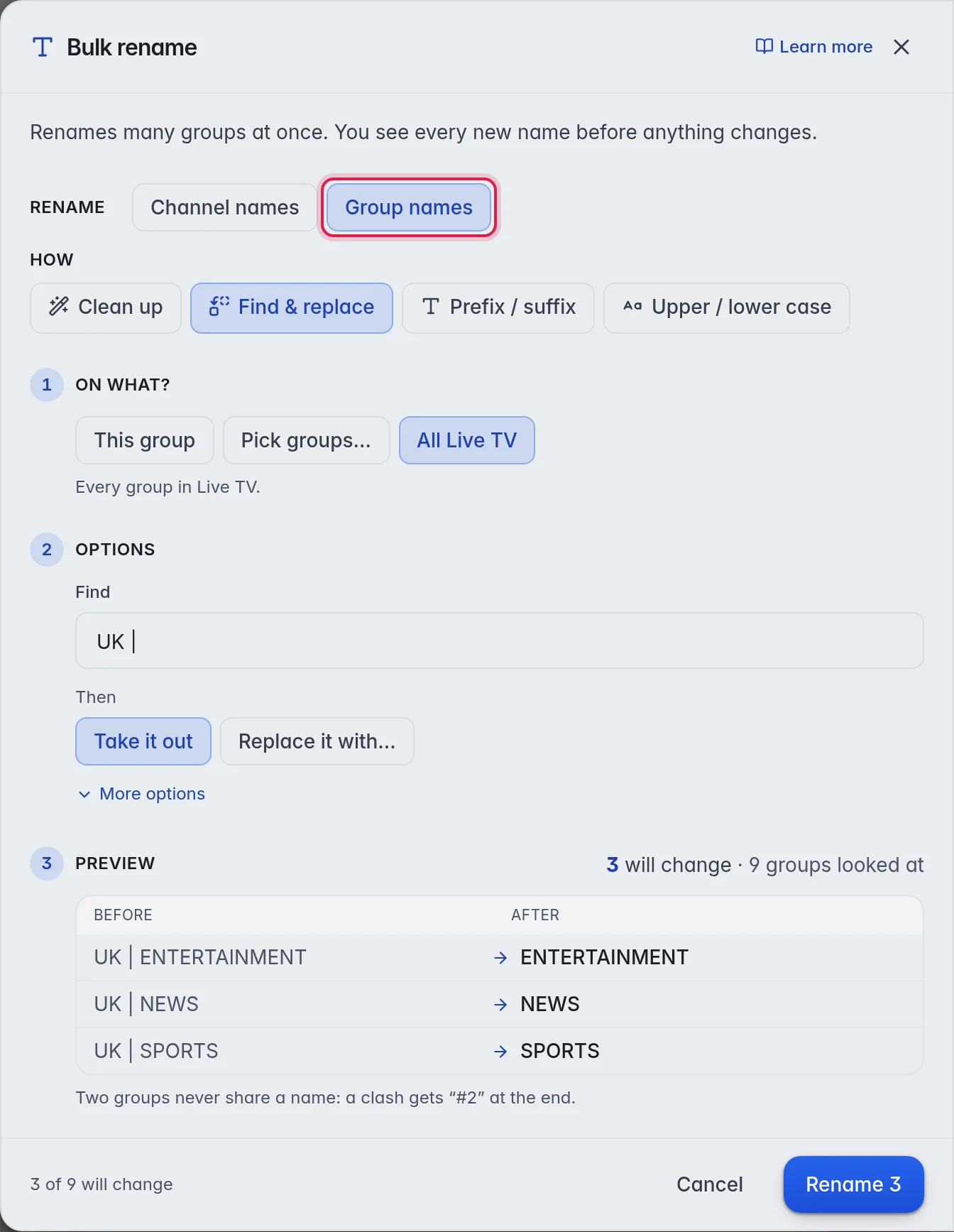
The channels stay in their renamed group. A new name that another group already has, even one in the bin, gets " #2" at the end. Linked groups are skipped. Undo takes the whole run back. More in Fix names.
Note: When you rename one group by hand to a name another group already has, the editor tells you so instead of failing. Pick another name.
The Groups tab
The Groups tab shows every group of this part in one table, for big clean-ups. Open it with the Groups tab under the top bar, or with the Manage groups button at the top of the groups column.
- Tick boxes: Tick groups with the box at the left of each row, or with the same clicks as in the groups column. The box in the header ticks them all.
- Customers and Testing: A switch per row.
- Country (Language for movies and series): Click the value to change it.
- New channels: Like the playlist, At the top or At the bottom.
- Drag to reorder: Drag a row by the handle at its left. Clear Filter groups… first.
- New group and the three-dot menu: Sort A → Z, Sort Z → A, Detect countries from the names and Link a group from another playlist.
Double-click a name to rename it. The panel on the right is the same as everywhere else.
Reorder groups
Drag a group by the handle at its left, in the groups column or on the Groups tab. To sort all groups by name, use Sort A → Z or Sort Z → A in the three-dot menu at the top of the groups column. More in Sort and reorder.
Good to know
- A group that has no channels left moves to the bin by itself, and comes back when channels return to it.
- Note: For a series group, the number next to the name counts shows, not episodes. Point at the number to see both.
- Which groups each customer may watch is set on the customer. More in Group access.