Move and copy channels
Moving puts channels into another group of the same playlist, for example all sports channels into one "Sports" group. Copying sends channels to another of your playlists. Follow these steps to move channels inside a playlist or copy them to another one.
Move one channel
- Open the channel: Click it in the grid. Its details open on the right.
- Pick the new group: Under Move to group, choose the group. The channel moves at once, and a message confirms it.
Move several channels
- Select the channels: Hold Ctrl and click each one, or select a range with Shift. More in Select several channels.
- Open the list: In the panel on the right, under Organise, click Move to group….

- Pick the group: Type part of its name to find it, and click it. The channels move at once.
Tip: You can also drag channels onto a group in the list on the left. Select them first to drag several at once.
Copy or move channels to another playlist
- Tick the channels: Tick the channels you want in the grid. This window works on ticked rows only.
- Open Tools: Click Tools in the top bar.
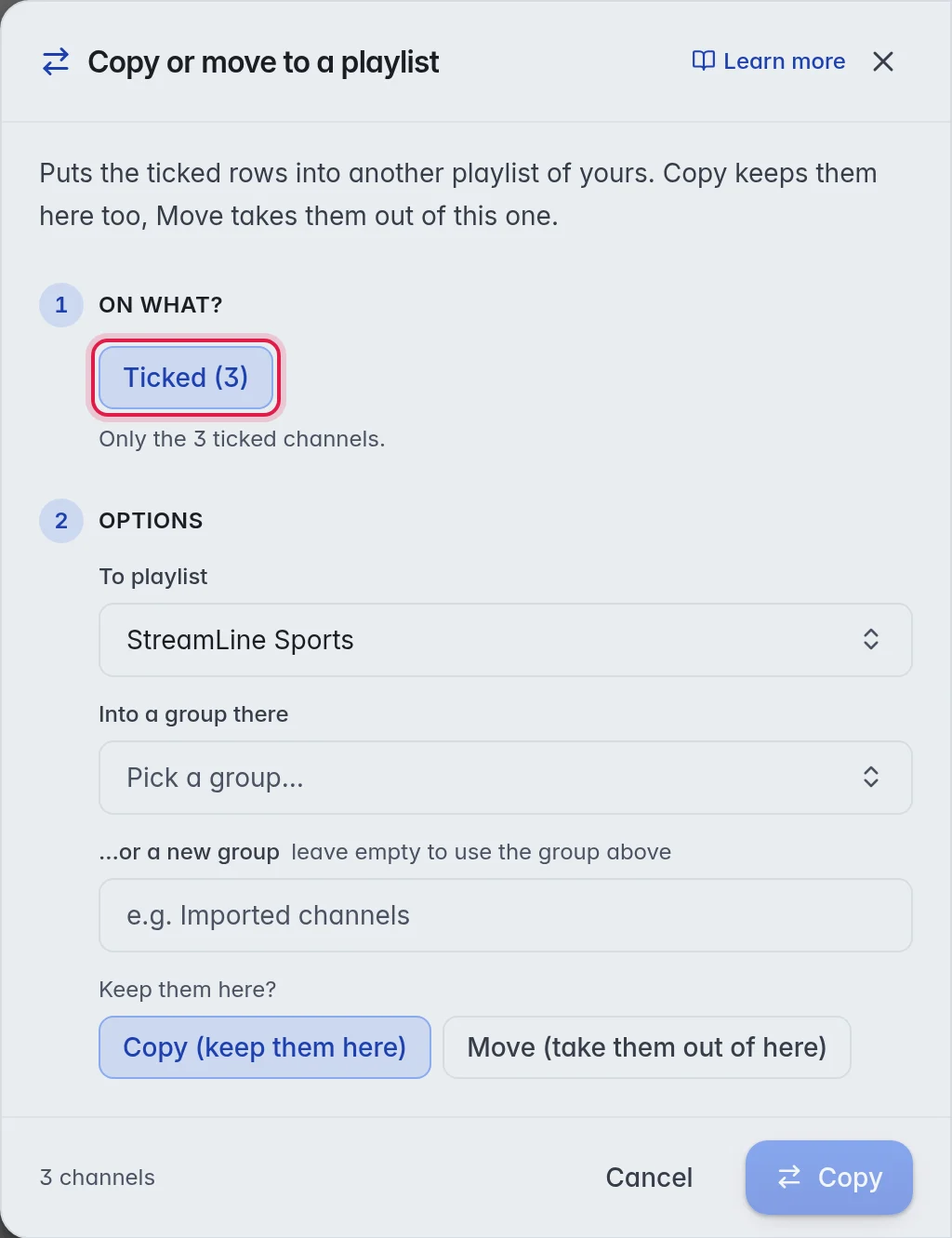
- Choose Copy or move to a playlist: Under Other playlists, click Copy or move to a playlist. It stays greyed out until you have ticked channels. The window Copy or move to a playlist opens. Under 1 On what? it shows Ticked (N) with your number.
- Pick the playlist: Under 2 Options, choose it in To playlist.
- Pick where they land: Choose a group in Into a group there, or type a name in …or a new group to create one in the other playlist.
- Copy or move: Next to Keep them here?, click Copy (keep them here) or Move (take them out of here).
- Confirm: Click Copy, or Move when you chose to move.
Good to know
- Note: A channel can only move to a live group, a movie only to a movie group, and a series only to a series group.
- Moving a series moves all its episodes with it.
- To make a second copy of a channel in the same playlist, click Duplicate in its details. The copy appears right under it.
- Copy or move to a playlist sends the channels. To carry your clean-up, like names and logos, over to a matching playlist, use Copy my edits to a playlist. More in Copy edits.
- A move inside the playlist went wrong? Click Undo in the top bar. More in Undo.