Edit, pause, move or delete a customer
Everything you set when you added a customer can be changed later. You can also pause a customer for a while, move them to another playlist or remove them for good. This page shows each of these.
Edit a customer
- Open the customer: In Customers, click the customer in the list. Type in Search customers to find someone by name or login username.
- Pick a tab: The settings are on three tabs: Overview, What they can watch and Your source.
- Change what you need: See the list below. Changes save by themselves. A small note at the right of the tabs says saving and then saved.
- Logins: A changed login does not save by itself. Click Save login next to it.
What is on each tab:
- Overview: Name, Login (the username and password the customer types), Expires and Auto-sync expiry. More in Expiry and renewal.
- What they can watch: Include offline, Block adult and Groups. More in Group access.
- Your source: The provider login behind the customer, Connection test, Max devices and Guide clock. More in Provider logins, Devices and connections and Guide clock.
Important: When you change the customer's Login, every player and app that uses the old username or password stops working. Click Save login, then send the customer their new details. This is so that an old login you replaced cannot be used any more.
Pause a customer
Pausing stops a customer's access at once without deleting anything. Use it when a payment is late or something needs sorting out.
- Open the customer: In Customers, click the customer in the list.
- Switch them off: Click the switch next to the customer's name. It changes from Active to Paused and saves by itself.

A paused customer shows Off in the list. Nothing plays for them on any device, and their own page says they are paused. Switch them back to Active to let them watch again.
Move a customer to another playlist
- Open the customer: In Customers, click the customer in the list.
- Open the menu: Click Move at the top right of the customer.
- Pick the playlist: Under Move to playlist, click the playlist the customer should use.
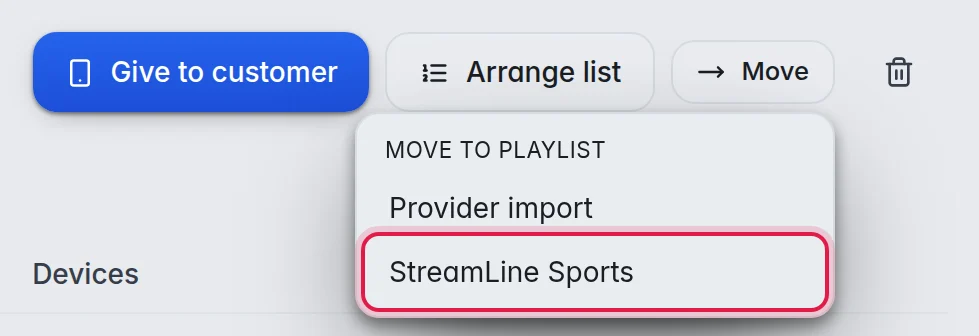
- Confirm: Click Move.
The customer keeps their login, end date and devices.
Note: Their group access starts again with everything ticked, because every playlist has its own groups. Check it afterwards, and check the provider login on Your source if the other playlist uses another provider.
Delete a customer
- Open the customer: In Customers, click the customer in the list.
- Delete: Click the bin icon at the top right of the customer.
- Confirm: Click Delete.
The customer's login stops working immediately and the customer is gone from the list.
Important: Deleting cannot be undone. If you only want to stop access for now, pause the customer instead. This is so that you do not lose their settings and codes by mistake.