Map the guide
Map guide gives your channels their guide ids in one go. It compares each channel's name with the channels in your guide sources and sets the matching id. Run it after you import a playlist and after you switch on a new country guide. Follow these steps to map the guide.
Steps
- Open the TV guide tab: Open Live TV and click the TV guide tab.
- Choose a group (optional): Click a group on the left if you only want to map that one, or tick several groups with Ctrl and a click.
- Open Map guide: Click Map guide at the top right of the editor. You can also open it with Tools in the top bar, under Fix & fill.
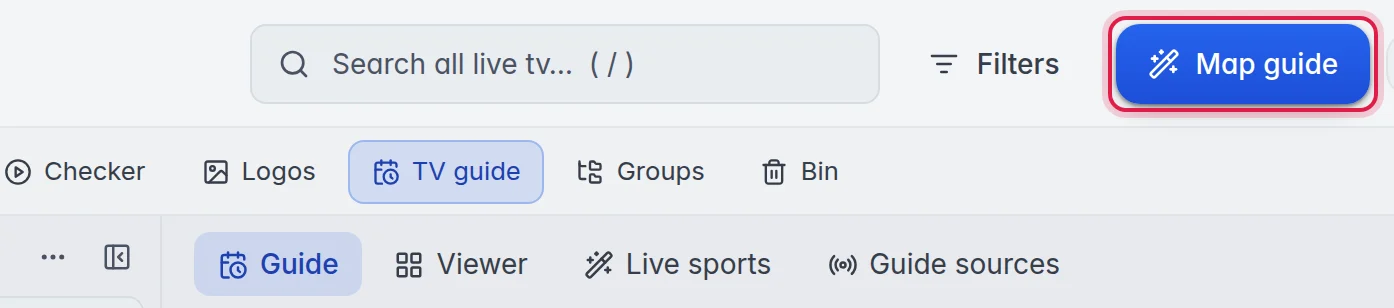
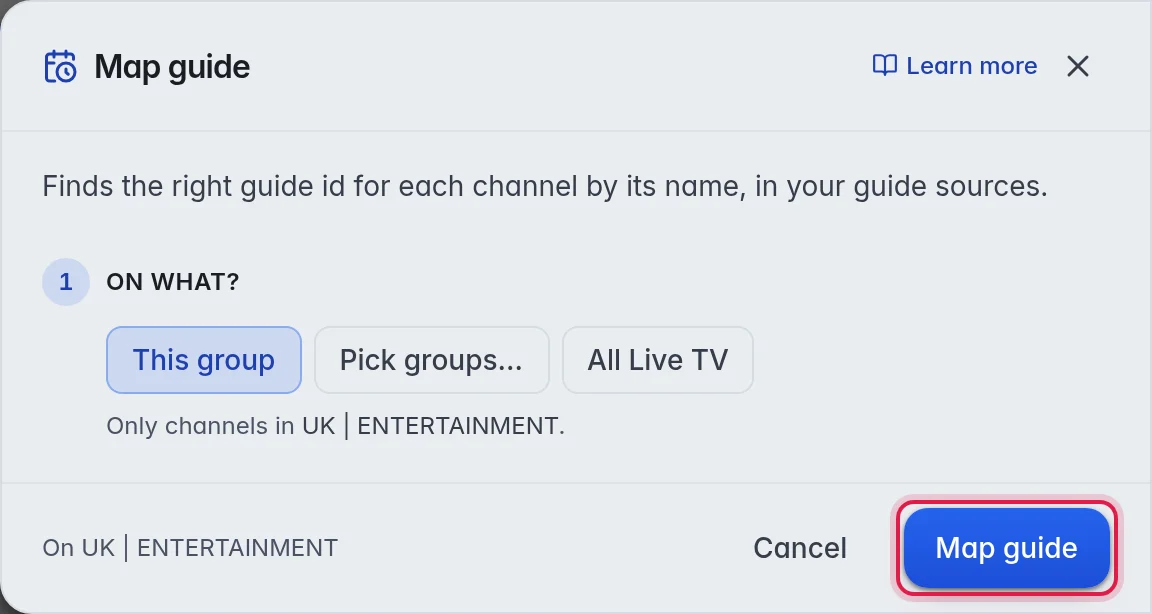
- Choose the channels: The window Map guide opens with one step, 1 On what?. It has already picked what you ticked, else the ticked groups, else the group you have open. Click another choice when you need one: Ticked (N), Ticked groups (N), This group, Pick groups… or All Live TV.
- Start: Click Map guide. The result appears in the window, for example how many channels found a guide.
The choices
- Ticked (N): only the channels you ticked in the list.
- Ticked groups (N): only the groups you ticked on the left.
- This group: only the group you have open. The line under the choices says so, for example "Only channels in UK | ENTERTAINMENT."
- Pick groups…: a list where you tick the groups you want.
- All Live TV: every live channel of the playlist.
A big mapping runs in the background. The console at the bottom of the editor shows its progress, and you can keep working meanwhile.
Tip: To map only a few channels without the window, tick them in the list. The panel on the right then has a Map guide button that runs straight away, and a message tells you how many found a guide, for example "Map guide linked 12 of 14 channel(s)."
How the match works
- Country first: A channel only takes a guide from its own country. The country comes from its group (the country you set in Groups, or a code like
UK |at the front of the group or channel name). Example: "DE | Matchday Sport 1" gets the German Matchday Sport 1 guide, never the UK one. - No guessing: When M3UTool cannot tell which guide is meant, it leaves the channel alone. The channel keeps the id it had.
- Same search as Looks like: For a channel the guide names do not know, Map guide uses the same search as Apply match to all and Looks like. So the three agree: same country, same name. Looks like marks that pick Sure match.
- Only your sources: It matches against the guide sources you use: your country guides and your own XMLTV. A channel from a country you have not switched on stays unmapped.
- Time shift: A channel with "+1" or "+2" in its name gets a matching Shift, so its guide runs an hour or two later. More in Guide time shift.
Note: A channel whose name matches gets the matched id, also when it had an id before. A channel whose guide already works is counted as "already had a guide". Live sports channels are never changed by Map guide.
Good to know
- A mapping went wrong? Click Undo in the top bar, or press Ctrl+Z. It puts back the guide ids of every channel the run changed. More in Undo.
- Tip: Click the three dots at the top of the groups column and choose Detect countries from the names once. Groups with the right country map much better.
- Run Map guide right after you switch on a country guide. M3UTool switches off country guides that none of your channels use.
- Channels that are still unmapped afterwards: filter them with Filters, TV guide, Unmapped and give them a guide by hand. More in Match a channel by hand.
- To map new channels after every refresh on its own, turn on Map guide in Playlist settings, under Checks & updates. More in Playlist automation.