Pick a logo
Sometimes one channel needs a different logo: the match was wrong, the provider's logo is blurry, or you have your own artwork. You can search the logo library for that channel, paste the address of any logo, or give many channels the same logo at once. Follow these steps to pick a logo for a channel.
Steps
- Open the Logos tab: Open your playlist, stay on Live TV and click Logos in the row of tabs under the top bar.
- Open the channel: The tab shows your channels as a picture grid: Missing a logo first, then Have a logo. Click the channel's tile (on a missing one, Find logo). Its details open on the right, with the Logo URL field under Edit. Prefer a table? Switch Grid to List at the top; Small, Medium and Large change the size of the tiles.
- Search the library: Click Find logo. M3UTool searches for the channel name and shows the logos it found, each with its name.
- Search for another name (optional): Change the text in the search box, for example to "Northlight Two", and click Search.
- Pick the logo: Click the logo you want. It is saved at once and a message confirms it: Logo set to "Northlight Two".
The logos are shown on a grey and white chessboard pattern. This lets you see whether a logo has a see-through background, which looks best on a dark TV screen.
Use your own logo
- Paste the address: In the channel's details on the Logos tab, paste the full address of the image in Logo URL, for example https://example.com/logos/my-channel.png.
- Done: Click out of the box or press Enter. The logo saves by itself.
One logo for many channels
- Select the channels: Hold Ctrl (Cmd on a Mac) and click the channels in the grid. The panel on the right shows how many you selected.
- Open the logo tools: Click Advanced logo & guide in the panel.
- Set the logo: Under the heading with your number, for example Set ONE logo for all 3, paste the address and click Apply. You can also search the library right under it and click a logo.
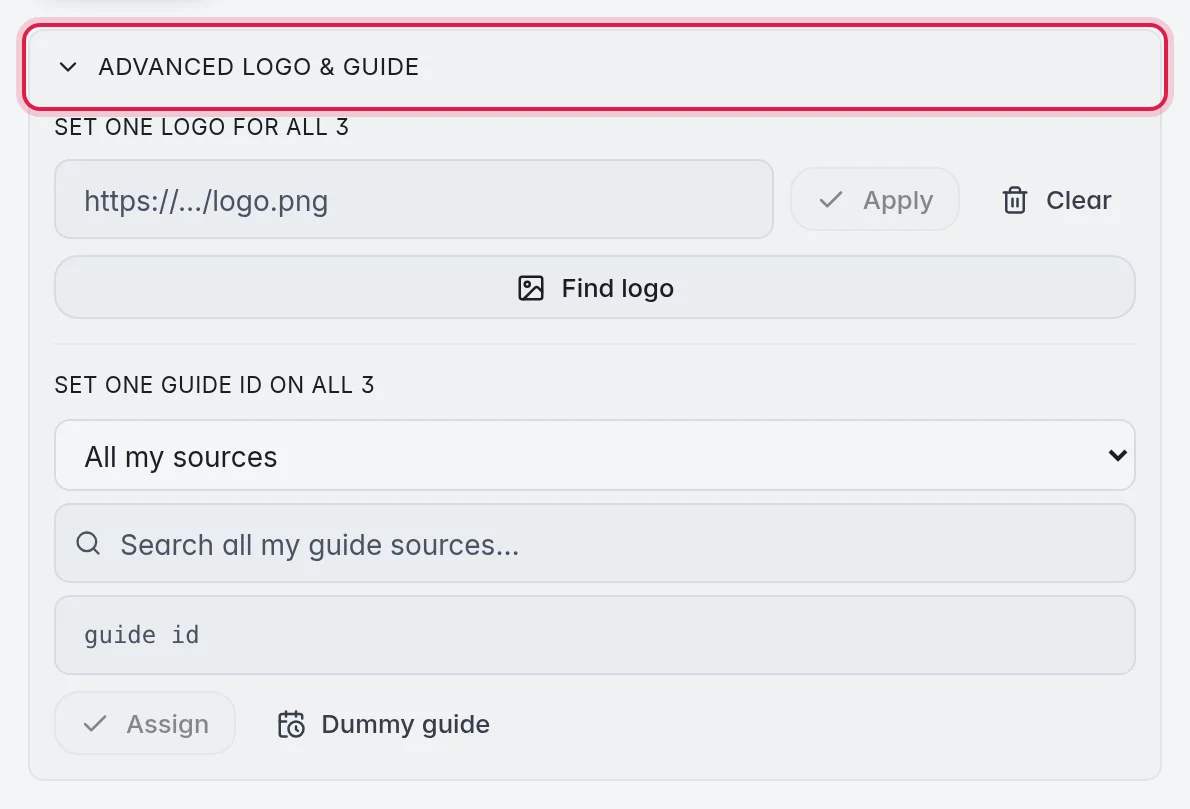
Clear next to Apply removes the logo from every selected channel. Use it for a clean start before you match again.
The Looks like card
In the Channel editor, the details of a channel start with a Looks like card. It shows the channel M3UTool thinks this is, with its logo, country and whether a TV guide exists for it.
- Use this: Applies the match in one click: the proper name, the logo, the guide id and the genre.
- The settings button: Next to the card title. Under Use this changes, switch Name, Logo, Guide and Genre on or off. Switch off everything but Logo to take only the logo.
- Keep prefix: Puts the channel's prefix, such as "DE |", back in front of the new name.
- Worldwide: When this is on, M3UTool searches every country, the channel's own country first. When it is off, it only searches the country of the channel.
- Other matches: The other candidates are listed under the best one. Click one to apply it instead.
- Search for a different channel…: Type at least three letters to search the library yourself.
When the channel already carries everything the card would set, it shows In use instead of Use this.
Good to know
- Setting one logo on a selection can be taken back with Undo in the top bar, as long as it is the last change on the playlist.
- A logo you pick by hand stays until you change it or match logos again with Only channels without a logo switched off.