Guide countries and sources
Your guide data comes from guide sources: the country guides M3UTool hosts and any XMLTV guide you add yourself, for example the one from your provider. A channel can only show a guide that is in one of your sources. Follow these steps to switch on country guides and add your own guide.
Step 1: Switch on country guides
- Open Guide sources: Open Live TV, click the TV guide tab, then click Guide sources at the top of the tab. A panel opens on the right.
- Find the country: Under Built-in country guides, type the country in Search countries….
- Check it first (optional): Click View to see which channels the country guide carries.
- Switch it on: Turn on the switch at the right of the country. It saves by itself. The note at the bottom of the list says saved.
M3UTool reads the guide straight away. After that it reads it again about twice a day.
- Selected (N): shows only the countries you have switched on.
- Max: switches on as many countries as your plan allows. A window asks first. Click Switch on.
- The counter at the bottom, for example "3 selected · plan allows 10", shows where you stand against your plan.
Note: You rarely need to do this by hand. About once an hour M3UTool switches on the country guides your channels' guide ids come from, and switches off the ones none of your channels use. Switch a country on by hand when you are about to map channels from it, and run Map the guide right after.
Step 2: Add your own XMLTV (optional)
If your provider gives you a guide link, add it on top of the country guides. It often matches your provider's own guide ids best.
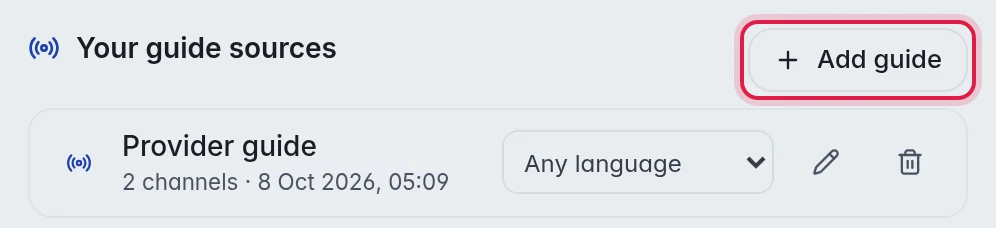
- Open the form: Under Your guide sources, click Add guide. A window opens on From a link.
- Name it (optional): Type a name in Name, for example "My provider".
- Paste the link: Paste the guide link in XMLTV URL. Plain
.xmland.xml.gzlinks both work. Example:http://provider.example/xmltv.php?username=…&password=… - Test: Click Test. M3UTool reads the link and shows how many channels and programmes it found, for example "Looks good. 1,240 channels · 58,000+ programmes".
- Add: Click Add.
Add stays greyed out until the test works, so a broken link cannot be added. While M3UTool reads the guide, the new row says "fetching guide…". After that it shows the number of channels and the date and time it was read.
Step 3: Upload a guide file (optional)
Have the guide as a file instead of a link? Upload it.
- Open the form: Click Add guide, then Upload a file.
- Name it (optional): Type a name in Name. Without one, the file name is used.
- Pick the file: Click Choose a guide file and pick a
.xmlor.xml.gzfile of up to 100 MB. A big guide fits much better packed as.xml.gz.
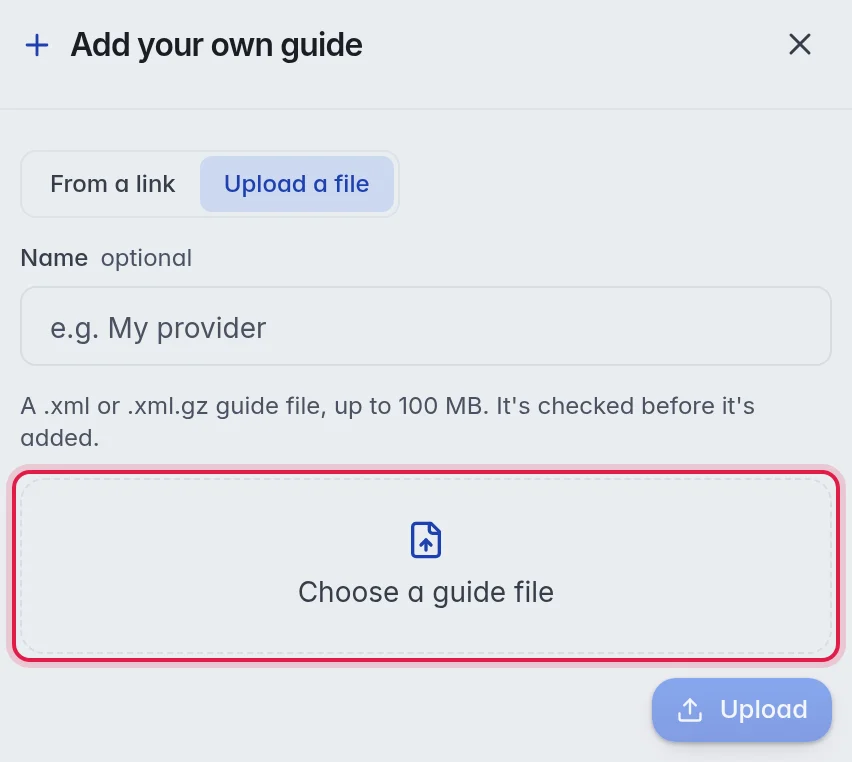
- Upload: Click Upload. M3UTool checks that the file really is a TV guide, then reads it. The row says "Uploaded file · reading file…" until it is done.
An uploaded guide does not update itself: it holds the days that are in the file. When it runs out, click the upload arrow at the right of its row and pick the newer file.
Manage your own guides
- Rename: Click the pencil at the right of the row.
- New file: For an uploaded guide, click the upload arrow at the right of the row and pick the newer file.
- Delete: Click the bin at the right of the row, then Delete. The guide and its channels are removed. Channels that used it lose their guide until you give them another one.
Good to know
- Your plan sets how many country guides you can use at the same time. When you reach the limit, a message says so. Your own guides, links and files, do not count.
- A whole group without a guide usually means its country guide is off.
- Your customers never see a list of countries. They receive one guide file with the channels of your playlist. More in Guide file settings.