Your first playlist in 5 steps
This is the quick path from your provider's login to a first customer who can watch. Each step takes a few minutes and links to the page with the details. Follow these steps to get your first playlist running.
Step 1: Add your playlist
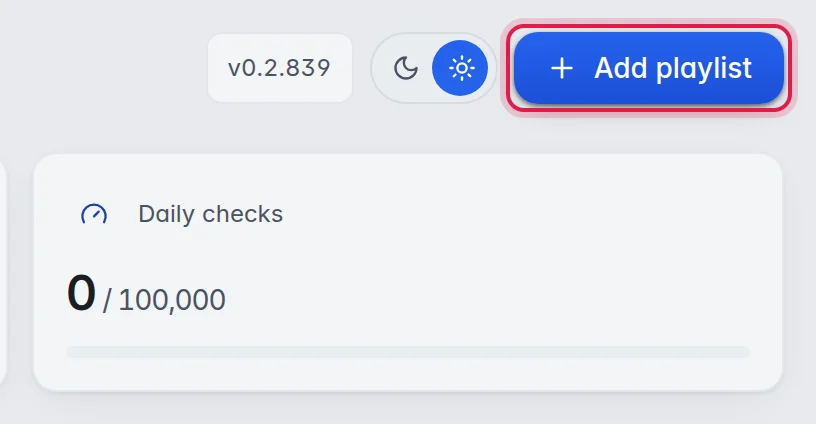
- Open the import window: On the Overview page, click Add playlist at the top right. On a new account the window Add my channels opens by itself.
- Your source: Keep the name "My TV" under Name of this list or type your own. Choose Xtream and fill in Host, Username and Password from your provider. Or paste your provider's whole link into Host: it splits it by itself. Click Find my channels.
- Pick groups: Untick the groups you do not want, then click the button at the bottom, for example Add these 12 groups. More in Add a playlist.
Step 2: Check your channels
- Open the playlist: Click Open on its card.
- Start a check: Click the Checker tab, then Check in the top bar, and click Start check. It runs in the background while you carry on. More in Run a check.
Step 3: Tidy it up
- Fix the names: Turn names like "UK| NORTHLIGHT ONE FHD" into "Northlight One". More in Fix names.
- Add logos and the TV guide: Let M3UTool match a logo and a guide to every channel. More in Match logos automatically and Map the guide.
- Order your groups: Put the groups your customers look for first at the top. More in Groups.
Tip: Run all automation steps under Tools in the top bar runs logos, the guide and a check in one go. More in How automation works.
Step 4: Add a customer
- Open Customers: Click Customers in the icon bar on the left.
- Create the login: Click Add, give the customer a name and the groups they may see, and click Create customer. More in Add a customer.
Step 5: Give it to your customer
- Share the details: Click Give to customer on the customer's page. It shows everything your customer needs to sign in.
- Set up the app: Your customer enters the details in the M3UTool app or in any player app. More in Customer links and Set up the app for a customer.
Good to know
- Set up Auto refresh next, so new channels from your provider come in by themselves. More in Refresh a playlist.
- Put your own name, logo and colours on everything your customers see under Branding. More in Branding and custom domain.