Match a channel by hand
When Map guide leaves a channel unmapped, or picks a guide you do not want, you set its guide yourself. You search the guide by name, pick it, and check the schedule before your customers see it. Follow these steps to match a channel by hand.
Step 1: Pick the guide
- Open the TV guide tab: Open Live TV and click the TV guide tab.
- Open the channel: Click the channel in the list. Its panel opens on the right.
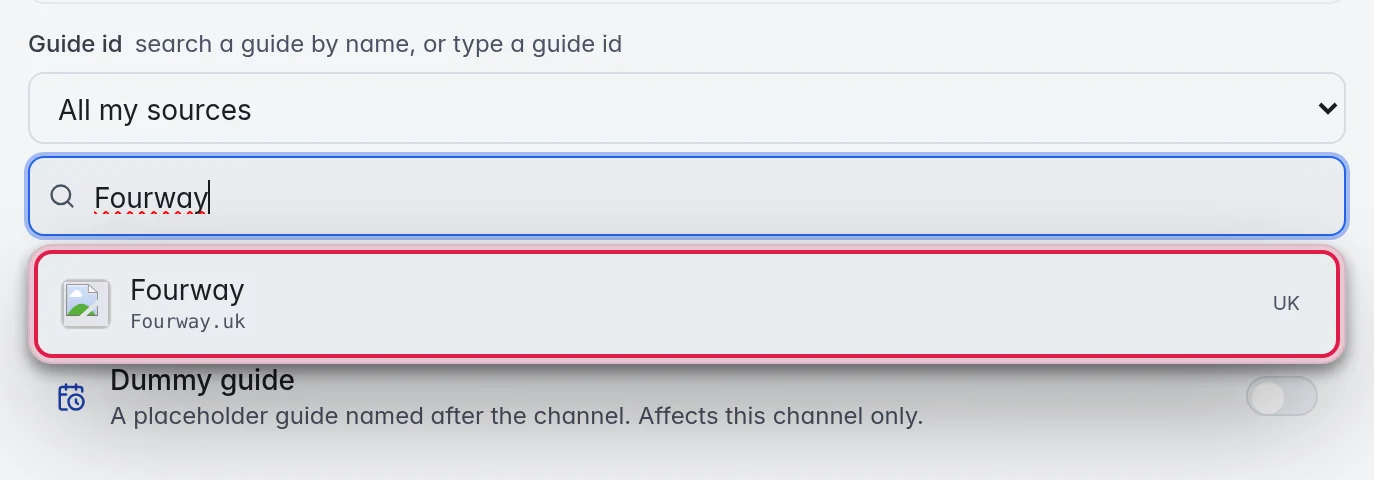
- Choose where to search (optional): Under Guide id, the box shows All my sources. Open it to search one country guide or one of your own guides only.
- Search: Type the channel's name in the search box below it, for example "Fourway". A channel without a guide id searches its own name as soon as you open it.
- Pick the result: Click the right guide channel in the list. Each result shows its name, its guide id and the guide it comes from. It saves at once, and a message says "Guide set to …".
Tip: You can also type or paste a guide id straight into the guide id field at the top of the panel. It saves as soon as you leave the field.
Tip: The Looks like section of the panel shows what M3UTool found in its channel library. A Sure match label means the same country and the same name. Map guide and Apply match to all pick that one too.
Step 2: Check the schedule
- Look at Now and Up next: In the panel, Now shows what is on and Up next the next three programmes. If they fit the channel, you are done.
- Open the full schedule: Click Browse guide. A window opens with the day's programmes and a strip of days at the top.
- Move between days: Click a day, or the arrows at both ends of the strip.

When several guides carry the channel
Popular channels are often in more than one guide, and the guides do not always agree. When that is the case, Browse guide shows a button for each guide with its number of programmes.
- Compare: Click each guide to read its day.
- Use this source: Click it to keep the guide you are looking at. Your channel then takes its programmes from that guide. The choice is kept for your account only and changes nothing for other resellers.
- Automatic: Click it to let M3UTool choose the guide again.
Good to know
- The search looks in the guides you use: your country guides and your own XMLTV. "No guide channels match. Enable a country in Guide sources first." means none of them carries a channel with that name. More in Guide countries and sources.
- Thin or strange guide data is usually the wrong guide, not a broken one. Open Browse guide before you change anything else.
- To clear a guide id, click the × next to the guide id under the search box. It is cleared at once.
- For many channels at once: select them, open Advanced logo & guide in the panel on the right, pick one guide and click Assign.