Add a customer
Adding a customer gives a person their own login to your playlist. You name them, choose what they watch and enter the provider login behind them. Follow these steps to add a customer.
Steps
- Open Customers: Open the playlist and click Customers in the bar on the left of the editor.
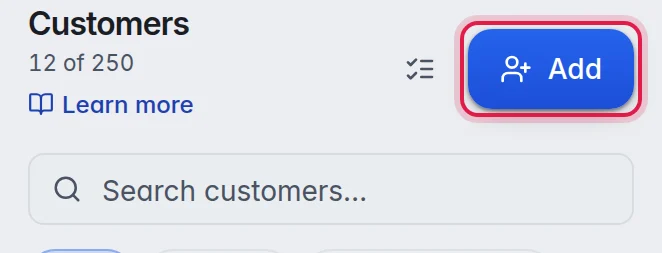
- Click Add: Click Add at the top of the customer list. A short form with three steps opens on the right.
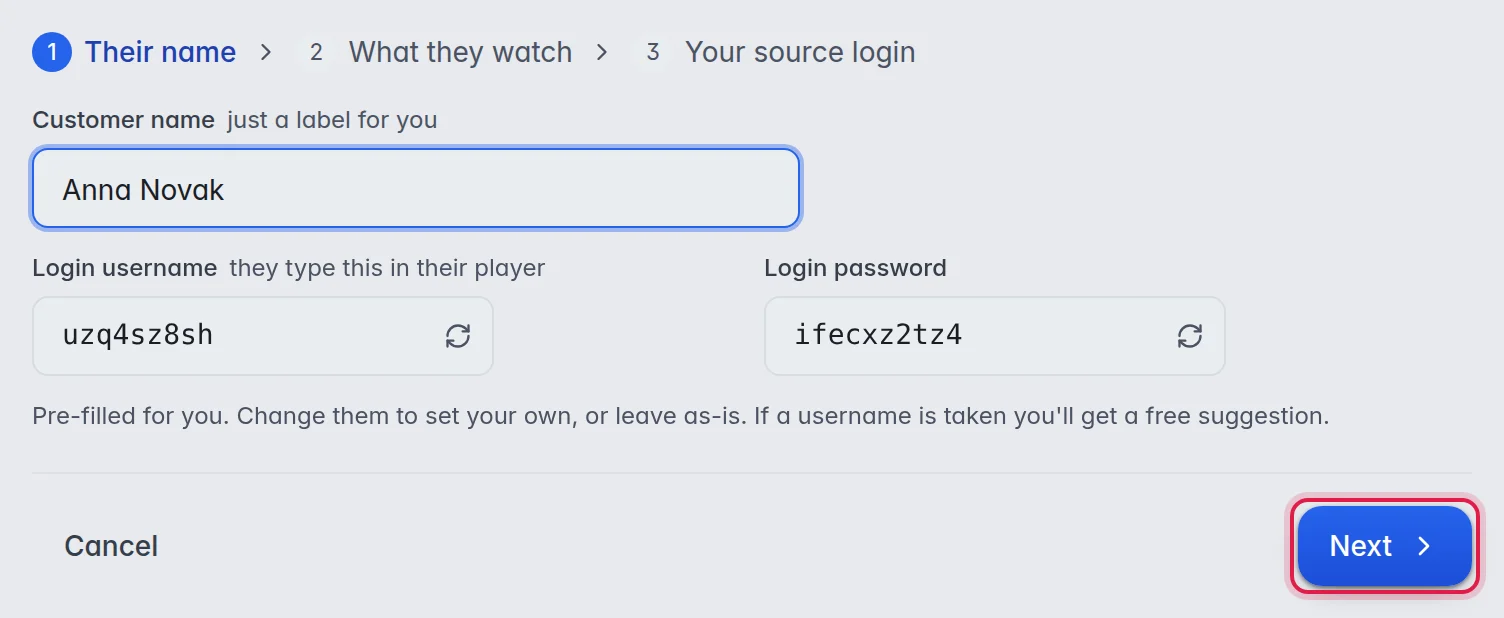
- Name the customer: On Their name, type a Customer name. Only you see it, so pick something you recognise, for example "Anna Novak" or "Grandma's TV".
- Check the login: Login username and Login password are already filled in with random values. Keep them or type your own. The round arrow inside each field makes a new random value.
- Go on: Click Next.
- Choose what they watch: On What they watch, click Choose groups and tick the groups this customer may see. Leave everything ticked to give them the whole playlist. More in Group access.
- Go on: Click Next.
- Enter your source login: On Your source login, type the Provider username and Provider password you bought from your provider for this customer. M3UTool tests the login as soon as both fields are filled in.
- Check the end date: A working login fills in Expires on with the end date your provider has for it. Change it if you sell a different period, or clear it for no end date.
- Set the devices: Set Max devices to the number of M3UTool apps that may watch at the same time.
- Create: Click Create customer. A window opens with everything the customer needs to sign in. More in Give a customer their links.
The options
- Customer name: A label for you. The customer sees it at the top of their own page.
- Login username and Login password: What the customer types into their player. If the username is already taken, M3UTool offers a free one.
- Include offline channels: When this is on, channels that failed their last check stay in this customer's list. When it is off, they are left out until they work again.
- Provider username and Provider password: Your provider's login for this customer. M3UTool puts it into the channel addresses so the video plays from your provider. The customer never sees it.
- Test connection: Tests the provider login again. It shows Login OK with the provider's end date, or a message that says what went wrong.
- Expires on: The last day this customer can watch. Leave it empty and the customer never expires.
- Max devices: How many M3UTool apps can watch at the same time. Example: 2 lets a customer watch on the TV and the phone at once. Other player apps, like Smarters, never count.
Good to know
- Note: The Add button is greyed out when you have as many customers as your plan allows. The number under Customers shows where you stand, for example "12 of 250".
- If your playlist uses more than one provider, the form asks for one login. It is used for every provider until you enter a login per provider. More in Provider logins.
- Tip: Give each customer their own provider login. Your provider counts connections per login, so customers who share one get in each other's way.