Hide or delete
Hiding and deleting both keep a channel away from your customers, but they are not the same. A hidden channel stays in your editor, ready to show again. A deleted channel goes to the bin and out of your way. Follow these steps to hide or delete channels and groups.
Hidden or deleted?
| What happens | Hidden | Deleted |
|---|---|---|
| Your customers see it | No | No |
| In your editor | Yes, with an orange edge | No, it is in the Bin tab |
| After a refresh | Stays hidden, and keeps getting updates | Stays deleted, and is not added again |
| To bring it back | Show it again | Restore it from the bin |
Use hiding for channels you are still cleaning up or only want to show later. Use deleting for what you never want to see again.
Hide a channel
- Open the channel: Click it in the grid. Its details open on the right.
- Hide it: Click Hidden in the Customers row at the top of the panel. It turns purple with a tick, and the row in the grid gets an orange edge. For a film or a show the switch is called Hide from customers, next to the poster.
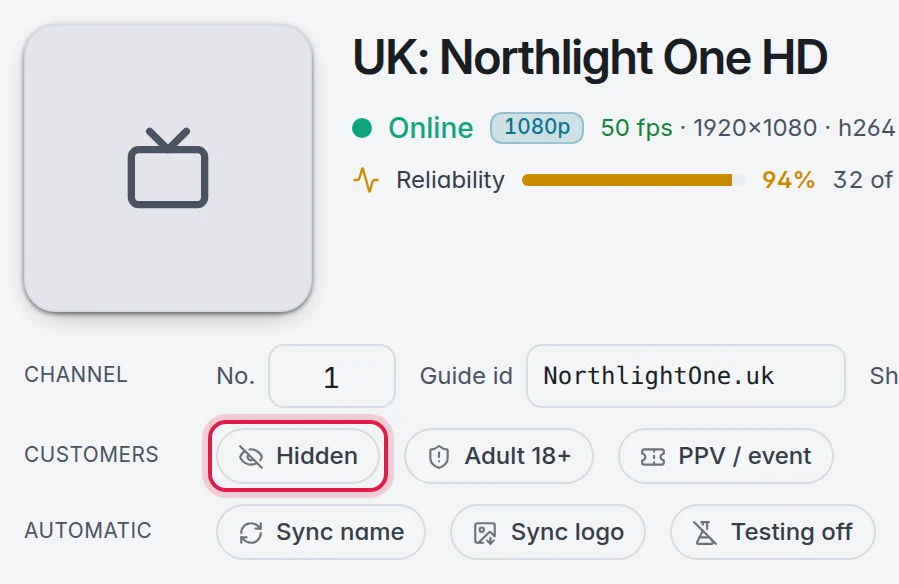
Click it again to show the channel to your customers again.
Hide a group
- Open the menu: Point at the group in the list on the left and click the three dots at its right.
- Hide it: Click Hide from customers. Show to customers in the same menu brings it back.
In the group's panel on the right, Customers under Settings with Show and Hide does the same, also for several ticked groups at once. More in Groups.
Delete channels
- Pick the channels: Click one channel, or select several. More in Select several channels.
- Delete: For one channel, click Delete at the bottom of its details. For a selection, click Move to bin under Remove in the panel on the right.
- Confirm: Click Move. The channels leave the grid and go to the bin.
Delete a group
- Open the menu: Point at the group in the list on the left and click the three dots.
- Delete: Click Move to bin.
- Confirm: The window Move this group to the bin? says how many channels go with it. Click Move to bin.
Good to know
- Note: Nothing is gone for good when you delete it. It stays in the bin until you restore it or delete it permanently there. More in The bin.
- A channel you deleted stays deleted after a refresh. Only when you delete it permanently from the bin can a refresh bring it back as a new channel.
- To hide every channel that failed its last check, use Hide not working on the Checker tab. More in Not working channels.
- Testing off is different from hiding: the channel stays visible to your customers, but checks skip it.
- Deleted by mistake? Click Undo in the top bar right away. More in Undo.