Group access for many customers
Sometimes you want to change the groups of many customers at once, for example to give every customer a new sports group or to take an old one away. You do not have to open each customer. Follow these steps to change group access for several customers together.
Steps
- Open Customers: Open the playlist and click Customers in the bar on the left of the editor.
- Start selecting: Click the ticked-list icon next to Add, at the top of the customer list. A tick box appears in front of every customer. Or hold Ctrl and click a customer: that starts it too.
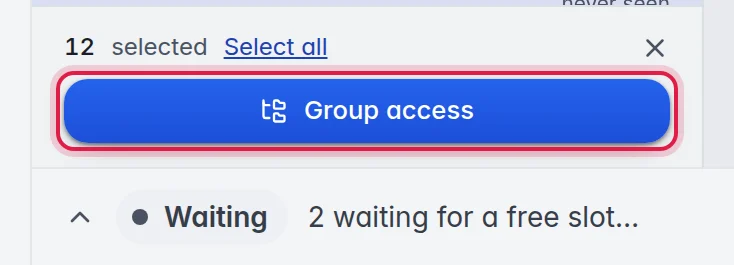
- Pick the customers: Click the customers you want to change, or click Select all at the bottom of the list. Ctrl + click adds or removes one, Shift + click picks everyone between the last one and this one, Ctrl + A picks all shown. The bar at the bottom shows how many are selected.
- Open group access: Click Group access in the bar at the bottom.
- Choose what to do: At the top of the window, click Give access, Take away, Set exactly or Use a bouquet. The line under the buttons explains your choice.
- Tick the groups: Click Channels, Movies or Series and tick the groups you want to change.
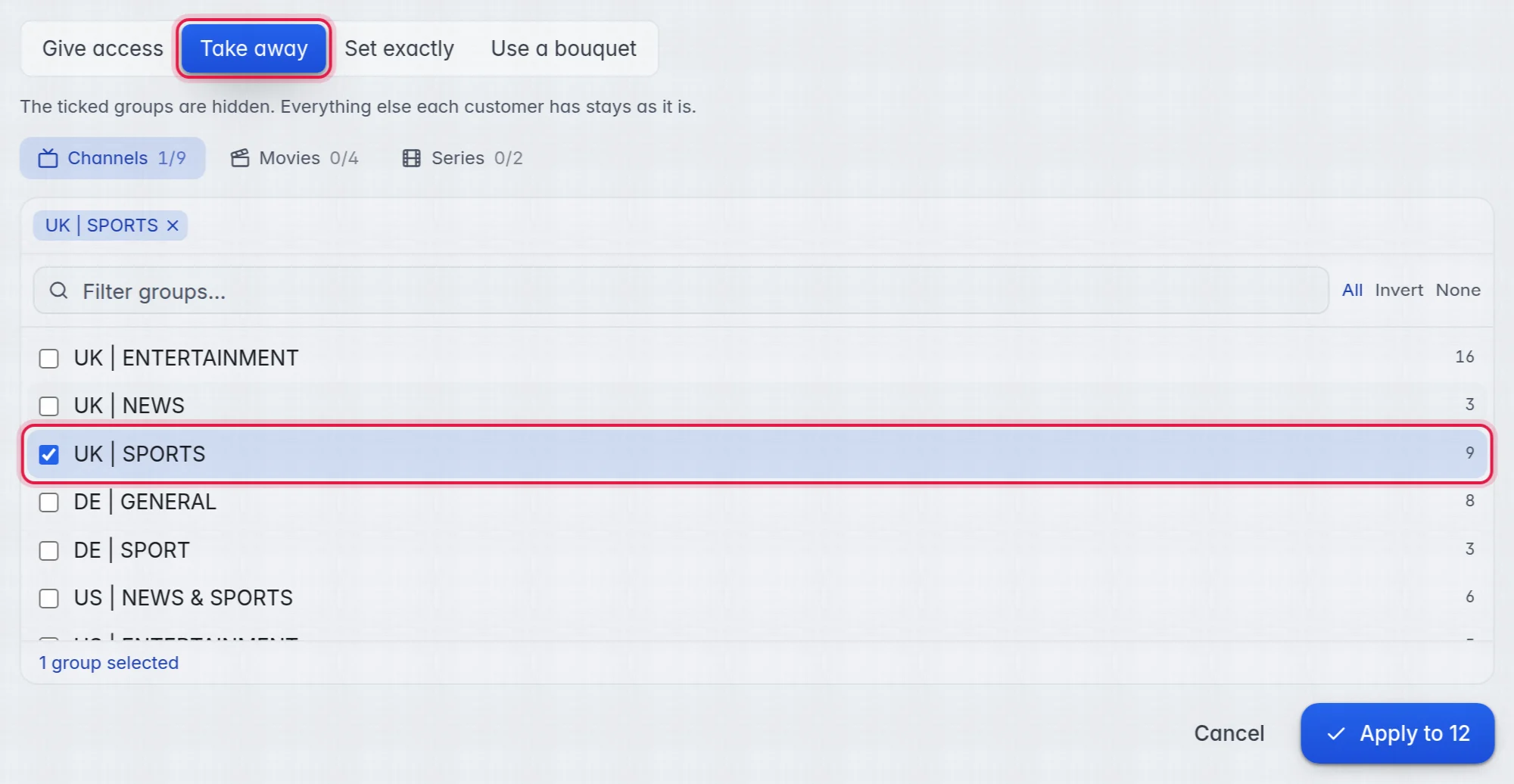
- Apply: Click Apply to, followed by the number of customers, for example Apply to 12.
- Stop selecting: Click the × in the bar at the bottom.
A message tells you how many customers changed. Customers who already had what you asked for are left as they are.
The three choices
- Give access: The ticked groups become visible to the selected customers. Everything else each customer has stays as it is.
- Take away: The ticked groups are hidden from the selected customers. Everything else each customer has stays as it is.
- Set exactly: Each selected customer gets exactly the ticked groups. Every other group is hidden, in all three types.
- Use a bouquet: Each selected customer gets the groups of the bouquet you pick, and keeps following it: when you change the bouquet, they change too. More in Bouquets.
Good to know
- Important: Set exactly counts channels, movies and series together. If you only tick channel groups, the selected customers lose all movies and series. Tick those too if they should keep them.
- If you choose Set exactly without ticking anything, M3UTool asks first, because those customers would see nothing at all.
- Take away leaves a customer with only some groups of that type. From then on, new groups of that type stay off for them until you give access. More in Group access.
- Tip: Type in the search box above the list first. The button then reads Select all shown and picks only the customers the search shows.