Move events into a group
Most providers spread event channels over several groups and leave them in the list when nothing is on. With a live events group, M3UTool collects every event it recognises in one place, shows it while it is coming up or on air, and sends it back hidden when it is over. Your customers find today's matches in one group. Follow these steps to set up live sports and collect your events.
Step 1: Mark your event channels
Mark a whole group in its ⋯ menu as an event group, or tick PPV / event on single channels. The setup card on Live sports says the same.
- Open the channel: Open Live TV, click the Channel editor tab and click an event channel. Its panel opens on the right.
- Mark it: Click PPV / event in the Customers row at the top of the panel. Sync name switches on with it.
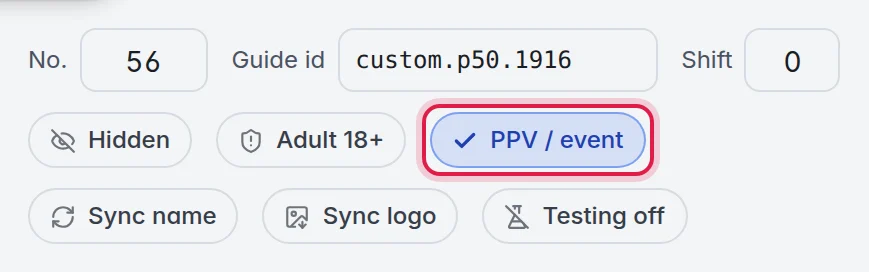
For many channels at once: select them in the list, then in the panel on the right under Flags, click Set next to PPV / event.
Mark a whole group as an event group
- Open the group menu: In the list on the left, point at a live group and click the three dots at its right.
- Mark it: Click Event group (live sports / PPV). In the group's panel (click the group, or Edit group), the row Event group does the same: click Yes.
Every channel in the group becomes a PPV / event channel, and new channels your provider adds to it later count too.
- Turn it off: Click Not an event group in the same menu, or No in the panel. Its channels are unmarked again.
- One step to undo: Marking or unmarking a group is one step for Undo in the top bar.
- Suggestions: At the top of Live sports, These groups look like event groups lists groups whose names look like events, for example with PPV, EVENT or pay-per-view in them. Click Mark on one, Mark all for all of them, or Not now to hide the list.
Step 2: Choose the group
- Open Live sports: Click the TV guide tab, then Live sports at the top of the tab.
- Open the settings: Click Settings at the top right. A panel opens on the right.
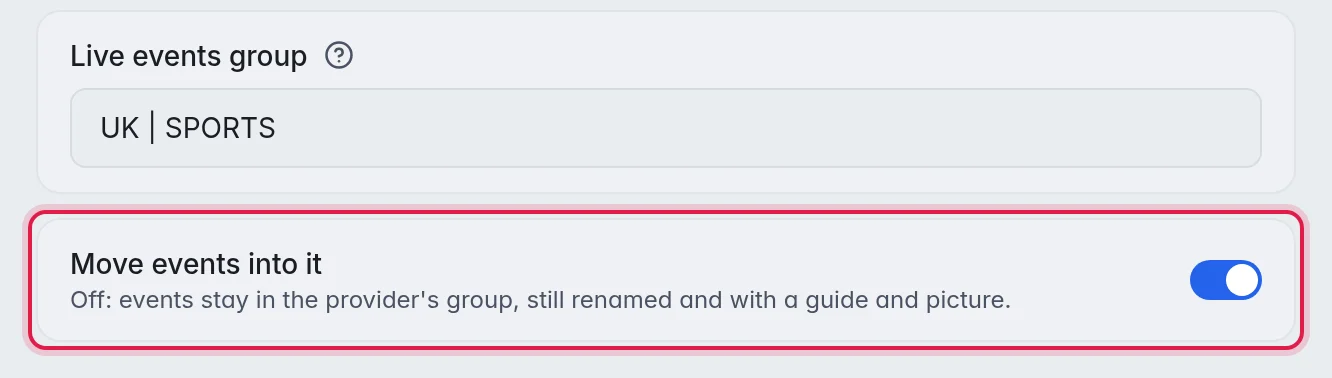
- Name the group: Under Where events go, type the group name in Live events group. Example: "UK | SPORTS". A group that does not exist yet is created.
- Move the events: Turn on Move events into it.
- Pictures (optional): Under How events look, leave Matchup picture picked for a "Team 1 vs Team 2" picture on every matched event.
Everything in this panel saves by itself. The note at the top says saved.
Step 3: Build
- Preview (optional): In the settings, under Names & guide text, click Preview with these words. A list shows what M3UTool would write for each event channel: the new name, the guide entry and the name it came from. Your channels do not change yet.
- Build: Close the settings and click Build now at the top of Live sports. A message sums up the result, for example "Done: 8 with a real fixture, 3 named from the channel."
- Keep it current: Turn on Auto at the top right of Live sports. M3UTool then builds the sports guide again about every three hours.
The options
- Live events group: The group that shows what is on. Every event channel is shown while its event is coming up or on air, and hidden when it is over. Leave it empty and your event channels stay visible where your provider put them.
- Move events into it: When this is on, every event M3UTool recognises moves into the group above, also when no fixture was found, and names that only carry a time count as today. When it is off, the channels stay in their own group: they are still renamed, given a guide and a picture, and still shown and hidden as events come and go.
- Matchup picture: Both team badges with "VS" between them, for matched games. The other pictures are Home team badge, League logo, Sport icon and Channel's own logo.
A league with its own group always wins for its own matches. More in Add a league.
When an event is over
Three hours after its start, or when its guide entry ends, the event channel is hidden and goes back to the group it came from, for example PPV | EVENTS. It keeps its event name until the provider gives the slot a new event. The next event brings it back.
Good to know
- The settings save by themselves a moment after you change them. Build now applies them to your channels straight away.
- Important: When you empty Live events group, every event channel goes back to its own group, visible again, with your provider's name and without its sports guide. This is so that no channel stays hidden or moved by accident.
- A leftover name with a time but no date, for example "Fight Night 12 20:00", comes back the next day as a new event, until your provider renames the channel.
- To hide empty event channels without a live events group, turn on Hide event channels between events in Playlist automation.