Pick the right match
Sometimes Posters & info finds nothing for a title, or picks the wrong film: a remake instead of the original, or a different show with the same name. You can then search TMDB for that one title and pick the right result yourself, or paste a poster of your own. Follow these steps to fix one title.
Steps
- Open Posters & info: Click Movies (or Series) in the bar on the left of the editor, then click Posters & info in the row of tabs.
- Open the title: Click the title in the grid. Its details open on the right. The card under the poster shows what is stored now: the TMDB name, year, rating, running time, genres and plot. More shows the cast.
- Search TMDB: Click Search TMDB. M3UTool searches for the title, in the language of its group.
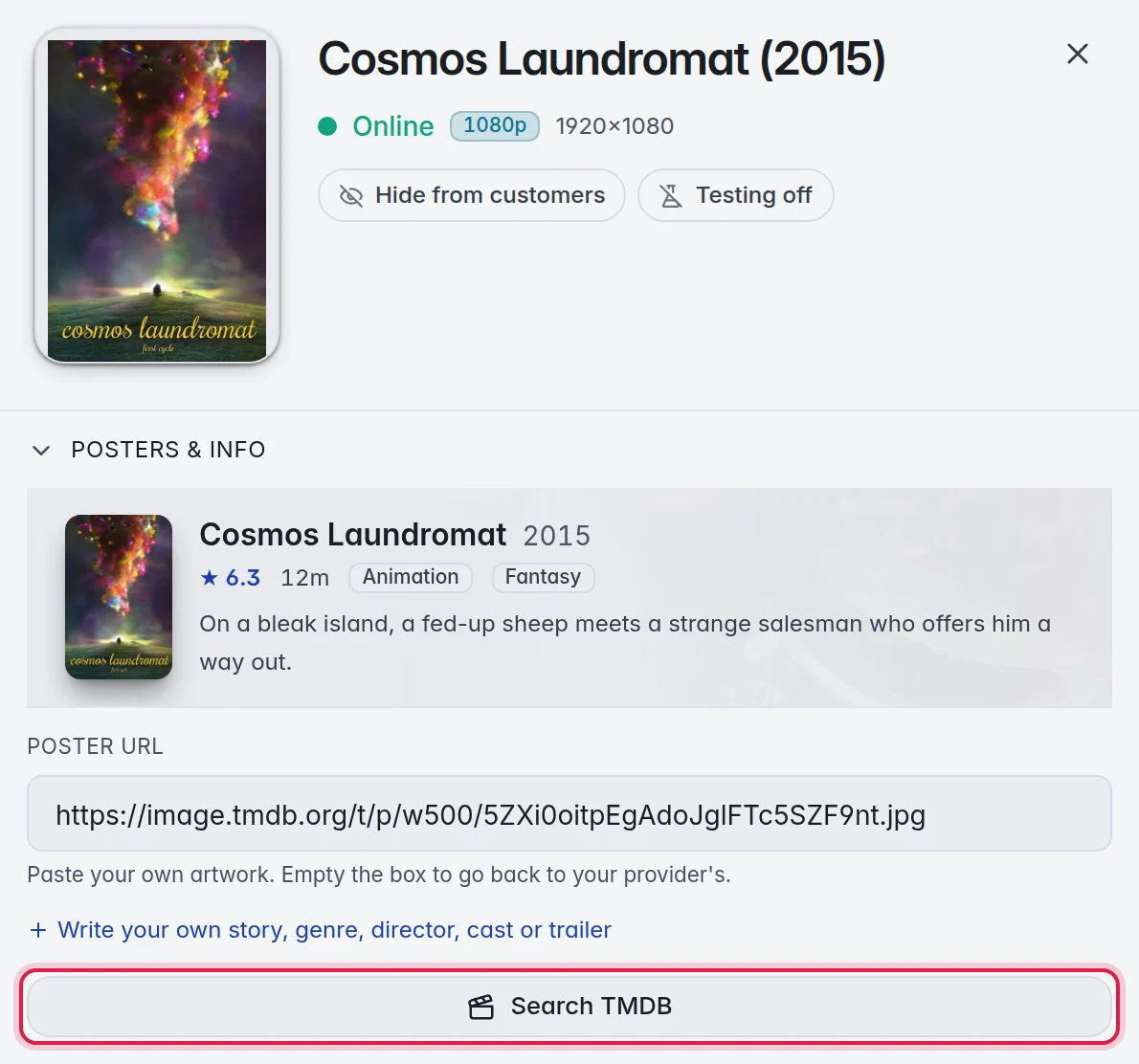
- Change the search (optional): Edit the text in the search box, pick another language in the list next to it, and click Search. Example: search "Night Harbour 1987" to find the original instead of the 2015 remake.
- Pick the result: Each result shows its poster, name, year, genre and the start of its plot. Click the right one. It is applied at once, and a message confirms it, for example: Applied "Sintel".
How a pick is applied
Next to Search is a small settings button. It opens How a pick is applied:
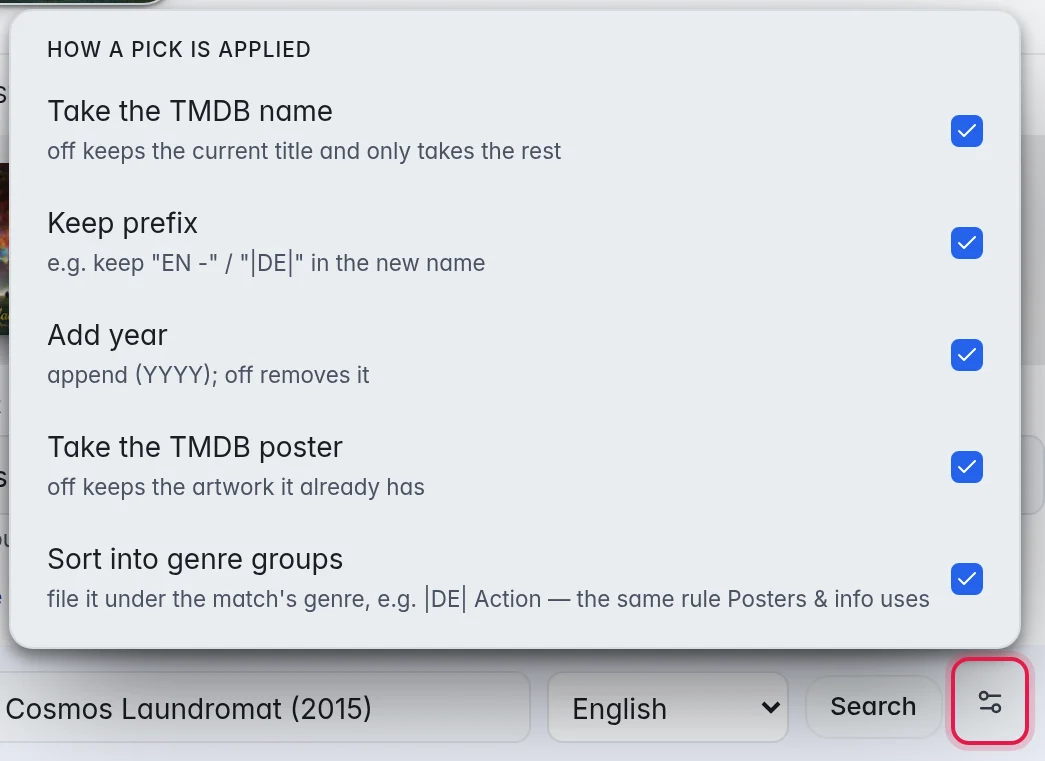
- Take the TMDB name: When this is on, the title takes the name TMDB uses. When it is off, your own title stays and only the rest is filled in.
- Keep prefix: Keeps a code such as "EN -" or "|DE|" in front of the new name. It shows while Take the TMDB name is on.
- Add year: Adds the year in brackets, for example "(2010)". When it is off, a year is removed. It also shows while Take the TMDB name is on.
- Take the TMDB poster: When this is on, the poster is replaced. When it is off, the picture you have stays.
- Rename episodes on apply: Series only. The episodes get their real names from TMDB.
- Sort into genre groups: Moves the title into the group of its genre, for example "|DE| Action". It is the same setting as in the Posters & info window.
These settings stay as you leave them, also for your next pick. Take the TMDB name and Take the TMDB poster only apply to the titles you pick by hand, not to Posters & info runs.
Use your own poster
- Paste the address: In the title's details, paste the full address of the image in Poster URL, right under the status line.
- Done: A full link saves as soon as you paste it. A typed link saves when you click out of the box. Your poster shows at once and wins over the TMDB poster.
To go back to the provider's picture, empty Poster URL and click out of the box.
Note: A later Posters & info run can replace your poster again.
Write your own story, genre and cast
TMDB has no story in your customers' language for many titles, for example in Serbian or Arabic. You can then write the info yourself.
- Open the boxes: In the title's details, under Poster URL, click Write your own story, genre, director, cast or trailer.
- Fill them in: Write in any language. Fill only the boxes you need.
- Story: The text customers read about the film or show. - Genre: Put a comma between genres, for example "Драма, Комедија". - Director: One name or more. - Cast: Put a comma between names. - Trailer: A YouTube link. Other links do not play in the apps, so they are not saved. A half-typed link waits, and the box says "paste the whole YouTube link".
- Done: Your text saves by itself a moment after you stop typing. Customers see it at once. The card above shows Your text.
Your text wins over TMDB and your provider, box by box. A box you leave empty still shows TMDB's or your provider's info. Posters & info runs and new picks never replace your text, and it stays when you rename the title.
To go back to TMDB and your provider, empty the box. It saves by itself.
Find the titles that did not match
- Show the TMDB id: Click Columns above the grid and switch on TMDB id.
- Filter it: Click the funnel in the TMDB id column header and choose is blank.
The grid now shows exactly the titles that were never matched. Fix their names, then run Posters & info again, or pick their match one by one.
Good to know
- A series is matched as a whole. Open any episode, or the series itself, and the pick applies to the whole show. Your own text is for the whole show too.
- Two series cannot carry the same name in one playlist. When the TMDB name is taken, the series is saved as that name with " #2" after it, and the message says so.
- When a pick moves a title to its genre group, the message names the group it moved to.