Columns and view
The grid shows the check results by default: quality, frame rate, reliability, speed and the last check. You can add columns like the channel number, the TV guide id or the channel link, and change widths, order and row height. Follow these steps to set the grid up the way you work.
Step 1: Choose the columns
- Open the list: Click Columns above the grid, at the right.
- Tick the columns: Under Show columns, click a column to show or hide it. The grid changes at once.
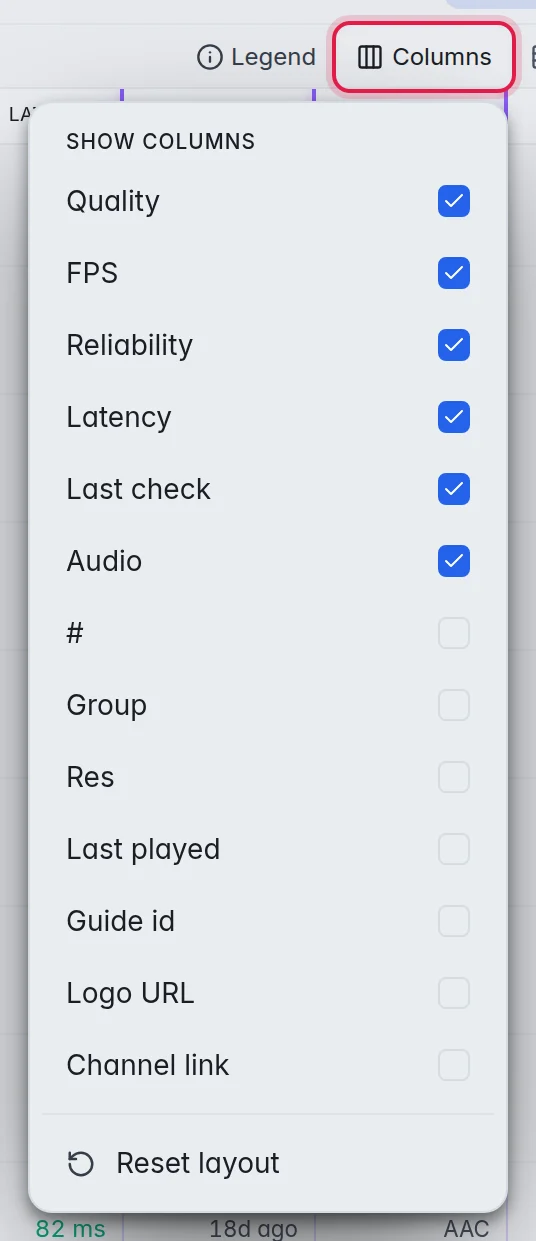
- Start over: Click Reset layout at the bottom of the list to go back to the standard columns, widths and order.
Step 2: Arrange the columns
- Change a width: Drag the violet line between two column headers.
- Change the order: Drag a column header to another place.
- Fit the name column: After you resize the Channel column by hand, Fit Channel to width in the Columns list lets it fill the free space again.
Step 3: Change the rows and panels
- Row height: Click the button right of Columns to switch between compact and comfortable rows.
- Panel widths: Drag the edge of the group list or of the detail panel. Double-click the edge to reset it.
- More room: Click the small panel button at the top right of the group list to fold it away. The same button brings it back.
The columns
- #: The channel number.
- Group: The group the channel is in. Handy while searching across groups.
- Quality, Res and FPS: Resolution and frame rate found by the last check.
- Reliability: How often the channel passed its recent checks.
- Audio: The audio format.
- Latency: How fast the stream answered.
- Last check and Last played: When the channel was last checked, and when a customer last watched it.
- guide id, Logo URL and Channel link: The TV guide id, the logo address and the link the channel plays from.
- TMDB id: Movies and series only: their entry on TMDB. Click it to open the page.
Point at any column name to see what it means. More about the check columns in Read the results.
Good to know
- Legend next to Columns explains the coloured dots and edges of the rows. Under Colours in the columns it explains the rest: Quality 4K and 1080p stand out; Reliability green 95% and up, orange 70–94%, red below 70%; Latency green under 0.8 s, orange under 2 s, red slower; Audio 5.1 and 7.1 stand out.
- Every column header has its own filter. More in Search and filter.
- M3UTool remembers your columns, widths and row height in this browser. On another computer you set them up again.
- Dark mode is in the menu under your initial at the top right.