Fill in posters and info
Posters & info looks up your movies or series on TMDB and fills in the poster, plot, year, genres and rating of every title it can match. You can preview the matches first, or fill them in straight away. Follow these steps to fill in posters and info.
Steps
- Open the Posters & info tab: Open your playlist and click Movies (or Series) in the bar on the left of the editor. Then click Posters & info in the row of tabs under the top bar.
- Open the window: Click Posters & info in the top bar. The Posters & info window opens. You can also open it with Tools in the top bar, under Fix & fill.

- Choose the titles: Under 1 On what?, the window has already picked what you ticked, else the ticked groups, else the group you have open. Click another choice when you need one: Ticked (N), Ticked groups (N), This group, Pick groups… or All movies (All series on the Series tab). With Pick groups…, a language list appears beside each group: the language TMDB is asked in.
- Set the options: Under 2 Options, switch Sort into genre groups and Add the year to the title on or off. On the Series tab you also find Give episodes their real titles.
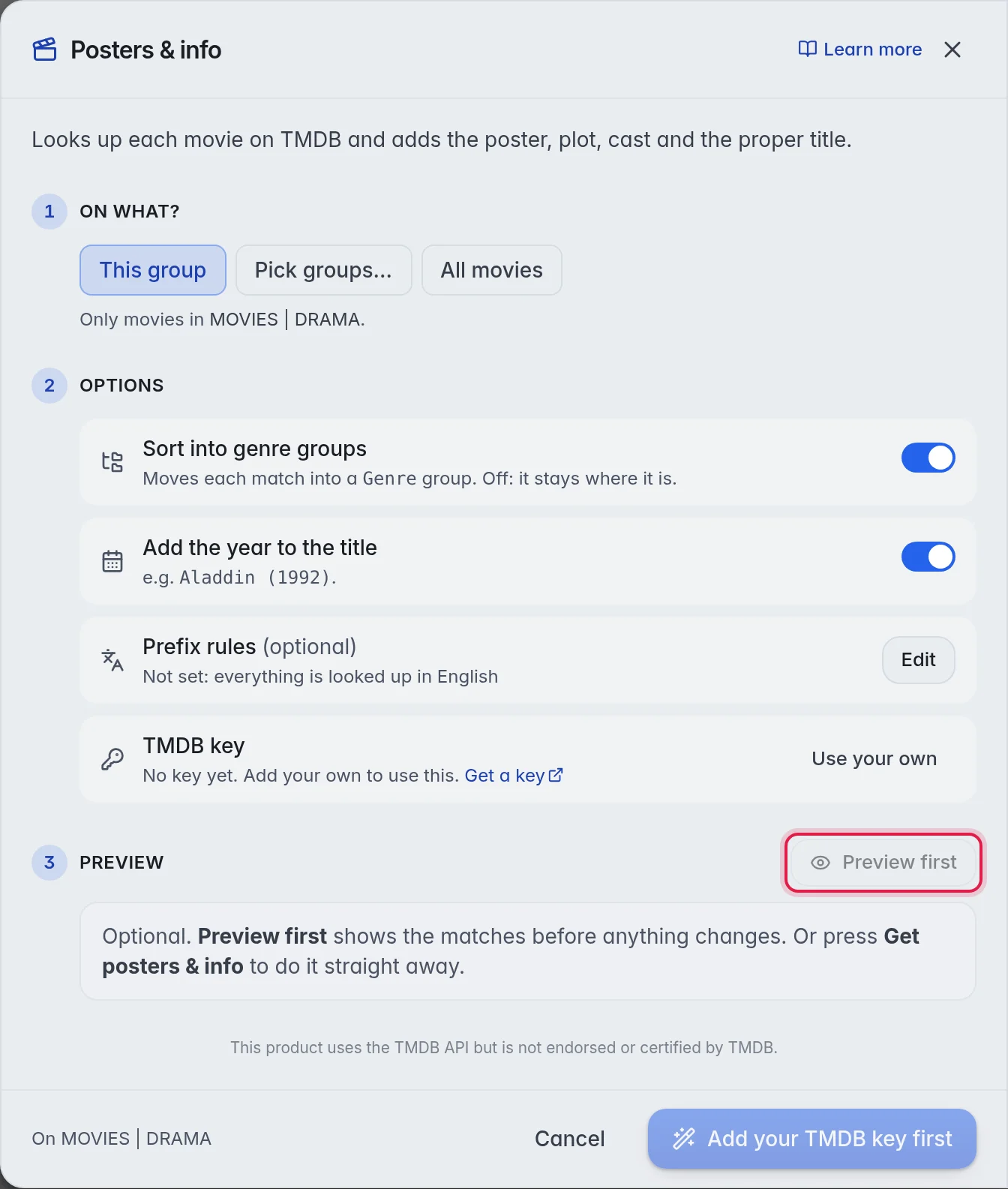
- Preview (optional): Click Preview first at the right of 3 Preview. A bar shows the progress, for example "Searching TMDB · 12 matched". Nothing changes yet.
- Check the preview: The preview says how many titles would match, for example "28 would match · 32 looked at", and lists the names Before → After. With Sort into genre groups on, each line shows the group the title would move to.
- Use the matches: Click Use these 28, with your number. The matches are written in the background. You can close the window.
Tip: When you know the result will be right, skip the preview and click Get posters & info. It looks up and writes in one run.
The options
- Sort into genre groups: When this is on, every match moves into a group named after its genre, for example "|DE| Action". When it is off, titles stay in their group and only gain the name, poster and details.
- Add the year to the title: When this is on, a matched title gets its year: "Sintel (2010)" instead of "Sintel".
- Give episodes their real titles: Series only. Episodes get their real names, for example "Show S02E05 - The Lighthouse". Every season needs its own lookup, so a run takes longer.
- Prefix rules: Click Edit to tell M3UTool which language a word at the start of a title stands for, and which prefix its films move to. The same rules are in Playlist settings under Posters & info. More in Language of posters and info.
- TMDB key: Shows that M3UTool's built-in key is used, so there is nothing to set up. Click Use your own to paste a key of your own, and Change to swap it later. Go back to the built-in key takes you back.
Other ways to fill in titles
- A few titles: Tick them in the grid. In the panel on the right, click Get posters & info for N, with your number.
- One group or several: Click the group in the list on the left, or tick several. In the panel on the right, click Posters & info under Tools. It runs straight away.
- After every update: Switch on the Posters & info step in Playlist automation. More in Playlist automation.
Good to know
- Note: The window starts on the group you have open, not on all titles. Pick All movies or All series when you want the whole tab.
- Running Posters & info twice over the same titles is safe. It writes the same details again.
- Titles that did not match are easiest to find with the TMDB id column. More in Pick the right match.
- Clean titles match better. A title like "EN - 4K - Sintel 2010 MULTI" is harder to find than "Sintel (2010)". More in Fix names.
- Posters & info runs are not in Undo. To go back, restore a backup. More in Backups and restore.