Activation codes
An activation code sets up the M3UTool app for your customer in one go. The customer types one code instead of a server address, a username and a password. This is the easiest way to get someone watching on a TV with a remote. Follow these steps to make an activation code.
Steps
- Open the customer: In Customers, click the customer in the list.
- Open the window: Click Give to customer at the top right of the customer.
- Make a code: Under Set up the M3UTool app, click Generate code. The new code appears in the list below, for example
RMSX-ZGJB.
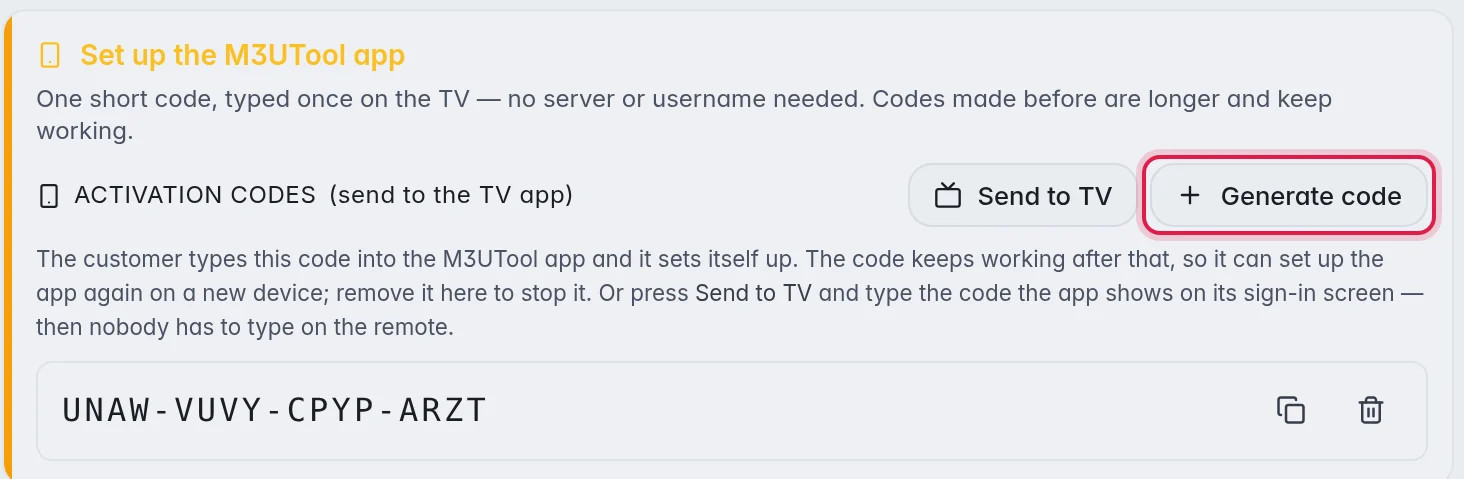
- Copy it: Click the copy icon next to the code and send the code to your customer.
- Let the customer sign in: The customer opens the M3UTool app, chooses Activation code, types the code and presses OK or Connect. The app fills in everything else by itself. More in Set up the app for a customer.
Send it straight to a TV
You can also skip the code. The app shows a TV code on its sign-in screen, for example F6GB-MDN1-WGHQ. You type that code in the editor and the app sets itself up. Nobody types anything on the remote.
- Open the app on the TV: The customer opens the app. The TV code is on the sign-in screen, on the right. On a phone it is under the form.
- Open the window: In Customers, click the customer, then Give to customer.
- Send it: Under Set up the M3UTool app, click Send to TV. Type the TV code and click Send.
- Wait a few seconds: The editor shows Sent to and the name of the TV. When the TV has it, it shows Set up on and the TV starts loading the channels.
- The app must be open: Only an app that is open on its sign-in screen can get it. If the editor says it can't find the TV, open the app and check the code letter by letter.
- It waits 10 minutes: If the TV does not take it in that time, send it again.
- Paused or expired customers: You can't send a customer who is paused or expired. Turn them back on or renew them first.
- The code only points at the TV: It works once. The login itself goes only to the app that shows the code.
Send it from your phone
You can do the same on player.dontv.shop/account — handy when you stand next to the TV with your phone.
- Sign in: Use your editor login. If you are signed in to the editor already, you are in at once.
- Pick a playlist: Tap the playlist under 1 Playlist.
- Pick who watches: Tap Me to watch it yourself, or tap a customer. New customer adds one with their provider login.
- Type the TV code and tap Send to TV. The page says Done when the TV has it.
- What is Me? Your own line on that playlist. It is made the first time you pick it and it does not count as a customer. In Customers it has a Me badge.
- My TVs: Every TV with one of your playlists. Reload loads the channels again, Add a playlist puts one more playlist on it.
- Questions? Open a ticket on the left, under Playlists, opens your tickets in the editor.
Stop a code
Click the bin icon next to the code and confirm with Delete. The code stops working at once. Use this when you sent a code to the wrong person.
Note: Devices that already signed in with the code keep watching, because they now use the customer's login. To stop those too, pause the customer or give them a new login. More in Edit, pause, move or delete a customer.
How codes behave
- They keep working: A code does not wear out when it is used. The customer can use the same code for a second TV, or after installing the app again. The code stays in the list until you delete it.
- Typing is forgiving: New codes are 8 letters in two groups, for example
RMSX-ZGJB. Codes made before are 16 letters and keep working. Upper or lower case and the dashes do not matter. - Press OK on the TV: After the 8 letters, the customer presses OK or Connect. The app does not start by itself.
- One customer, one login: A code always signs in as the customer it was made for, with their groups, their end date and their device limit.
- Paused or expired customers: A code of a customer who is paused or expired does not sign in. The app shows that the subscription is paused or has expired and asks them to contact you.
Good to know
- Customers can also get a code themselves on their own page, under Activation code. Note: When they do, their earlier codes stop working, including the ones you made. This is so that a customer always has one code at a time.
- Activation codes come with Branded players in your plan. Without it, the window says so, and your customers sign in with the Xtream login or the M3U link in any player. More in Plan and billing.
- The app takes your branding (app name, logo and colour) the moment the code is used. More in Branding and custom domain.