Expiry and renewal
Every customer can have an end date. Set it to the end of the period they paid for, and their access stops by itself on that day, so you never have to remember to switch anyone off. When they pay again, you move the date forward. Follow these steps to set or extend a customer's end date.
Steps
- Open the customer: In Customers, click the customer in the list.
- Open Overview: Click the Overview tab.
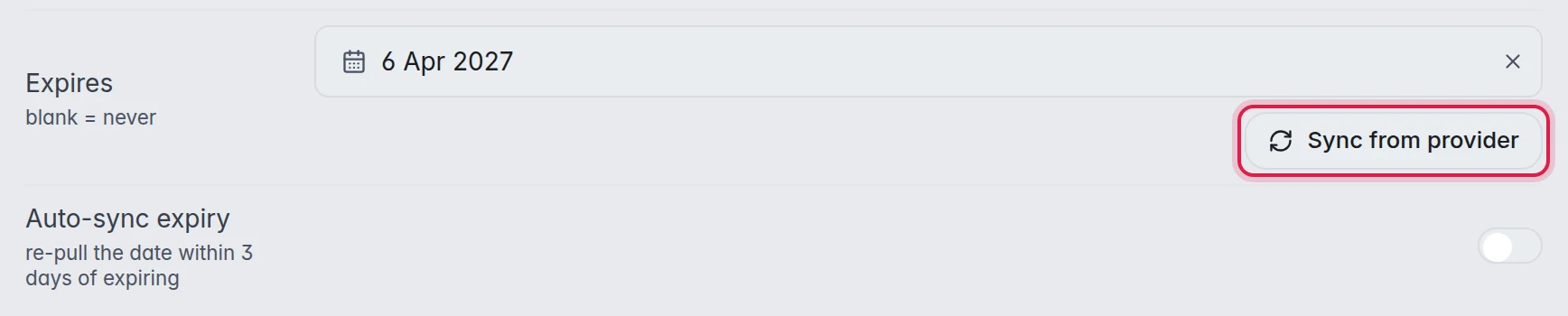
- Set the date: Pick the new end date in Expires. Empty the box and the customer never expires.
- Or take the provider's date: Click Sync from provider to fill in the end date your provider has for this customer's provider login.
The date saves by itself. That is all a renewal needs. The customer's login stays the same, and nothing has to be set up again on their devices.
The options
- Expires: The last day this customer can watch. Empty means no end date.
- Sync from provider: Asks your provider once for the end date of this customer's provider login and puts it in Expires. When the provider has no end date, the message says so.
- Auto-sync expiry: When this is on, M3UTool asks your provider again by itself when the customer is 3 days or less from their end date. If you renewed the provider login, the new date comes over and the customer keeps watching. When it is off, the date only changes when you change it.
How the status changes
- Active: More than 7 days to go.
- Expiring: 7 days or less to go. The word turns orange in the list, and the customer's own page asks them to renew soon.
- Expired: The end date has passed.
What an expired customer sees
Expiry is a full stop, not only a hidden list:
- The M3U link and the TV guide link answer with "This subscription has expired."
- Players with the Xtream login show the account as expired and do not sign in.
- The M3UTool apps show that the subscription has expired and ask the customer to contact you.
- Their own page says the subscription has run out.
The customer and all their settings stay in your list. Move the date forward and they can watch again straight away.
Good to know
- Tip: There is no special trial customer. For a trial, add a customer with an end date a few days away. If they pay, extend the date. If not, access ends by itself.
- A channel that was already playing when the end date passed can run on for a short while. Nothing new starts.
- To stop a customer before their end date, pause them instead. More in Edit, pause, move or delete a customer.