Run a check
A check tests many streams in one go: the channels you ticked, a group, a few groups or everything of one type. Run one after you add a playlist, after a big update, or when customers tell you channels are down. Follow these steps to run a check.
Steps
- Open the Checker: Open your playlist and click Checker in the row of tabs under the top bar. Movies and Series have their own Checker tab.
- Pick a group (optional): Click a group in the list on the left to start from it, or tick several groups with Ctrl and a click.
- Open the Check window: Click Check in the top bar. The window Check channels opens. On the Movies tab it is Check movies, on Series Check episodes. You can also open it with Tools in the top bar, under Fix & fill.
- Choose what to check: Under 1 On what?, the window has already picked what you ticked, else the ticked groups, else the group you have open. Click another choice when you need one: Ticked (N), Ticked groups (N), This group, Pick groups… or All Live TV.
- Choose which of them: Under 2 Options, click Everything, Only the offline ones or Only the not checked.
- Check what happens after checking: Under After checking, switch Add quality tags to the names and Park the dead ones on or off. Both stay as you leave them for every check.
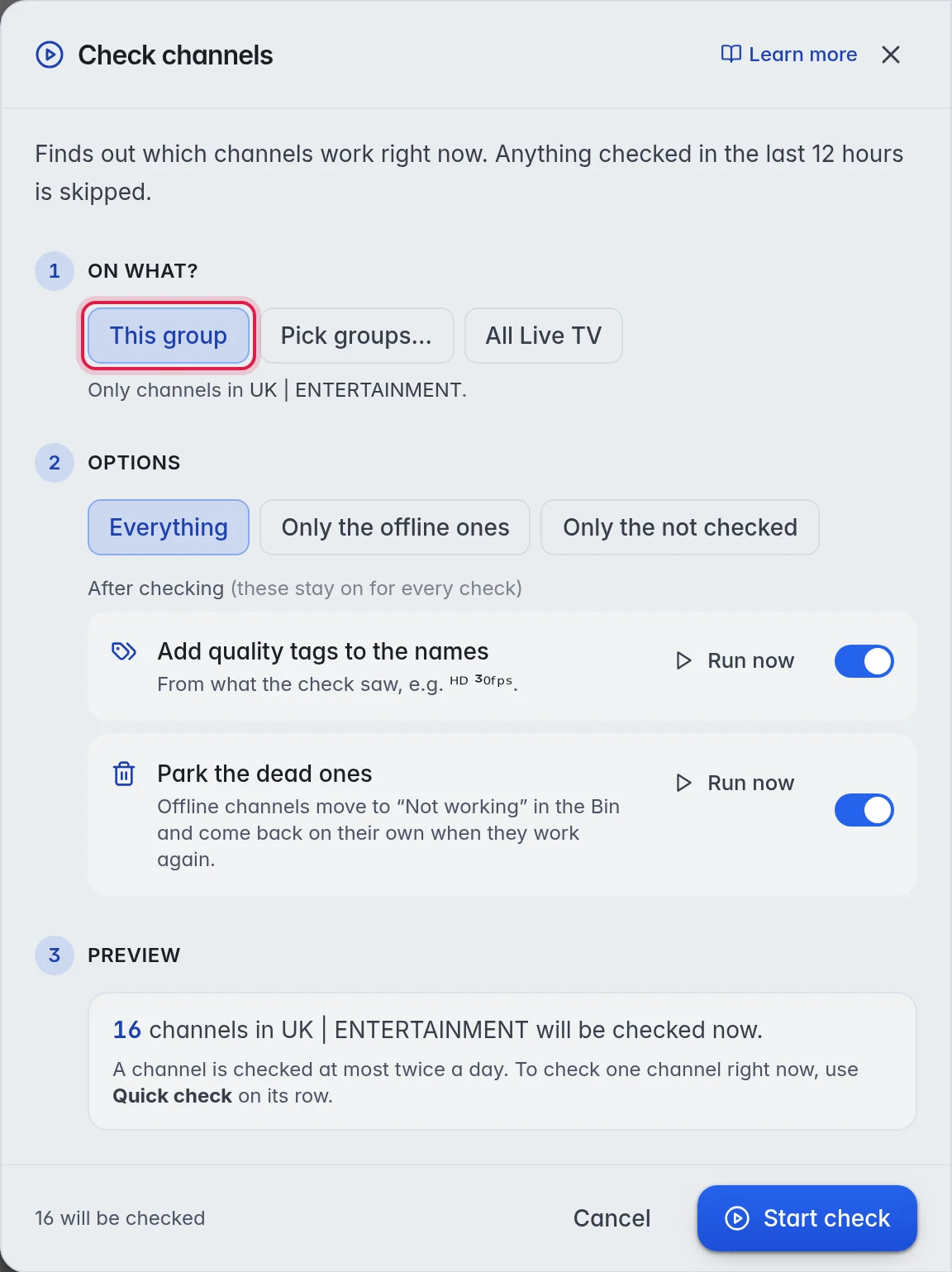
- Read the preview: 3 Preview tells you how many streams will be checked now, for example "16 channels in UK | ENTERTAINMENT will be checked now." When the check is bigger than your checks left today, it says so here.
- Start: Click Start check. The console at the bottom of the editor shows the progress.
The options
- Ticked (N): Only the channels you ticked in the grid.
- Ticked groups (N): Only the groups you ticked in the column on the left.
- This group: Only the group you have open. The line under the choices names it.
- Pick groups…: The groups you tick in the list. Each row also has an eye to show or hide the group from your customers, and a flask to switch testing on or off for it.
- All Live TV: Every live channel. On the Movies and Series tabs it reads All Movies or All Series.
- Everything: Every stream in your choice.
- Only the offline ones: Only the streams that failed last time. The quick way to see which dead channels came back.
- Only the not checked: Only streams that were never checked, for example new channels after an update.
- Add quality tags to the names: When this is on, every check writes what it saw into the names, for example HD and 50fps. Run now does it once, straight away. This setting stays on for every check.
- Park the dead ones: When this is on, offline streams move to Not working after every check and come back by themselves when they work again. Run now does it once. More in Not working channels.
Note: Every check also reads resolution, frame rate and codecs. Playing a short piece of each stream is what tells most reliably whether it works.
Follow the check in the console
The console is the bar at the bottom of the editor. While a check runs it shows how far it is, for example 144/529, the channel being tested, how many are on and off, and the time left. Click the bar to open it.
- Now checking: The streams being tested this second, and Up next with the next ones in line.
- Queue: Other work waiting for its turn, such as a logo search. You can move each task up or down, or remove it.
- Log: The results as they come in. Click Failures to see only the streams that failed.
- Stats: How much of your playlist works and how much is tested. More in Read the results.
Stop at the right of the bar ends everything that runs on this playlist. Streams that were not tested yet keep their last result.
Other ways to start a check
- A selection: Tick channels in the grid. In the panel on the right, click Check with the number on it, for example Check 8.
- A group: Click the group in the list on the left. In its panel on the right, click Check under Tools. Tick several groups to check them all at once.
- A whole series: On the Series Checker tab, click a series and click Check all episodes.
Good to know
- Anything tested in the last 12 hours is skipped, so the preview can say 0 right after a check. To test one channel right now, use Quick check.
- When a check is bigger than your checks left today, the preview says so. The rest is picked up by the automatic check, you do not need to come back.
- When groups are switched out of testing, the window says so under 1 On what?, with a link Change that.
- A check you start runs before the automatic check, so you do not wait behind it.
- Note: Stop also ends other work that runs on this playlist, such as a logo search.