Rename, start over or delete
These are the tasks you do on a whole playlist, from its card on the Overview page: give it another name, throw away one part and pick its groups again, or remove the playlist for good. Follow these steps for each of them.
Rename a playlist
- Open the Overview page: Click the M3UTool logo at the top of the icon bar on the left.
- Click the pencil: It sits next to the playlist name on its card.
- Type the new name: Press Enter to keep it, or Esc to cancel. A message confirms Playlist renamed.
Start channels, movies or series over
Use this when a part of your playlist has become a mess and you want to choose its groups again from scratch. Only the part you pick is touched.
- Open the menu: Click the three dots (…) at the right of the playlist card.
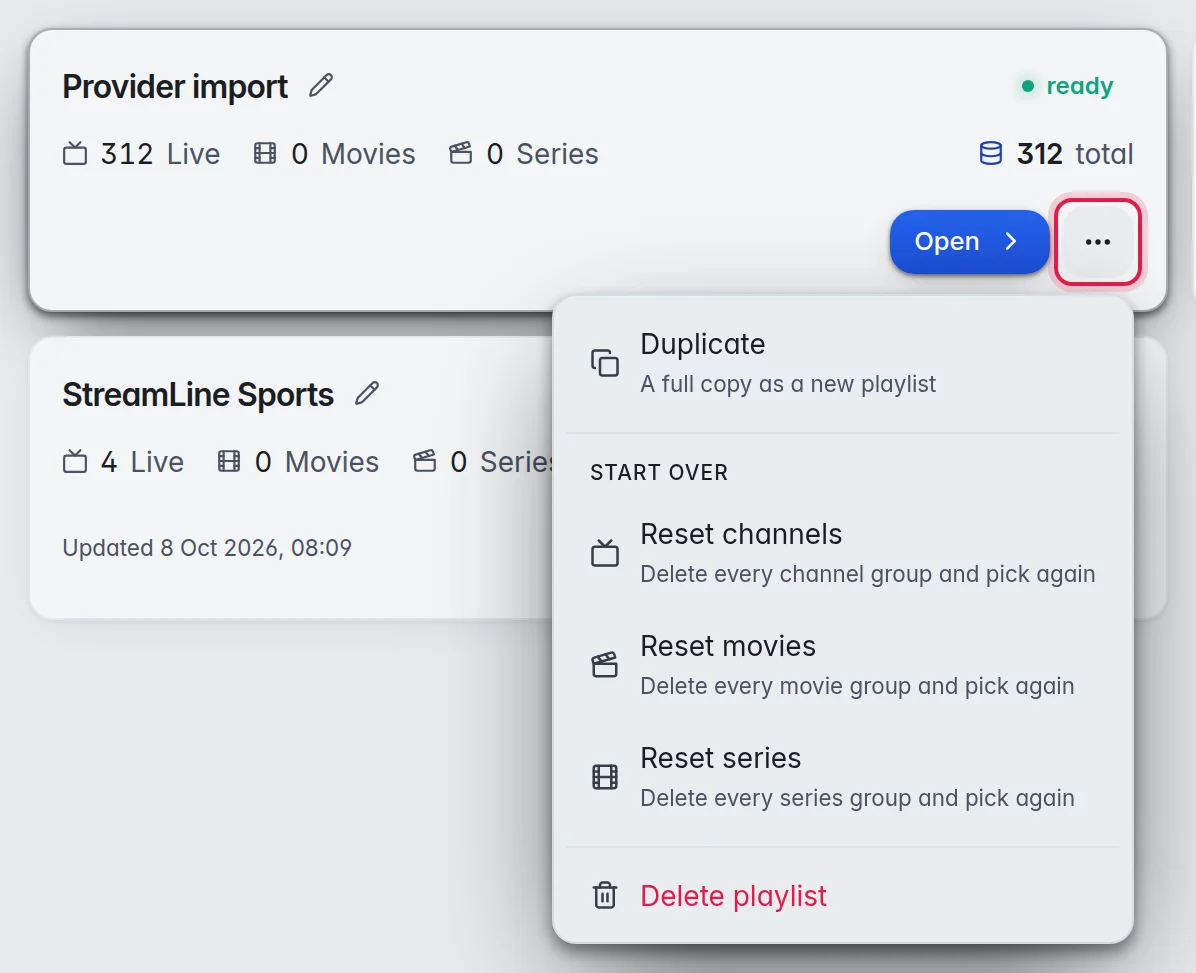
- Pick the part: Click Reset channels, Reset movies or Reset series. A window like Start channels over opens and reads the groups from your provider.
- Tick what comes back: Everything is ticked to start with. Untick what you no longer want. Search groups…, Add all, Invert and Remove all work as in the import window.
- Start over: Click Delete and bring back with the number of groups you picked.
Important: This deletes every group of that part, and everything of that part in the bin, before the ticked groups come back fresh from your provider. It cannot be undone. This is so that you really start from a clean list.
Note: Starting over needs a source under Auto refresh to fetch from. Without one, the window says so. More in Refresh a playlist.
Copy a playlist
There is no button that copies a whole playlist. Depending on what you want:
- Channels in another playlist: Select them and use Copy or move to a playlist under Tools in the top bar. More in Move and copy channels.
- Your clean-up on another playlist: Add the second playlist from the same or another provider, then use Copy my edits to a playlist under Tools to carry your names, numbers, logos and TV guide links over. More in Copy edits.
Delete a playlist
- Open the menu: Click the three dots (…) at the right of the playlist card.
- Delete: Click Delete playlist at the bottom of the menu.
- Confirm: The window Delete playlist? shows the name and how many streams go with it. Type the playlist's name in the box, then click Delete playlist. The button stays off until the name matches, so one wrong click deletes nothing.
Important: A deleted playlist cannot be restored. Its customers, backups, sources and settings are deleted with it, and its customers can no longer watch. This is so that nothing is left behind. Download a backup first if you want to keep a copy. More in Backups and restore.