Automatic checks
You do not have to start every check yourself. M3UTool checks the live channels of each playlist on its own, every hour or as often as you choose, so the results stay fresh and dead channels are found while you sleep. You can also switch it off for a playlist. This page explains what the automatic check picks and how you steer it.
What the automatic check does
- Every hour, or less often: You choose under How often: every hour, every 6 or 12 hours, or once a day. It picks the live channels that were not tested in the last 12 hours.
- Live channels only: Movies and series are checked when you press Check, and new ones right after a refresh.
- The right ones first: Channels that were never checked and channels your customers watch come first, then the ones checked longest ago.
- Within your daily checks: It uses the checks your plan gives you per day. When they run out, the rest waits for the next day.
- Never in your way: A check you start by hand goes before it, so you never wait behind the automatic check.
- The same settings: Park the dead ones and Add quality tags to the names work for the automatic check too.
It leaves out PPV and event channels, groups with testing switched off and channels with Testing off on.
Steps
- Turn it on or off: Click Playlist settings in the bar on the left of the editor. Under Checks & updates, switch Check channels on or off, and pick How often. Off, nothing is checked by itself, also no re-checks of failed or not working channels. Check still works.
- Open the group: Click the group in the list on the left. On a wide screen its panel opens on the right. Otherwise click the three dots at its right and Edit group.
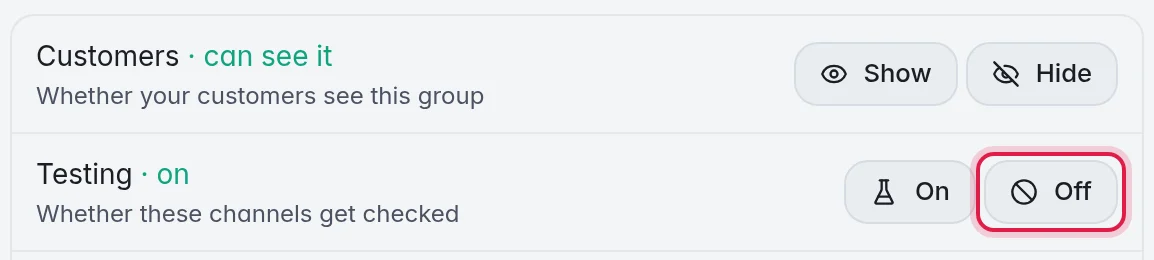
- Switch testing on or off: Under Settings, next to Testing, click On or Off. The word after Testing tells you where it stands: on or off. Tick several groups to switch them all at once.
- Leave out one channel (optional): Open the channel in the Channel editor and switch on Testing off in the Automatic row at the top of its panel. To do this for many channels, tick them in the grid and click Testing off under Check in the panel on the right. Testing on switches it back on.
- Choose what happens after a check: In Playlist settings, switch Add quality tags to the names in the Check channels card, and Park the dead ones in the Not working channels card.
- Get a message when channels die (optional): In the same box, switch on Tell me when channels die. You get a message when channels of this playlist go offline, and again when they recover: on Discord, by email or both, as you pick under Account → Notifications (on a self-hosted box: Settings → Messages). Click See which channels in the message to see their names, without signing in. The link works for 1 day (on a self-hosted box: as long as Keep activity details in its Settings).
The options
- Testing: When a group is off, no check tests it, also not the one you start by hand. Use it for groups you do not sell or that are always on air, like radio.
- Testing off: The same for one channel. Its row gets a blue mark in the grid.
- Check new channels after each update: In the Check channels card. A check runs after every update from your provider, so new channels are tested straight away. More in Playlist automation.
- Hide event channels between events: PPV and event channels stay out of your customers' lists while nothing is on. It works whenever a check runs.
- Regularly re-check not working channels: Tests your parked channels in the background and brings back the ones that work again. More in Not working channels.
Good to know
- When groups are left out of testing, the Check channels window says so under 1 On what?, with a link Change that.
- The console shows how many channels are due when nothing runs, for example "84 channels due for a re-check". Press Check to test them now instead of waiting.
- Removing a channel from Up next in the console also switches testing off for that channel. Switch it back on with Testing on.
- The number of checks per day depends on your plan. More in Plans and limits.