Copy edits
Copy my edits to a playlist puts the work you did on one playlist onto another: cleaned names, guide ids, channel numbers and logos. M3UTool finds each channel of this playlist in the other one and copies your values across. No channels are added or removed there. Use it when you start a second playlist from the same provider, for example with a new login, and do not want to redo your edits. Follow these steps to copy your edits.
Steps
- Open the playlist with the good edits: Open the playlist you edited and go to the tab with the channels you want to copy from, for example Live TV.
- Tick channels or groups (optional): To copy only some channels, tick them in the grid first, or tick groups in the column on the left.
- Open the window: Click Tools in the top bar, then click Copy my edits to a playlist under Other playlists. The window Copy my edits to a playlist opens.
- Choose the channels: Under 1 On what?, pick Ticked (N), Ticked groups (N), This group, Pick groups… or All Live TV. The window has already picked what you ticked, or the group you have open.
- Pick the other playlist: Under 2 Options, choose it in To playlist.
- Choose what to copy: Under What to copy, click the values to switch them on or off. Name, Guide id and Logo are on by default.
- Choose how to match: Next to Find them by, click Name or Stream ID.
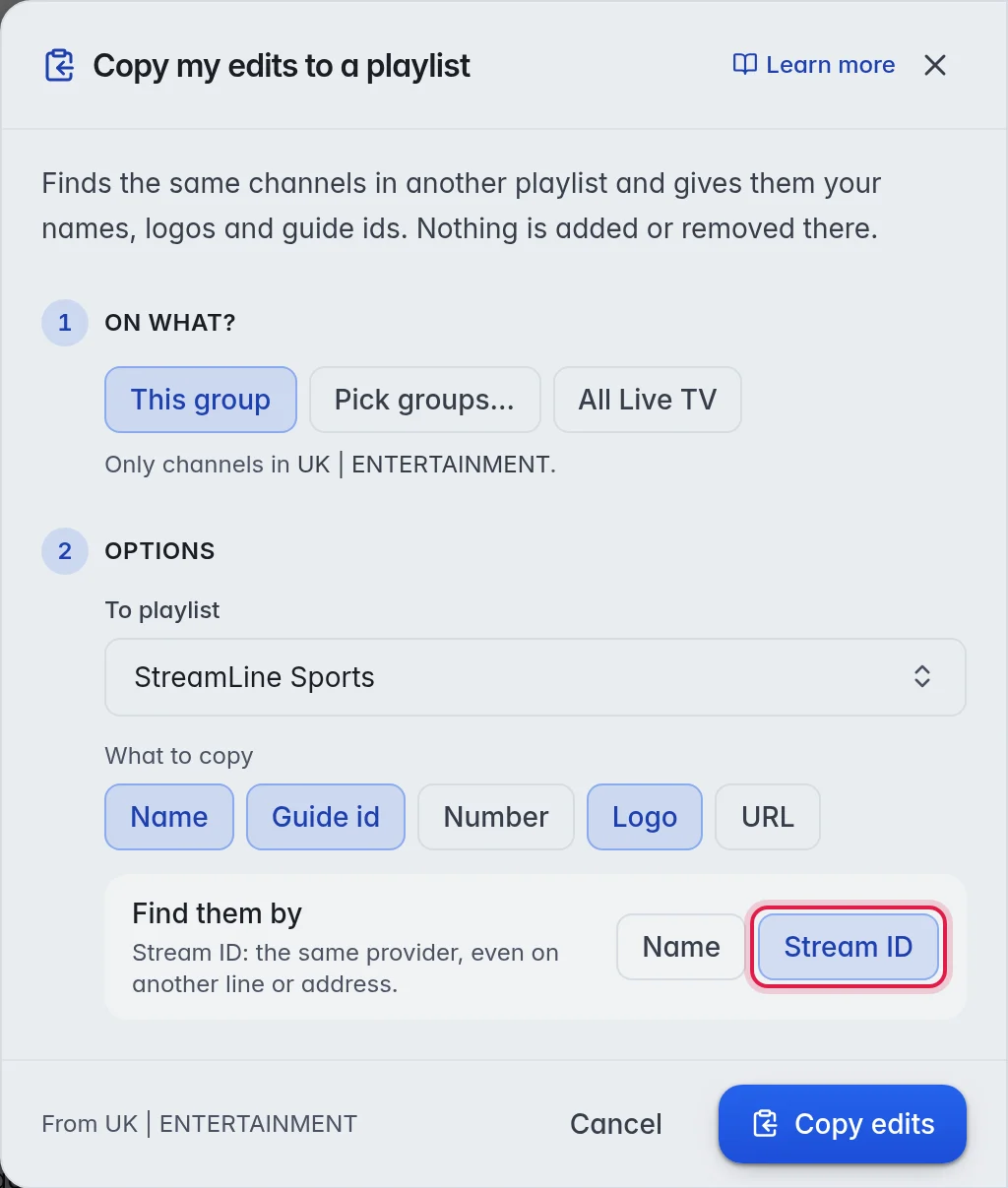
- Copy: Click Copy edits. It runs in the background. A message tells you how many channels were updated when it is done.
The options
Under What to copy:
- Name: Copies the channel name.
- Guide id: Copies the guide id, so the TV guide keeps working.
- Number: Copies the channel number that sets the order in your customers' players.
- Logo: Copies the logo.
- URL: Copies the stream address.
Next to Find them by:
- Name: Matches channels with exactly the same name. Use it between different providers.
- Stream ID: Matches by the number each provider gives every channel, movie and series. That number is the same on every login and server address of that provider. Use it when both playlists come from the same provider.
Example: You cleaned 400 channel names on "StreamLine TV" and made a second playlist with a new login at the same provider. Copy edits with Stream ID and Name, Guide id and Logo switched on gives the second playlist the same names, guide and logos.
Good to know
- Copy edits works on one type at a time: the tab you open it from. Run it once on Live TV, once on Movies and once on Series if you edited all three.
- Tip: Same provider? Use Stream ID. Different providers? Use Name. If fewer channels are updated than you expected with Name, the names differ between the playlists. Clean them up on both sides and run it again. More in Fix names.
- Important: Leave URL off unless you mean it. It points the other playlist's channels at this playlist's streams. This is so that the other playlist keeps playing from its own login.
- It is safe to run again. It writes the same values again.
- To send the channels themselves to another playlist, use Copy or move to a playlist instead. More in Move and copy.