Guide file settings
Your customers' players load the guide as one file. For a player on a fast device, a rich file with pictures and genres looks best. For a slow box, a smaller file loads faster. These settings choose what the guide file of this playlist carries. Follow these steps to set up the guide file.
Steps
- Open Guide sources: Open Live TV, click the TV guide tab, then click Guide sources at the top of the tab. A panel opens on the right.
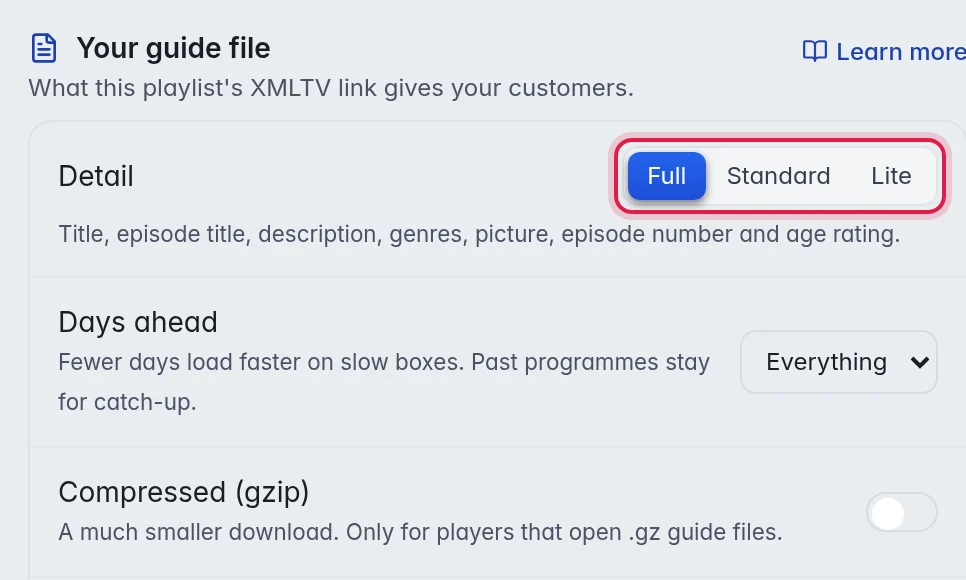
- Choose the detail: Under Your guide file, click Full, Standard or Lite next to Detail.
- Choose the days: Pick the number of days in Days ahead.
- Compress it (optional): Turn on Compressed (gzip) when your customers' players open compressed guide files.
Every change saves on its own, and a message says "Guide file saved". The same settings are on the Playlist settings page under Guide file.
The options
- Detail, Full: the title, episode title, description, genres, a picture, the episode number and the age rating. Players like TiviMate colour the guide by genre and show season and episode numbers.
- Detail, Standard: the title and description only.
- Detail, Lite: titles only, without channel logos. The smallest file, for slow boxes.
- Days ahead: Everything, 1 day, 2 days or 3 days. Fewer days load faster. Past programmes always stay, because catch-up needs them.
- Compressed (gzip): a much smaller download. Only for players that open
.gzguide files. When a player shows no guide after you turn this on, turn it off again.
Good to know
- The settings are per playlist. Every customer of this playlist gets the same guide file.
- They apply to the guide file behind the Xtream login and the TV guide link of this playlist.
- A player loads the guide on its own schedule. Ask a customer to refresh the guide in their player to see a change straight away.