Refresh a playlist
Providers change their lists all the time: new channels appear, old ones disappear, films are added. A refresh fetches those changes into your playlist, and everything you edited stays as it is. M3UTool refreshes on a schedule once a source is set up, and you can start a refresh yourself at any time. Follow these steps to set up the source and run a refresh.
Step 1: Set up the source (first time only)
A new playlist has no source yet. You add it once.
- Open Auto refresh: Click Auto refresh in the icon bar on the left.
- Add the source: Click Add your provider. The login fields are already filled in from your import. Check them and click Next · load groups.
- Pick groups: Tick the groups this source should bring in. More in Choose groups.
- Create: Leave Automatic updates (run on a schedule) on and click Create source.
Step 2: Refresh now
- Pick the source: With two providers, click the one you want at the top of Auto refresh.
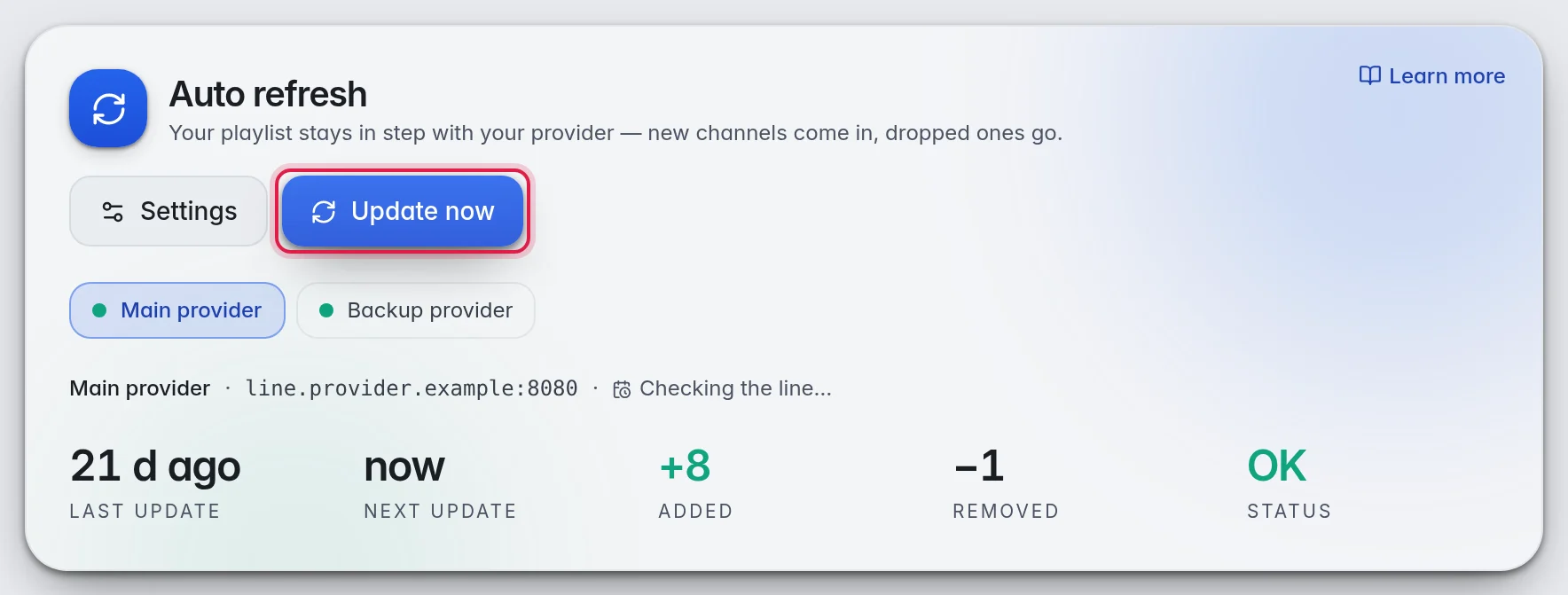
- Start: Click Update now at the top. A message says the update started, and another one tells you when it is finished.
Step 3: See what changed
- The last update: Under What the last update changed you see, for Live TV, Movies and TV series, how many streams were added, removed and renamed, and for series how many episodes added. Back again shows up when channels came back.
- Older updates: Click History in the menu. Each line shows when it ran, whether it worked, and what it changed. Click a line to open it.
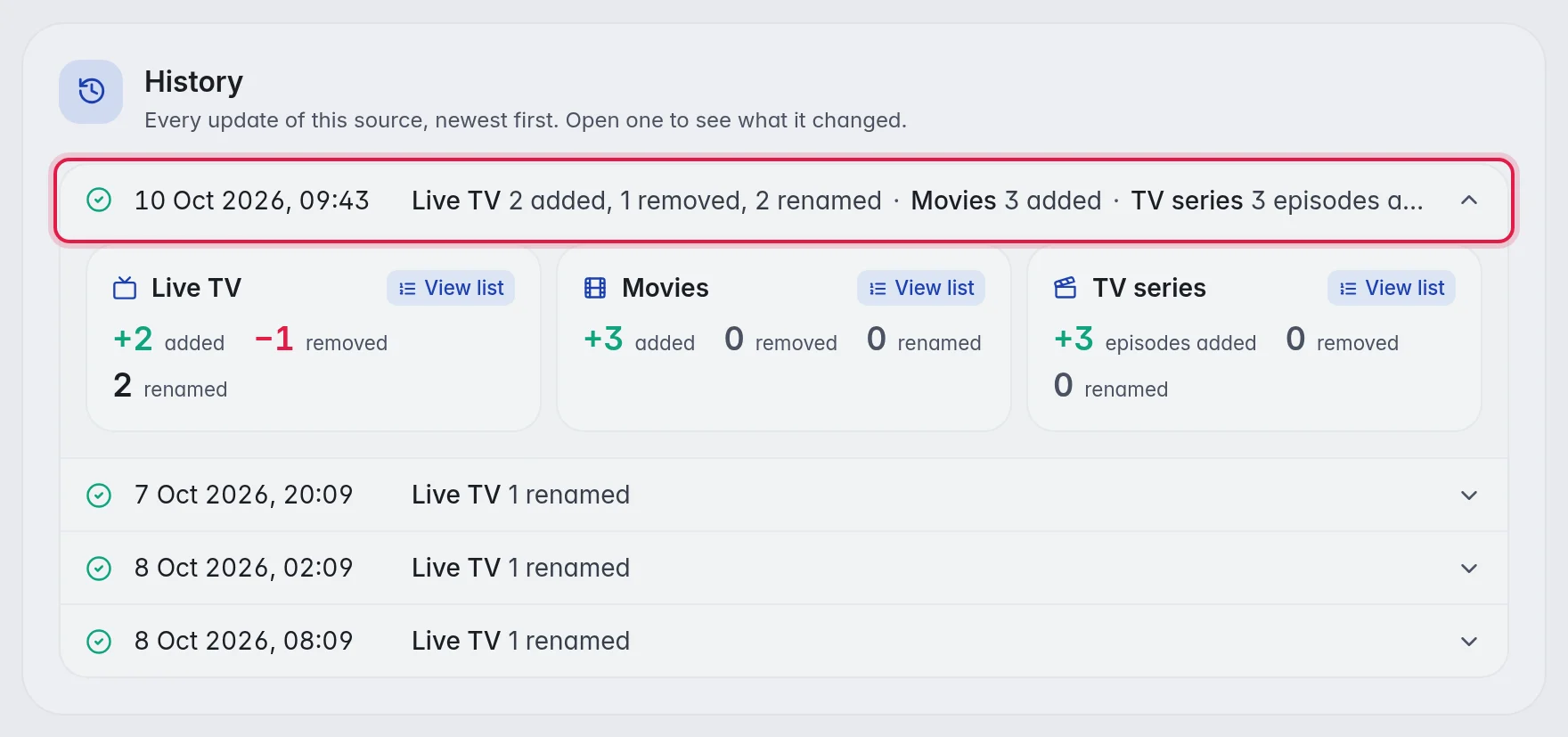
- See the details: Click a number, or View list, to see exactly which channels, movies or episodes it counts.
- Browse older runs: Click Show older under the list. M3UTool keeps the last 100 runs.
What a refresh changes, and what it keeps
- Kept: Your names, logos, numbers, groups, TV guide links, and everything you hid or deleted. A channel you deleted stays deleted.
- Added: New channels and groups, if Add new channels & groups is on. They land at the bottom of their group unless you chose otherwise. More in Groups.
- Removed: Channels the provider dropped go to the bin, if Remove channels gone from source is on. If the provider comes back with them, they return with your edits.
- Updated: New stream addresses from the provider. Names change only on channels with Sync name switched on, logos only on channels with Sync logo switched on.
Good to know
- Note: If the provider's list comes back empty or far smaller than usual, M3UTool keeps everything and skips the removals. The history then says Removals skipped.
- Your provider changed your password? Open the source, type the new one on the Connection tab and click Save login. Your channels follow the new login by themselves.
- A refresh is not covered by Undo. To go back to the state before a refresh, restore a backup. More in Backups and restore.
- The schedule, the rules of each source and the steps that tidy up new channels after a refresh are explained in Auto refresh and Playlist automation.