Channels without guide data
A channel shows a blank guide in two cases: it has no guide id at all, or it has one but none of your guides has programmes for it from now on. The second case is easy to miss, because the channel looks mapped. M3UTool flags these channels as No guide data and leaves the decision to you. Follow these steps to find the channels with a blank guide and fix them.
Step 1: Find them
- Open the TV guide tab: Open Live TV and click the TV guide tab.
- Use the notice (when there is one): When channels have no guide data, a notice at the top of the list tells you how many channels point at a guide id with no programmes. Click Review them to list exactly those channels.
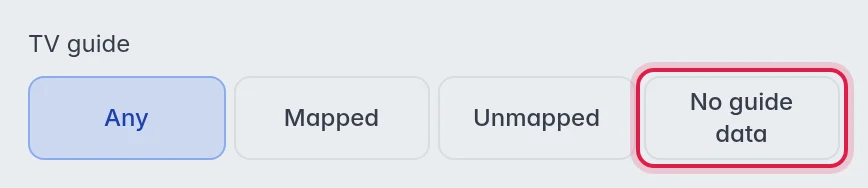
- Or use the filter: Click Filters in the top bar. Under TV guide, click No guide data for the flagged channels, or Unmapped for channels without any guide id.
- Go back to all channels: Click Show all in the notice, or the × on the TV guide chip in the top bar.
Tip: guide id contains in the same panel finds channels by a part of their guide id, for example .de for all German guide ids.
Step 2: Fix each channel
Click a channel in the list. Its panel says "No programmes ahead for … in your guides, so customers see a blank guide." Then choose one of these:
- Another guide: Search a guide that does have programmes and pick it. This is the best fix. More in Match a channel by hand.
- Dummy guide: Turn on Dummy guide below the Guide id search. The channel gets a placeholder guide named after itself, in blocks of two hours, so players show something tidy instead of an empty row.
- Your own events: Write the programmes yourself when you know the schedule. More in Your own guide events.
All three save on their own. A guide you pick from the list is set at once.
Dummy guide for many channels
- Select the channels: Tick the channels in the list.
- Open the panel options: In the panel on the right, open Advanced logo & guide.
- Assign: Click Dummy guide.
Good to know
- Important: M3UTool never removes a guide id for you. This is so that a guide that is only late, or back tomorrow, keeps working without anything to fix.
- A dummy guide is a stand-in, not a lock. When Map guide later finds a real guide for the channel, the real guide takes over.
- Live sports channels and dummy guides are never flagged. M3UTool writes their programmes itself.
- A whole group flagged at once usually means its country guide is switched off. More in Guide countries and sources.