Search and filter
A big playlist holds thousands of channels. Search finds them by name, and filters find them by what they have or lack, for example no logo, no TV guide or low quality. Search, filters and column filters work together. Follow these steps to narrow the grid down to the channels you need.
Step 1: Search by name
- Click the search box: It sits in the top bar and says Search all live tv… (or movies, or series). Press / to jump there from anywhere.
- Type part of the name: Example: "news" finds every channel with News in its name. In series, search looks at the show names only, not the episode names.
- Read the result: The search covers the whole part you are in, not only the open group. The group list shows how many matches each group has, and groups without matches fade out.
- Narrow it down: Click a group to see only its matches. Click All groups at the top of the list to see them all again.
Step 2: Filter by what a channel has
- Open Filters: Click Filters next to the search box. A panel opens on the right.
- Pick a filter: Click a value, for example 1080p under Quality. The grid updates at once, and the number on Filters shows how many filters are on.
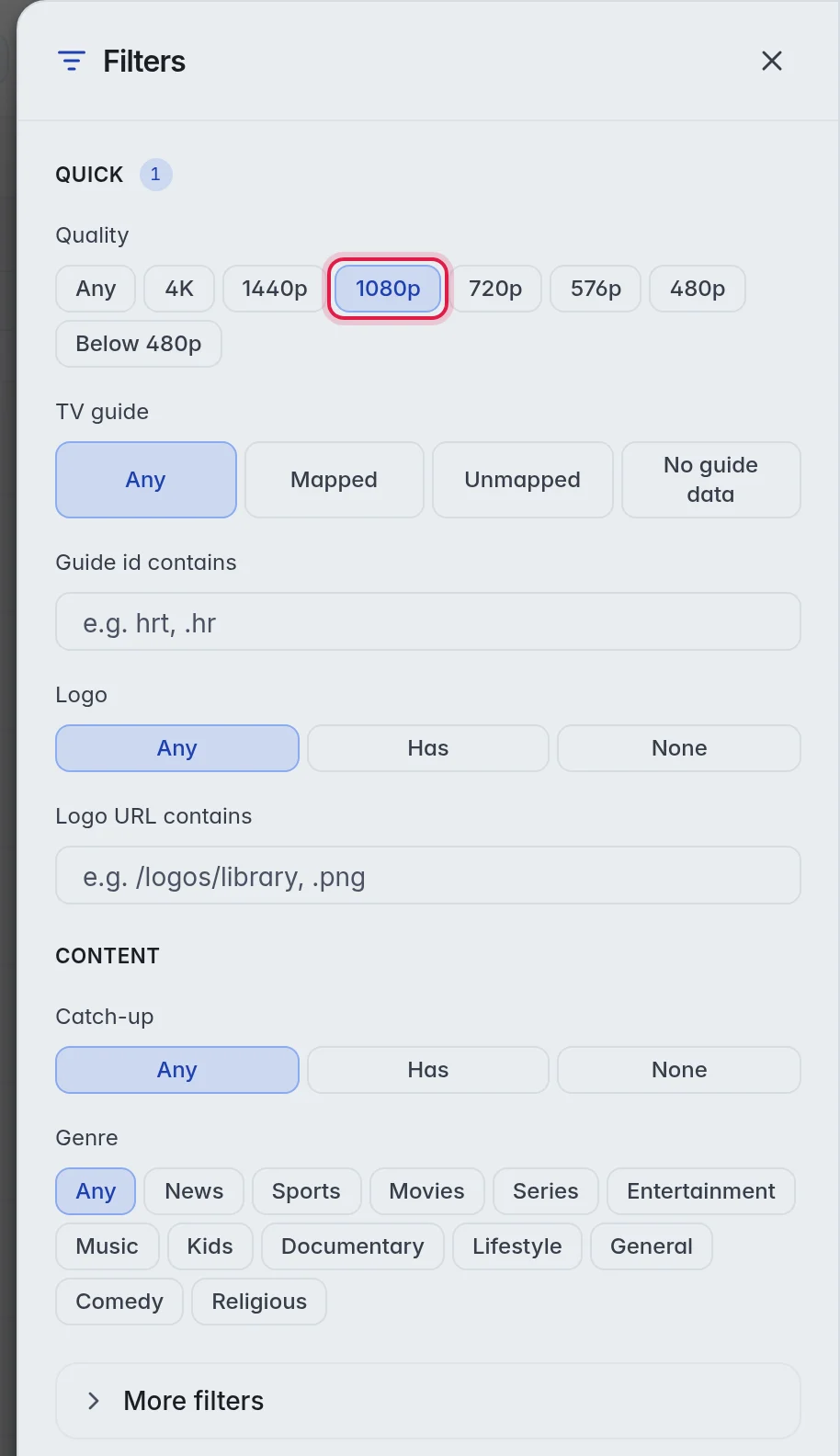
- Close the panel: Press Esc or click the cross. The filters stay on and show as small labels under the top bar. Click a label to remove that filter, or Clear all to remove them all.
Step 3: Filter one column
- Point at a column header: A small funnel appears next to its name.
- Click the funnel: A small window opens with a condition and a value.
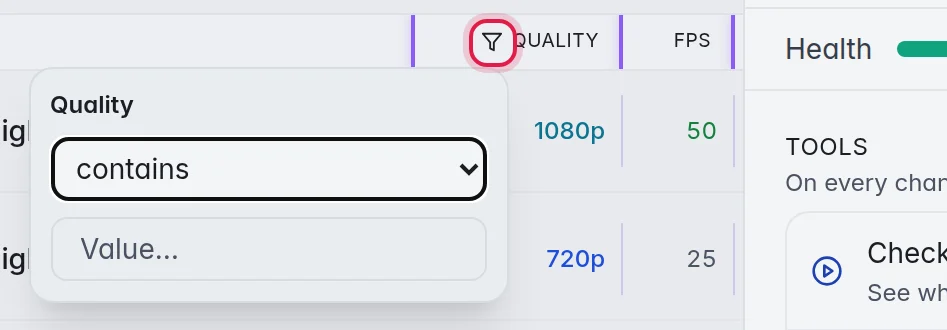
- Set the condition: Choose, for example, contains, is blank or >, and type the value. The funnel stays filled in while the column is filtered. Clear in the same window removes it.
The filters
- Quality: The resolution found by the last check, from 4K to SD.
- TV guide: Mapped to a guide, Unmapped, or No guide data (mapped, but the guide has no programmes for it).
- guide id contains and Logo URL contains: Channels whose guide id or logo address contains your text.
- Logo: Has shows channels with a logo, None the ones without.
- Catch-up: Has shows channels with an archive, None the ones without.
- Genre: Example: Sports or News.
- More filters: Hidden, Adult, PPV / event, Fallback, Fallback health, Duplicates, Same number, Min fps and Min reliability.
- Hidden: Only lists every channel you hid, across all groups. Not hidden leaves them out. Fallback copies are hidden on purpose, so they stay out unless you ask for them with the Fallback filter.
The column filters depend on the column: text columns offer contains, doesn't contain, is, is not, starts with, ends with, is blank and is not blank. Number columns offer =, ≠, >, < and between. Last check and Last played count in days, for example older than … days.
Good to know
- The buttons Online, Offline, Not checked and All above the grid work together with search and filters. Example: Offline plus the filter Logo: None shows broken channels without a logo.
- Tip: Filter first, then select everything that matches. More in Select several channels.
- Note: While a search or filter is on, you cannot drag rows to reorder them. Clear it first. More in Sort and reorder.
- Filters only change what you see in the editor. Your customers' lists stay the same.