Support tickets
When something does not work or you have a question, write to the M3UTool team from the editor. You can add screenshots, so the team sees what you see. Follow these steps to open a support ticket.
Steps
- Open Tickets: Click Tickets in the bar on the left of the editor. This works without a plan too.
- Open My support: Click My support at the top of the panel. With no playlist open, the panel shows your support tickets straight away.
- Start a ticket: Click New ticket.
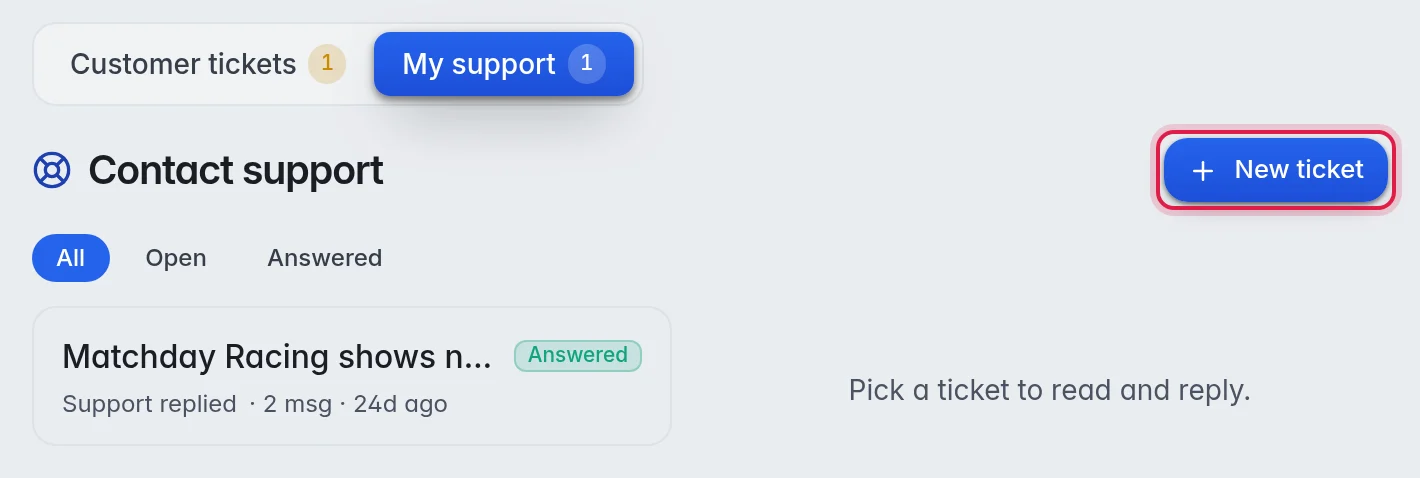
- Write the subject: In Subject, say in a few words what it is about.
- Describe the problem: In Message, write what happens, on which playlist and which channels, and since when.
- Add screenshots: Click Screenshot and pick up to 4 images. You can also paste a screenshot straight into the message box.
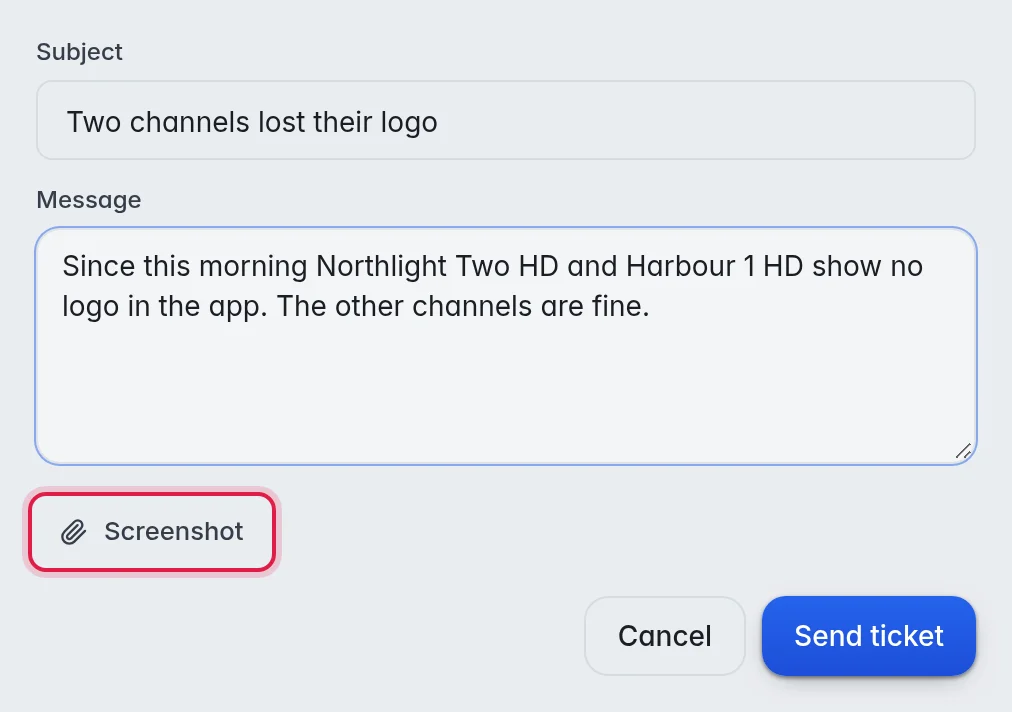
- Send: Click Send ticket.
Follow a ticket
- The list: Your tickets are listed under My support. Each one says Support replied or Waiting for support. Use All, Open and Answered to filter.
- A new answer: The number on My support shows how many tickets have an answer. If you connected Discord, you also get a message there. More in Your account.
- Reply: Click the ticket, type in the box under the conversation and click Send. You can add screenshots to a reply in the same way.
- Close: When your question is solved, click Close and confirm with Close ticket. A closed ticket cannot get new replies, so open a new one for a new question.
The status words
| Status | Meaning |
|---|---|
| Open | Waiting for an answer from support. |
| Answered | Support replied. It is your turn. |
| Closed | Done. No more replies. |
Good to know
- Screenshots can be PNG, JPG or WebP, up to 5 MB each and up to 4 per message.
- By email: You can also write to support@dontv.shop from the email address of your M3UTool account. The email becomes a ticket under My support, and the answer shows there and arrives by email. Pictures in the email come along as screenshots.
- Customer tickets, the other tab in the same panel, holds requests from your own customers. More in Messages to customers.
- Tip: Name the playlist, a channel and the time you saw the problem. The team can then look at exactly that channel.