Who is watching
Who's watching shows the customers of your playlist who are watching right now: the customer, the channel, the device and how long they have been on. It is the quickest way to see whether a login is shared and to help a customer who calls you. Follow these steps to see who is watching.
Steps
- Open the playlist: Open the playlist in the editor.
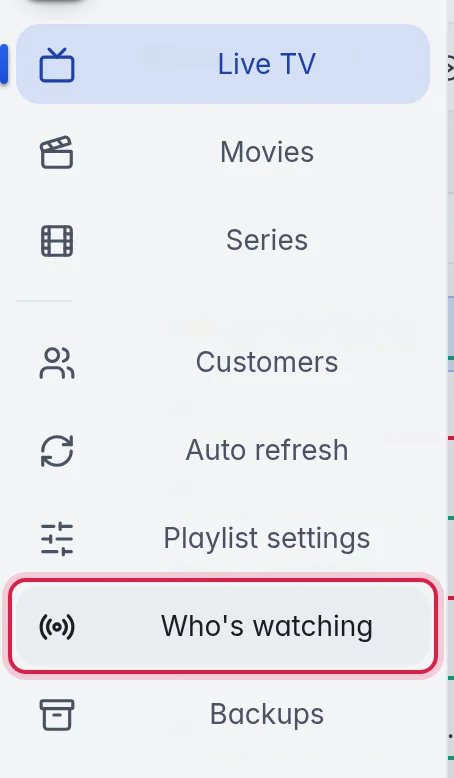
- Open Who's watching: Click Who's watching in the bar on the left. The bar shows the names when you point at it.
- Read the list: A panel opens with Live sessions and the number of active viewers. The list updates by itself every few seconds. A line on top says that only M3UTool apps and the web player show up here. Other player apps, like Smarters, are never listed and never count towards Max devices.
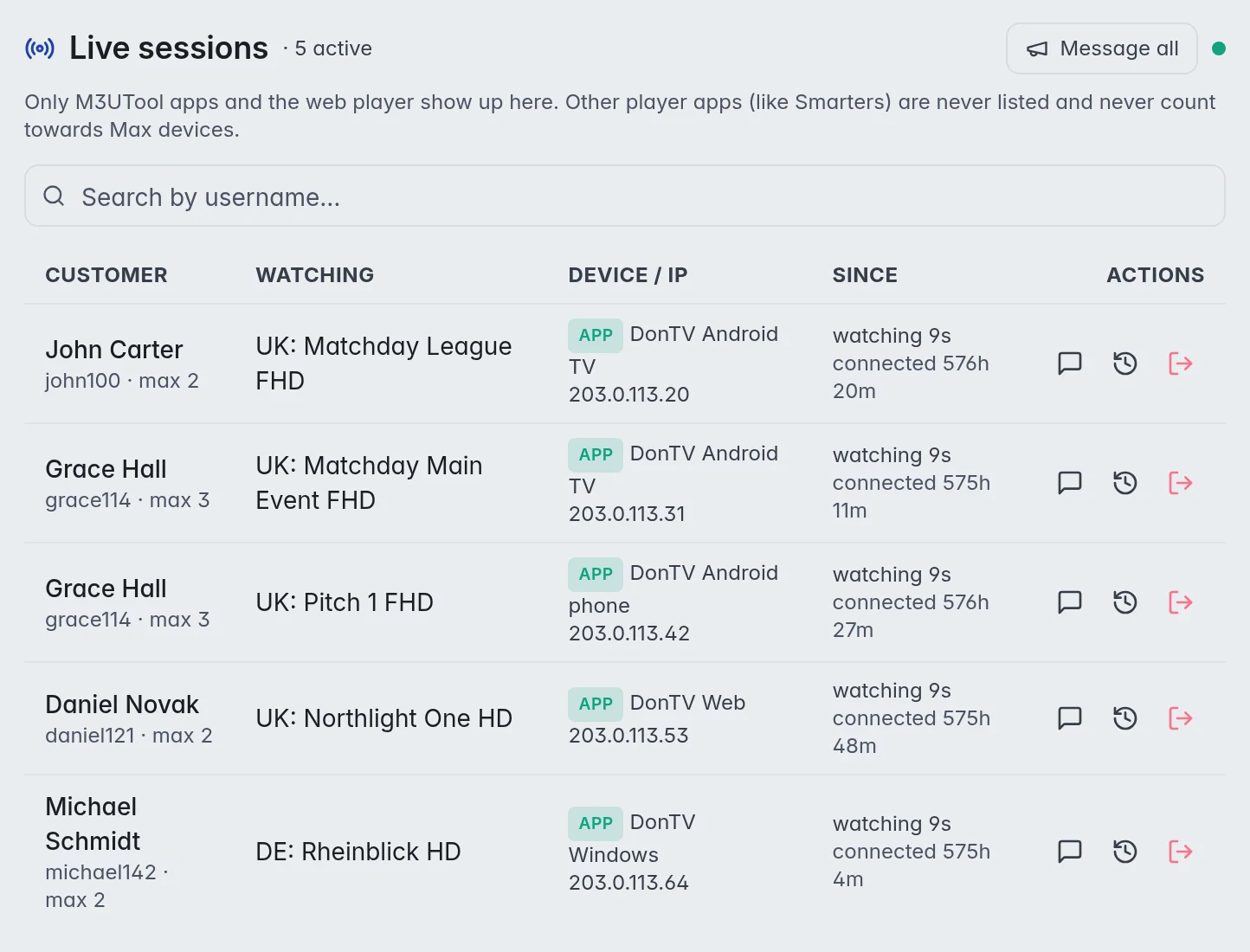
- Find a customer (optional): Type a username or a customer name in Search by username….
- See what they watched before (optional): Click the clock in the Actions column. A panel opens with the channels this customer started, newest first, with the date and time.
What each row shows
| Column | What it tells you |
|---|---|
| Customer | The customer's name, their username and how many devices they may use, for example "john100 · max 2". |
| Watching | The channel, and the programme that is on when the guide knows it. |
| Device / IP | The device, for example "Android TV" or "Web Player", and the internet address. |
| Since | How long this channel has been on ("watching 12m") and, when it differs, how long the device has been connected. |
| Actions | Message, Watch history and Kick. More in Stop or message a viewer. |
How M3UTool knows who is watching
- M3UTool apps and the web player: They report while they play. A row leaves the list about 90 seconds after the channel stops.
- Other player apps are not listed: Players like TiviMate or Smarters only contact M3UTool when they start a channel. After that the video comes straight from your provider, so M3UTool cannot see them watching. They never show up here and never count towards Max devices.
- One row per internet connection: A customer watching on the TV and the phone at home, on the same internet connection, shows as one row.
Note: The list shows the customers of the playlist you have open. Open another playlist to see its viewers.
Spot a shared login
- Count the rows: Each row is one internet connection. Two rows for a family on "max 2" is normal.
- Compare the addresses: The same customer at the same time from two very different internet addresses is a strong sign that the login is shared.
- Look at the history: Watch history shows whether the pattern repeats.
A customer who reaches their device limit cannot start another device. More in Devices and connections.