Event wording and times
M3UTool writes three things for every event: the channel name, the guide entry while the event is on, and the guide entry before it starts. You choose how they read, and you tell M3UTool which time zone is meant, so every kick-off is right. Follow these steps to set the times and the wording.
Step 1: Set the times
- Open the settings: Open Live TV, click the TV guide tab, then Live sports. Click Settings at the top right. The times are under Times.
- Your provider's time zone: In Times in this provider's channel names are in, pick the time zone your provider means when it writes a time like "20:00" into a channel name. Every choice shows its current clock, for example "Europe/Berlin · 14:32 now (+02:00)", so you can spot the right one.
- Your own time zone: Turn on Show kick-offs in my timezone and pick the time zone your customers should read. Use my device's picks the time zone of your computer.
- Clock style: Click AM/PM or 24 h.
- Clock label (optional): Type a short text to show after every time, for example "UK". Leave it empty for a clean time.
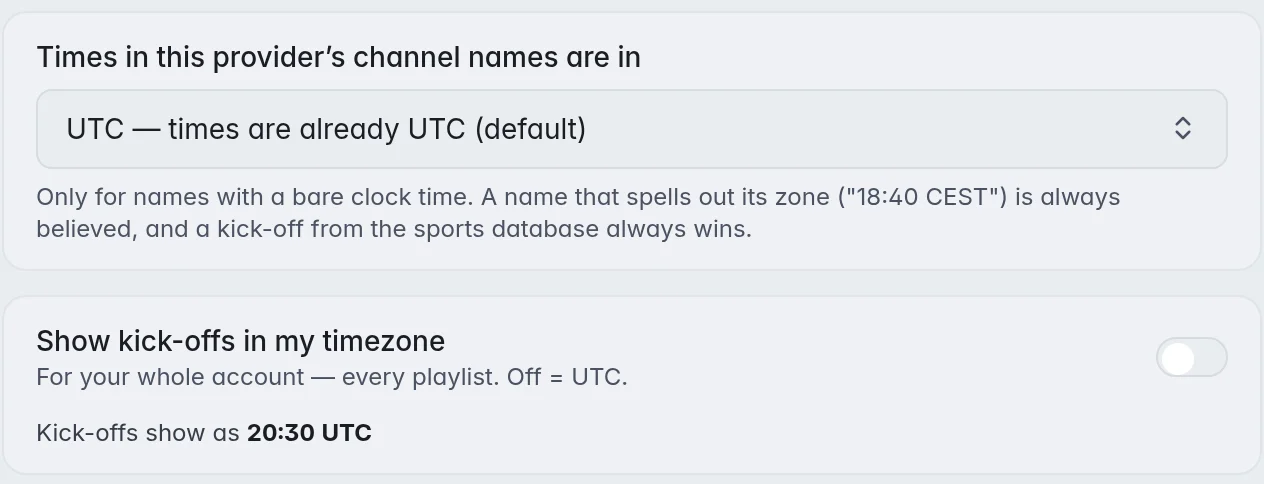
The line Kick-offs show as shows how a time will read with your choices. Each change saves on its own and rebuilds your sports guide.
Step 2: Change the wording (optional)
- Pick a box: Under Names & guide text are three boxes: Channel name, Guide entry and Guide entry before the event.
- Write the text: Type your own text and click a placeholder chip to put it where the cursor is. You can also drag a chip into the box.
- Apply it: The text saves by itself. Click Build now at the top of Live sports, so your channels get the new wording straight away.
The three boxes
- Channel name: What the channel is called. Default:
{league} | {team1_full} vs {team2_full} | {time} {date} - Guide entry: The programme a viewer reads while the event is on. Left empty, the guide shows the channel name. Default:
{team1_nick} ({team1_record}) vs {team2_nick} ({team2_record}) | {venue} - Guide entry before the event: What the guide shows before the start, so the channel is never blank. Left empty, the guide repeats the event title. Default:
Next: {event} | {time} {date}
The placeholders
- Teams:
{team1_full}{team2_full}the full team names,{team1_nick}{team2_nick}the short names ("Gulls"),{team1_abbr}{team2_abbr}the letter codes ("NFD"). - Stats:
{team1_record}{team2_record}the win and loss record ("12-4"),{odds}the betting line (not in the default, because some countries restrict showing odds),{status}scheduled, live or final. - Event:
{event}the fixture, whatever its shape,{league}the competition,{time}and{date}the start in your time zone,{venue}and{venue_city}the stadium and its city.
A placeholder with nothing behind it drops out, together with the separator next to it. A match without odds or venue still reads cleanly.
Tip: {event} reads well for a match ("Northfield vs Riverside") and for a single event like a race or a fight night. Use it instead of {team1_full} vs {team2_full} when your channels carry both kinds.
Good to know
- Important: The provider's time zone is set per playlist, your own time zone for your whole account. This is so that two providers who write different times can each be read right.
- A name that spells out its own zone, for example "18:40 CEST", is always believed. A kick-off found in the sports data wins over both.
- Records, odds, codes and venues are only there for matched events, and odds only for the big US and football leagues.
- Each league can have its own wording under Wording for this league. Its boxes start with this wording, and a box you do not change keeps following it. More in Add a league.
- Channels named by an earlier run keep their names until the next run. Click Build now after changing the wording instead of waiting.