Add a channel
Most of your playlist comes from your provider, but you can add a channel by hand when you have its link, for example a free channel or a channel from another source. A channel you add works like any other: you can check it, give it a logo and link it to the TV guide. Follow these steps to add a channel, a movie or an episode.
Steps
- Open the right part: Click Live TV, Movies or Series in the icon bar on the left, depending on what you add.
- Open New: Click New in the top bar.
- Choose New channel: Click New channel. In Movies it says New movie, in Series New episode. The window Create channel opens (Create movie or Create episode in the other parts).
- Fill in the name and link: Type the Name and paste the Channel link. Both are required. If one is missing or wrong, a short note shows right under that box.
- Add the extras: Fill in Guide id for the TV guide and Logo URL for the logo if you have them. Both are optional.
- Pick the group: Choose it under Group. The new channel goes to the end of that group.
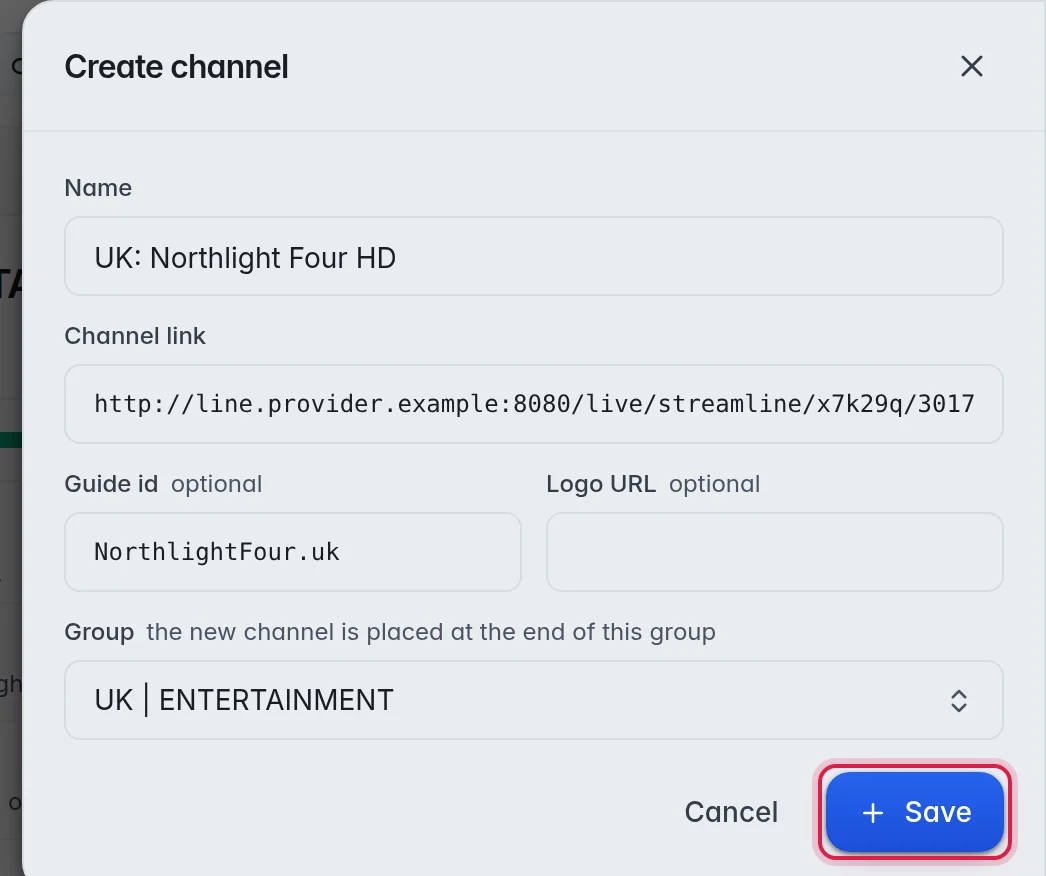
- Save: Click Save. A message confirms that the channel was added.
The options
- Name: The name your customers see. Example: "UK: Northlight Four HD".
- Channel link: The full link the channel plays from, starting with http:// or https://.
- Guide id: The id that links the channel to its programmes in the TV guide. Leave it empty and map the guide later. More in Map the guide.
- Logo URL: The address of a logo picture. Leave it empty and pick a logo later. More in Pick a logo.
- Group: Where the channel goes. To start a new group first, see Groups.
Good to know
- Test the new channel right away with a quick check. More in Quick check.
- A refresh from your provider leaves channels you added by hand alone.
- To add a copy of a channel that is already in your playlist, open it and click Duplicate instead.
- Changed your mind? Delete the channel like any other, or click Undo right after saving. More in Hide or delete.