Add a league
M3UTool already names and schedules every event it recognises. A league rule is for the moments you want one league handled your own way: its own name in the guide, or its own group. Example: all Coastal League matches in "UK | Coastal League", everything else in your live events group. Follow these steps to add a league.
Before you start: set up Live sports once. More in Move events into a group.
Steps
- Open Live sports: Open Live TV, click the TV guide tab, then Live sports at the top of the tab.
- Start a league: Under Leagues, click Add from what's on air to pick from the leagues your channels carry, or By hand to start with an empty form.

- Pick the league: In the list Leagues on air, click the league. Each row shows the sport and how many events of that league are on now or later. With By hand, choose the Sport and the League yourself.
- Name it: Check the name in Call it. This is what your customers read, for example "Coastal League".
- Choose the group (optional): Type a group in Put matches in, or click the arrow and pick one of your groups. Typing searches the list, for example "coastal". A name that is not a group yet, for example "UK | Coastal League", is created when you save.
- Add other spellings (optional): Type another way your provider writes the league in Other spelling and click Add, for example "CL". Most leagues need none.
- Check it: Click Check against my channels. M3UTool shows what the rule would do to today's events: the channel name, the guide entry and the matchup picture. Nothing is saved.
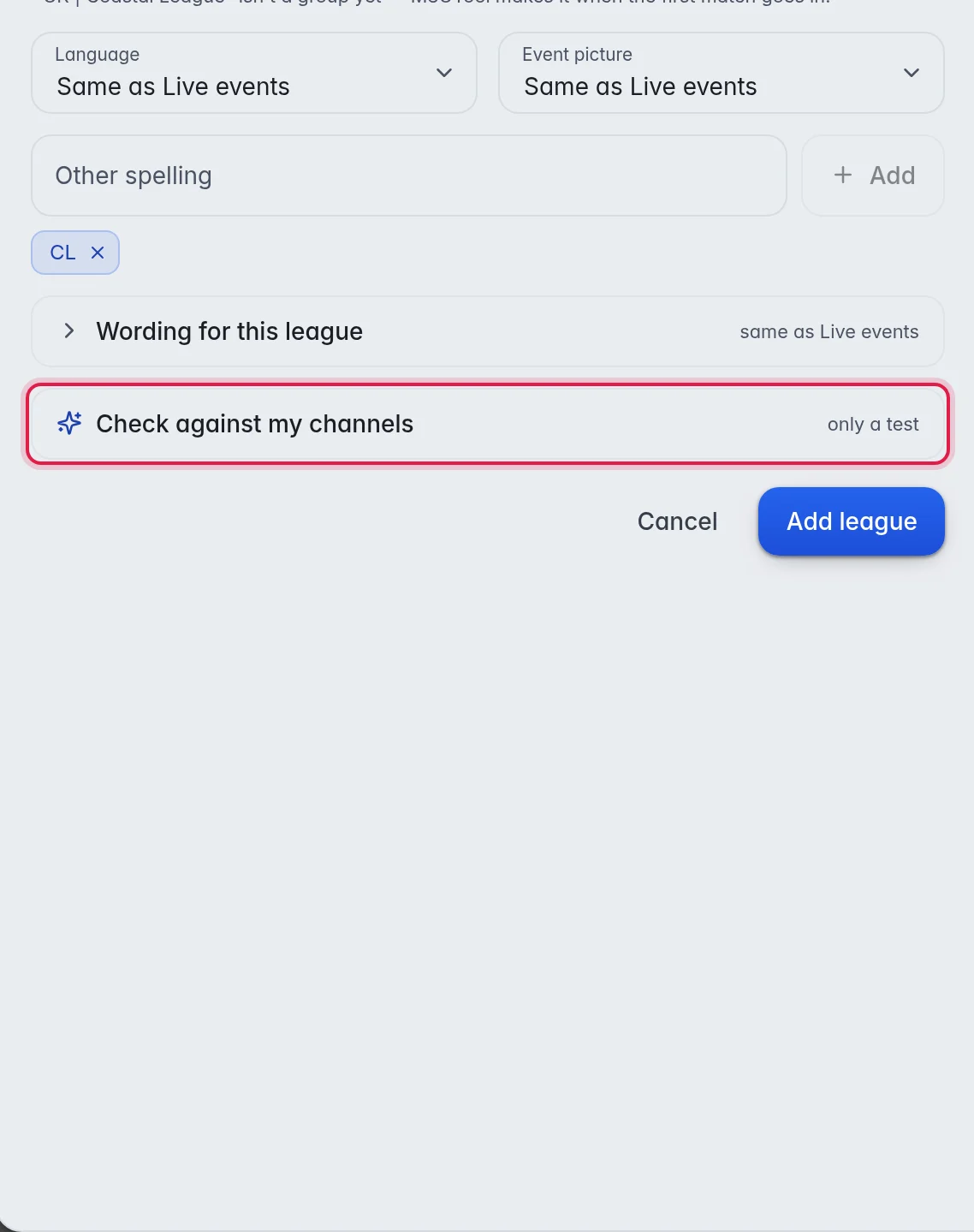
- Add: Click Add league.
The options
- Sport: The sport of the league. Every sport makes a rule that is not tied to one sport.
- League: The competition. Pick a sport first to see its leagues. Leave it on Every league of this sport for a rule that covers the whole sport. Example: all ice hockey into one group.
- Call it: The league name in channel names and guide entries: what
{league}prints. Leave it empty and the name from the sports data is used. M3UTool also looks for this name in your provider's channel names to find the league. Click the ⓘ in the box for a short reminder. - Put matches in: The group for this league's matches. Type a name, or open the list with the arrow and search your groups. Leave it empty and the matches follow the Live sports Settings: into your live events group when Move events into it is on, otherwise they stay where they are.
- Other spelling: Extra spellings of the league name, shown as chips. Click the × on a chip to remove it.
- Wording for this league: The same three boxes as your Live events wording, already filled with it. Change a box and it counts for this league only, marked Only this league. A box you leave as it is shows Same as Live events and keeps following your Live events wording, also when you change that later. Reset puts a box back. More in Event wording and times.
Manage your leagues
- Pause: Turn off the switch at the left of the league. The rule stays but does nothing.
- Edit: Click the league name and change what you need. It saves by itself, and the guide is rebuilt a moment later. Click Close when you are done.
- Remove: Click the bin at the right, then Remove. Matches already in the league's group stay there. They are not moved again.
Good to know
- "No event resolved to this league today" after a check usually means there is no match of that league today.
- League names are matched exactly, so "Coastal Youth League" is never taken for "Coastal League".
- Note: A rule with Every sport and no league covers every event M3UTool recognises. Use Move events into it in the Live sports Settings for that instead.
- Leagues on air takes a few seconds, because it reads the fixtures against all your event channels. A league you already added is greyed out with "added".