Not working streams
A check finds the dead streams, but they stay in your users' lists until you act. M3UTool gives you two ways. Park the dead ones moves offline streams to Not working in the Bin after every check, and brings each one back by itself when it works again. Hide not working streams hides every stream that is offline right now, once. Follow these steps to deal with streams that do not work.
Step 1: Park the dead ones after every check
- Open the Check window: On the Checker tab, click Check in the top bar. The window Check streams opens.
- Switch it on: Under 2 Options, next to After checking, switch on Park the dead ones. It stays on for every check, also the automatic one.
- Park them now (optional): Click Run now next to it to park the streams that are offline right now, without waiting for a check.
- Close the window: Click Cancel if you do not want to start a check now. The setting is already saved.
From now on, every check moves the offline streams to Not working. They leave your users' lists and the groups they came from.
Step 2: Look at the parked streams
- Open the Bin: Click Bin in the row of tabs under the top bar, then click Not working.
- Pick a group: The groups the streams came from are listed on the left, each with its count. Click one to see its streams with their Status, Last check and Original group.
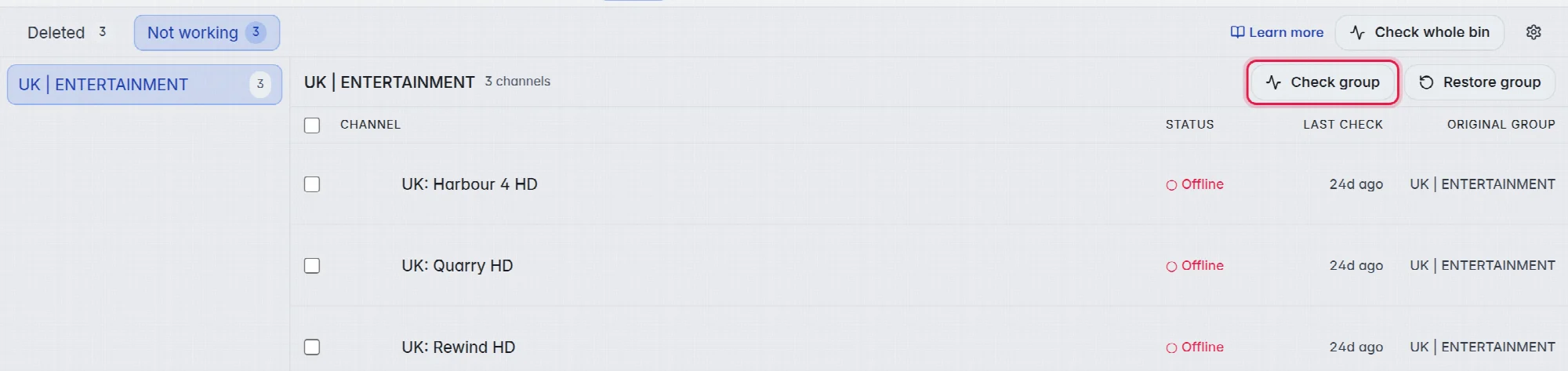
- Test them again: Click Check group to test every stream of that group, or Check whole bin to test them all. Each stream that is online again goes back to its group.
- Act on a stream: Click a stream. Its details on the right offer Check, Restore to original, Move to group and Move to bin.
To act on many at once, tick streams, or hold Ctrl and click groups. A bar at the bottom offers Restore, Check, Move to group… and To bin.
Step 3: Let them come back by themselves
- Open the settings: On the Not working tab, click the gear at the right end of the bar.
- Switch it on: Switch on Regularly re-check not working streams.
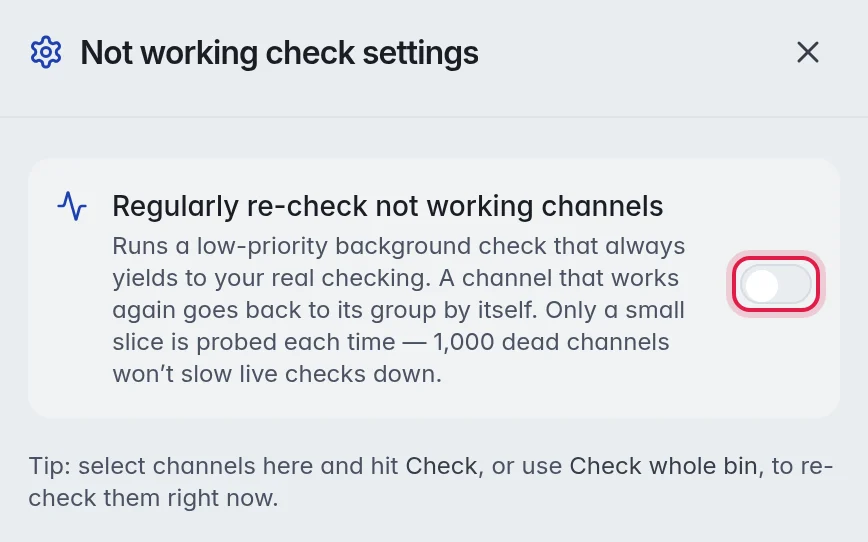
- Close: Click Close. The setting saves as you switch it. The same switch is in Playlist settings, under Checks & updates, in the Not working streams card: Re-check them now and then.
When this is on, M3UTool tests a small part of your parked streams in the background, again and again, behind your normal checks. A stream that works again goes back to its group by itself.
Hide not working streams instead
Sometimes you want dead streams out of sight without moving them. Hide not working streams hides every stream of the playlist that is offline right now from your users. The streams stay in their groups, marked as hidden.
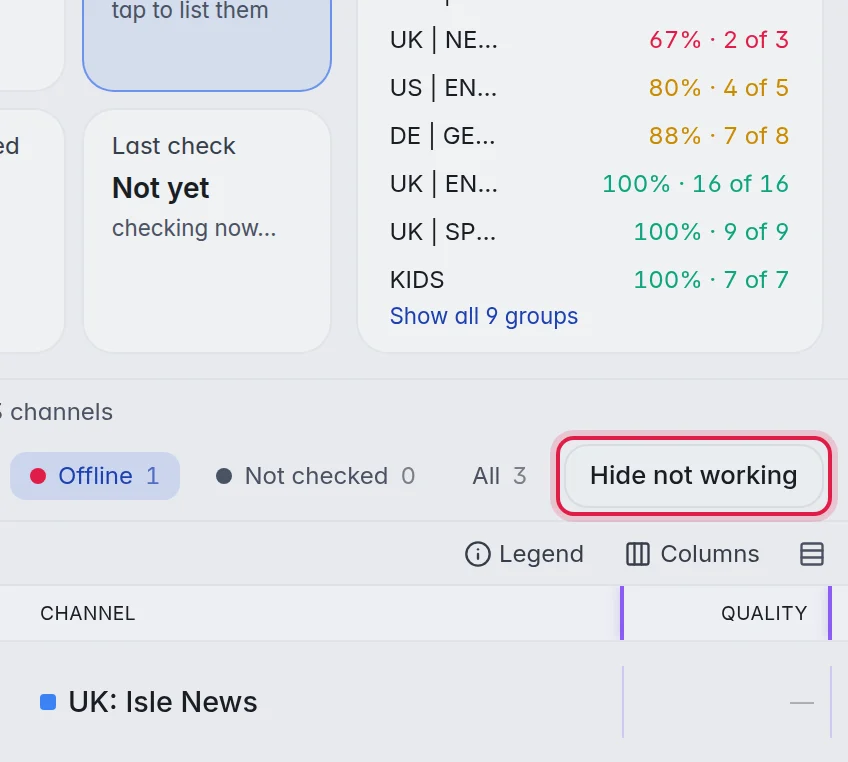
- Show the offline streams: On the Checker tab, click Offline above the grid.
- Hide them: Click Hide not working next to the status filters. The window Hide not working streams? says how many streams are offline. Click Hide them. The same action is under Tools, Careful, as Hide not working streams.
Note: Hidden streams do not come back by themselves when they work again. To show one again, open it in the Editor and switch off Hidden in its panel.
Good to know
- Important: When a group that worked well comes back almost entirely offline in one check, M3UTool parks nothing that time. A whole group dying at once is nearly always a problem at your provider. This is so that one bad evening does not empty your playlist.
- Not working and Deleted are two different tabs of the Bin. Move to bin sends a stream to Deleted, which is not re-checked any more. More in The Bin.
- Each user has the option Include offline streams. When it is off, streams that failed their last check are left out of that user's list until they work again. More in Add a user.