Messages to users
You can stay in touch with your users without leaving the editor. Users write to you from their own page, and you answer them under Tickets. You can also send one short message to all your users at once, for example before maintenance. This page shows both.
Answer a user's request
Users write to you on their own page, under Help & support. Their requests arrive in the editor.
- Open Tickets: Click Tickets in the bar on the left of the editor. A number on the icon shows how many requests are open.
- Open User tickets: Click User tickets at the top of the panel. The number on the tab shows how many requests are open.
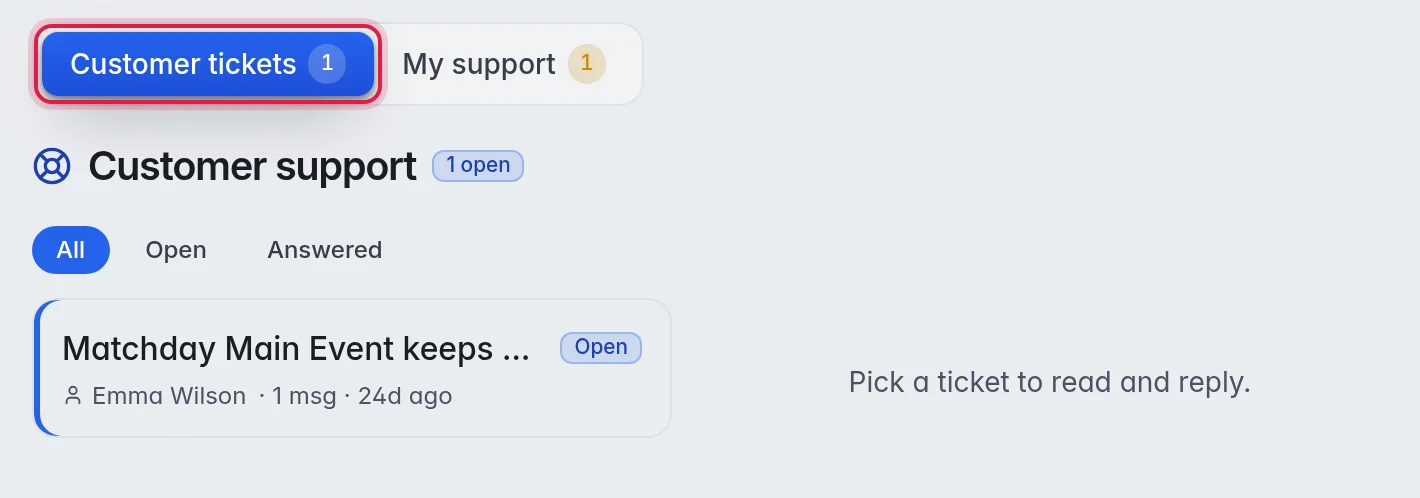
- Pick a request: Click a request in the list. Each one shows the subject, the user's name, the number of messages and when it last changed. Use All, Open and Answered to filter the list.
- Reply: Type your answer in the box under the conversation and click Send. Ctrl+Enter sends too.
- Close it when done (optional): Click Close at the top of the conversation and confirm with Close ticket. A closed request cannot get new replies.
The user sees your answer on their own page, under Help & support, marked as a new reply.
Send a message to all users
- Open Who's watching: Click Who's watching in the bar on the left of the editor.
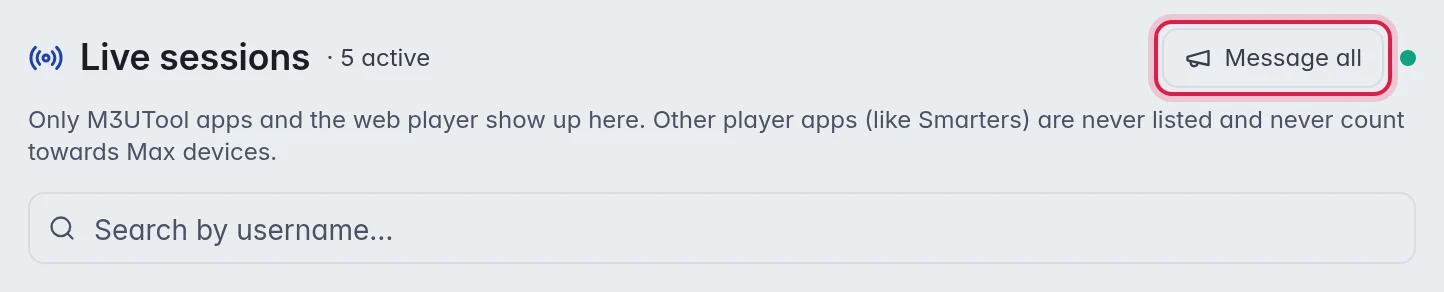
- Click Message all: Click Message all at the top right of the panel.
- Write the message: Type your text in Message, for example "Maintenance tonight at 02:00". Keep it short: up to 255 characters are sent.
- Send: Click Send. A line tells you for how many users the message is queued.
Where the message shows
- In the M3UTool apps: On the screen of users who have the app open within the next 15 minutes.
- On their own page: At the top, under their end date.
- In other players: Not at all. TiviMate, Smarters and other players have no place for it.
Good to know
- Message all goes to all your users, on every playlist, not only the playlist that is open.
- To send a message to one person who is watching right now, use the message icon on their row in Who's watching. More in Stop or message a viewer.
- If you connected Discord under Account, M3UTool also sends you a direct message on Discord when a user opens a new request. More in Your account.
- A user can have up to 5 open requests at a time.
- User requests are for your users. For help from the M3UTool team, use My support in the same panel. More in Support tickets.